

Table of Contents:
Almost every team running Microsoft 365 has a document library. Far fewer have one that actually works for them.
Here’s what I see on most sites I walk into:
- A single library with no metadata columns configured
- Folders nesting three or four levels deep, carried over from an old file share
- Permissions inherited from the site and never reviewed once
The library itself isn’t the problem. It ships ready to go, and most teams never touch half of what it can do.
The gap between that default setup and a properly configured one is enormous, and it’s where most of my consulting work actually happens.
The Simple Definition
A SharePoint document library is a container for files inside a SharePoint site. That part sounds basic, and at the surface level, it is.
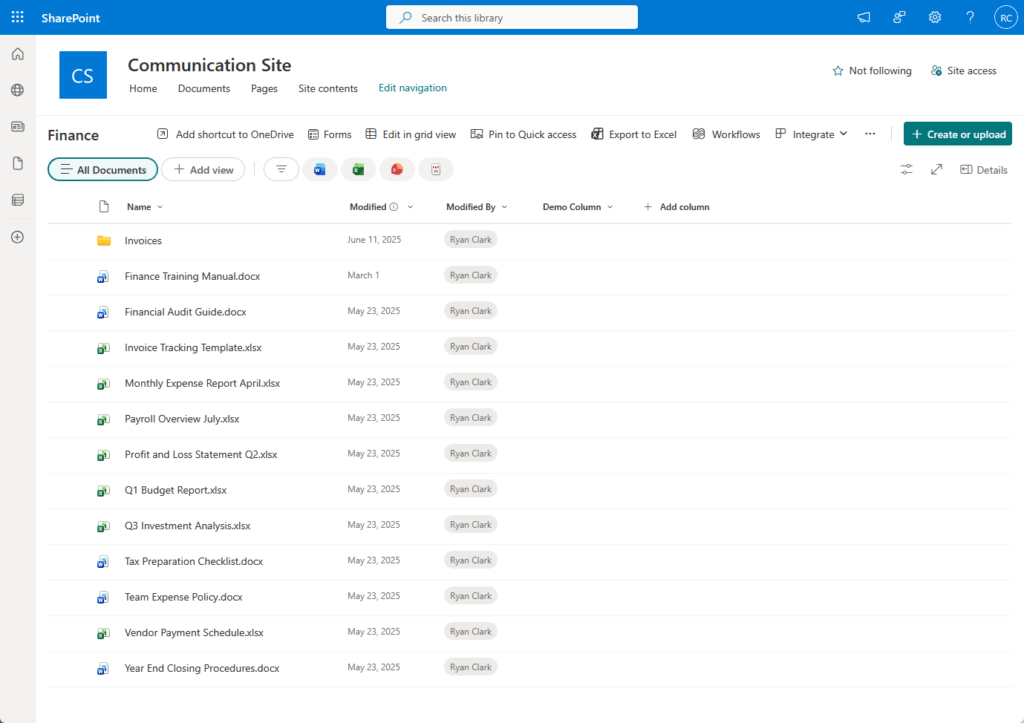
But it isn’t just a folder on a file server with a web address slapped on top. Every library comes with built-in plumbing:
- Metadata columns
- Custom views
- Granular permissions
- Automatic version tracking
A file share holds your documents. A document library manages them: it knows who owns each file, what stage it’s at, when it changed, and who can touch it.
That difference is small to describe and huge in practice. Most of this article is about what happens when you actually use that plumbing instead of ignoring it.
Sign up for exclusive updates, tips, and strategies
If you’ve spent years on network drives, the instinct is to treat SharePoint like one more drive letter.
I get why. It looks similar from the outside.
The mechanics underneath are completely different, though. A file share organizes everything by folder location, full stop.
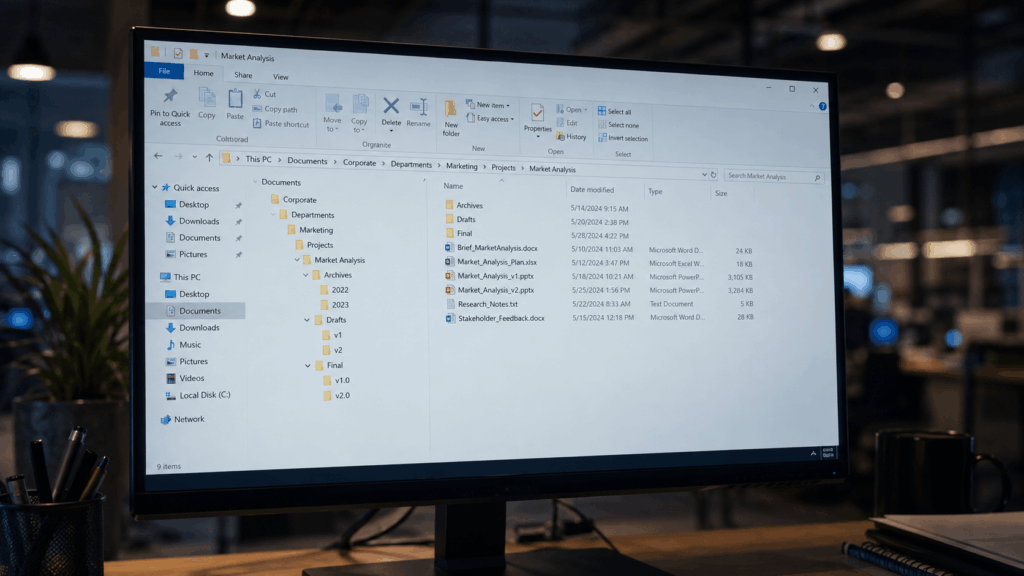
A document library can organize by attributes, so the same file can appear in a dozen filtered views without ever being copied or moved.
Then there’s the stuff a network drive simply can’t do: track every version, let two people edit at once, and manage who sees what at a granular level.
| Dimension | File Share | SharePoint Document Library |
|---|---|---|
| Organization | Folder hierarchy only | Metadata columns plus filtered views |
| Version history | Manual “final_v3” naming | Automatic, built in |
| Co-authoring | One person at a time | Multiple people, simultaneously |
| Permissions | Folder-level, hard to audit | Group-based, item-level control |
| Findability | Browse and hope | Filter, sort, search by attribute |
None of this is theoretical. With 85 to 86% of SharePoint instances now running in the cloud, you already have these capabilities sitting there.
The question is whether anyone turned them on.
Document Library vs. OneDrive for Business
Here’s the question I get more than almost any other: if I have OneDrive and SharePoint, where do my files actually go?
Fair question. Most people have both and nobody ever explained the split: OneDrive is for you, document libraries are for your team.

OneDrive holds your personal work files, drafts, half-finished decks, the stuff that isn’t ready for anyone else to see.
| Dimension | OneDrive for Business | Document Library |
|---|---|---|
| Ownership | You, individually | The team or site |
| Best for | Personal drafts, solo work | Shared, team-owned content |
| Collaboration | Ad hoc, one-off sharing | Built for many editors at once |
| Governance | Minimal, per-file only | Permissions, retention, policies |
| Sync | Syncs to your desktop | Syncs to your desktop too (this is the confusing part) |
A SharePoint document library holds team content. The files your whole department needs to find, edit, and govern together.
So what’s the rule? If more than one person needs the file, it belongs in a library.
You can share straight from OneDrive, sure. But sharing from there gets messy fast: no real views, no metadata, no permission groups, just a pile of one-off links.
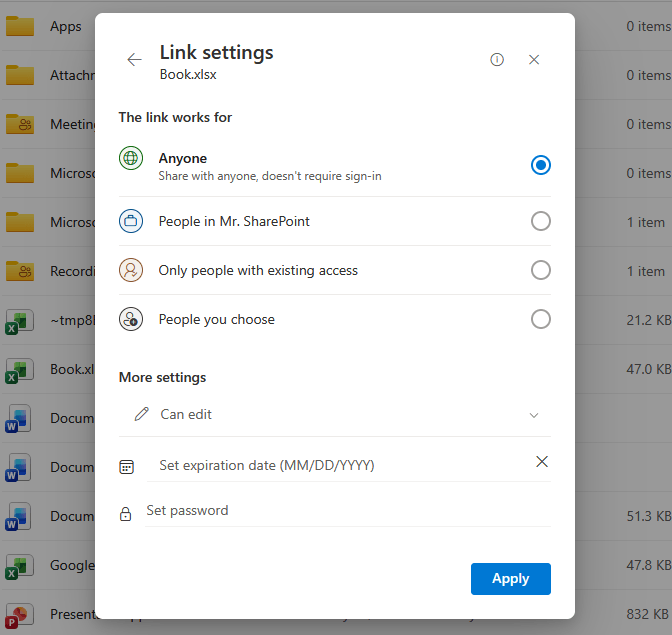
The reason people mix these two up is that you can sync a SharePoint library down to your OneDrive client. It shows up right next to your personal files.
Same interface, totally different purpose. Start a file in OneDrive if it’s yours and yours alone, then move it to a library the moment a second person needs in.
Let me walk through the parts that matter. These are the features that separate real document management from a glorified folder, and most ship ready to use.
Here’s the short version before I dig into the ones worth dwelling on.
| Feature | What It Does |
|---|---|
| Metadata columns | Tag files with attributes (department, status, client) for dynamic sorting and filtering |
| Views | Show different slices of the same library to different people, filtered and sorted on the fly |
| Version history | Keeps a running record of every change, so you can roll back to any earlier version |
| Permissions | Controls who can read, edit, or manage files, down to the individual item |
| Check-in / Check-out | Locks a file to one editor at a time when you need a single source of truth |
| Co-authoring | Lets multiple people edit the same document at once in real time |
Metadata and Views Work as a Pair
Metadata is where the real power lives, and it’s the feature teams skip most often.
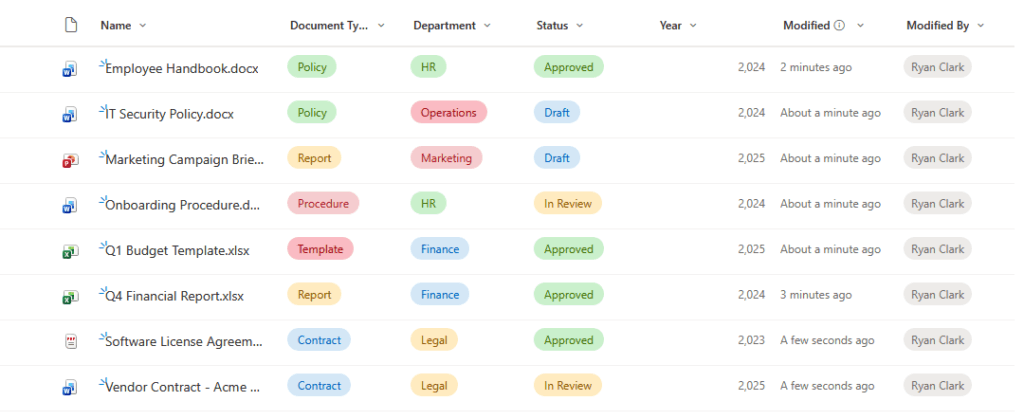
Instead of burying a contract six folders deep, you tag it: client name, status, year, document type. Once files carry that information, managed metadata becomes filtered views on demand.
One library can show “my open contracts” to legal and “everything closed this quarter” to finance, no duplication required.
Version History Is the Quiet Workhorse
I’d argue version history is the most underrated feature in the whole platform.
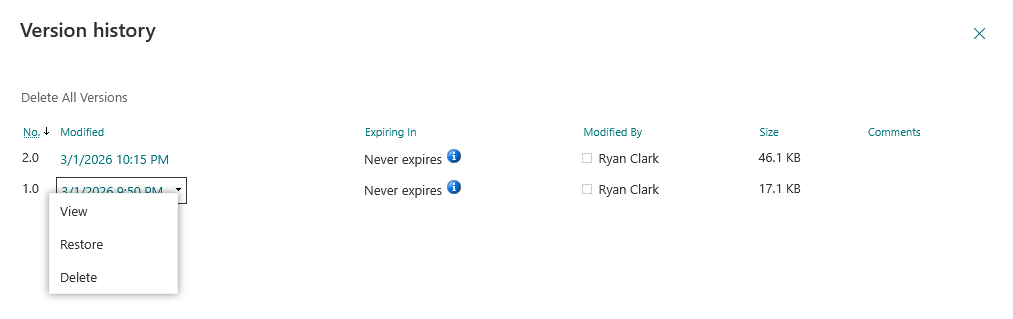
SharePoint Online keeps up to 500 major versions by default, so a bad edit is never permanent. Someone overwrites a proposal Friday? You roll it back in ten seconds.
No frantic emails, no recreating work from memory.
Check-Out and Co-Authoring Solve Opposite Problems
These two features pull in different directions, and that’s the point:
- Co-authoring lets a group edit a document together in real time, which is what you want most days.
- Check-out does the reverse: it locks a file to one person so nobody else can touch it mid-edit.
Worth knowing the two are mutually exclusive, so pick the one that fits the document.
The Gap Between Default and Optimized
This is where most teams go wrong, and it’s where the money leaks out.
The cost is measurable. Here’s what a disorganized file setup actually does to a working day:
- 48% of employees struggle to find versions of documents quickly.
- Nearly two-thirds have recreated a document because they couldn’t locate the original.
- Knowledge workers spend roughly 20% of their time hunting for files.
Those numbers aren’t bad luck. They’re the direct output of a library nobody configured.
A default library and an optimized one look identical on day one. Six months later, they’re nothing alike, and folders multiply because that’s the muscle memory from file shares.
Nobody adds metadata, so nothing is findable. Permissions get broken one inheritance exception at a time until no one can explain who has access to what.
Here’s what those two versions look like side by side.
| Dimension | Default Library | Optimized Library |
|---|---|---|
| Structure | Deep folder nesting | Flat structure, metadata-driven |
| Findability | Browse and scroll | Filtered views by attribute |
| Versioning | On by default, but unmanaged | Clear policy, users trained on rollback |
| Permissions | Inheritance broken ad hoc | Group-based, least privilege |
| Scale | Breaks past 5,000 items | Indexed columns keep views fast |
That last row is the one most teams don’t plan for. A library can hold up to 30 million items, but any single view chokes past 5,000.
Indexed columns and filtered views are how you stay clear of it, and that’s exactly the kind of thing nobody plans for until it breaks.
One Library or Many? How to Decide
Day one of a new site, every team hits the same fork: one big library, or several smaller ones?
Most teams default to one and just keep piling files in. That works fine right up until views start throwing errors past 5,000 items without indexed columns.

Scale alone isn’t the deciding factor, though. The real question is what lives inside.
Here’s how I size it up:
| Create A New Library When | Stay In The Same Library When |
|---|---|
| Different groups need different access | Everyone shares the same audience |
| The metadata schema is totally different | Files use the same columns and tags |
| Separate retention or compliance rules apply | One compliance policy covers it all |
| The content type is fundamentally different (contracts vs. HR docs) | Content is the same basic kind of thing |
The trigger for a new library is a genuine difference in how the content needs to be permissioned, tagged, or governed. More files alone won’t do it.
When permissions get really tangled, you’ve got another lever too. You can split by site, not just by library, and keep each group’s content fully walled off.
The mistake I see constantly? Teams split by project or by team out of reflex.
Six months later they’ve got 40 libraries nobody can navigate, and finding a single contract means guessing which silo it landed in.
Real talk: most teams need fewer libraries than they think. I’d start with one, then break out a new library only when the content demands different rules.
A Note on AI
Here’s a wrinkle that makes all of this more urgent:
Copilot now reads from your SharePoint content, which means a sloppy library isn’t just inconvenient anymore.
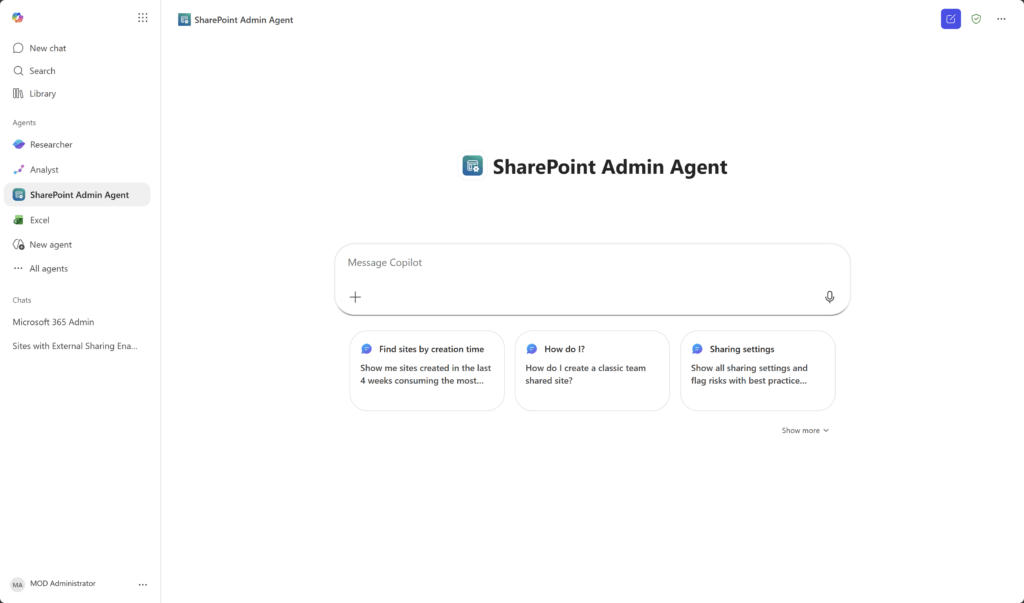
Source: https://learn.microsoft.com/en-us/sharepoint/get-ready-copilot-sharepoint-advanced-management
It’s a data exposure risk at scale. If permissions are broken and a sensitive file is accidentally readable, Copilot will happily surface it to whoever asks.
AI doesn’t fix bad governance. It scales it.
1 in 3 data breaches involve shadow data in unmanaged locations. The fix: clean permissions through groups, accurate metadata, and a structure you can audit.
Start With the Library, Not the Migration
If you take one thing from this article: the document library is your foundation, and foundations are far cheaper to build right than to redo later.
Three moves make the biggest difference at setup:
- Turn on versioning at creation and tell your team how rollback works.
- Plan your metadata columns before anyone uploads a single file.
- Assign permissions through groups, never individuals, with least privilege as the default.
The payoff is real. One consumer goods firm consolidated scattered files into a structured SharePoint environment and saw a 50% jump in productivity.
Doing this at setup costs a fraction of fixing it later. I’ve untangled enough broken libraries to know the cleanup is always the harder job.
When your files are impossible to find and your permissions are a mystery nobody can explain, that’s a configuration issue. It’s fixable.
Configuration is exactly what I do, and I’ve spent years turning messy, neglected libraries into systems teams actually trust. Reach out and let’s talk.




























