
Table of Contents:
- Microsoft’s Service-Entity Model vs Google’s File-System Approach
- The Departed Employee Crisis: Where Microsoft’s 30-Day Cliff Hurts
- The AI Exposure Problem (Copilot and Gemini Change Everything)
- Admin Visibility and Governance: Microsoft’s Blind Spot vs Google’s Command-Line Power
- Making the Choice: What Actually Matters
Last Updated on January 25, 2026
Forms aren’t survey tools anymore. They’re workflow triggers that start approval processes, feed data pipelines, and power automation across your organization.
The choice between Microsoft Forms and Google Forms isn’t about which interface looks prettier.
It’s about data governance, lifecycle management, and how AI agents like Copilot and Gemini can expose your sensitive information.
The architectural differences only become visible after deployment at scale.
The painful realities of employee offboarding hit when you least expect them. The automation headaches break your workflows at the worst possible time.
Day 2 operations is where the real problems live.
Microsoft’s Service-Entity Model vs Google’s File-System Approach
Where your form data lives determines everything else. The storage model controls permissions, lifecycle management, and recovery options when things go wrong.
Microsoft and Google take fundamentally different approaches to this problem.
Here’s how the models compare:
| Feature | Microsoft Forms | Google Forms |
| Core architecture | Service object (web entity) | Drive file |
| Response storage | Response workbook stored in SharePoint Online (group-connected) or OneDrive for Business (personal), depending on the form’s starting point | Internal store + linked Google Sheet |
| Permission model | M365 Group membership or user ownership | Drive ACLs (Editor/Viewer/Commenter) |
| Data sovereignty | Tenant/EUDB boundaries, Multi-Geo via SharePoint | Data Regions policy (US or Europe), applied via organizational units or configuration groups |
| Recovery model | Ownership transfer after account deletion must happen within 30 days; separately, users can recover forms from the Deleted forms area in Forms | Flexible Drive restore tools |
Microsoft Forms
Microsoft Forms operates as a web-based service object. A form isn’t a file you can drag into a folder or attach to an email.
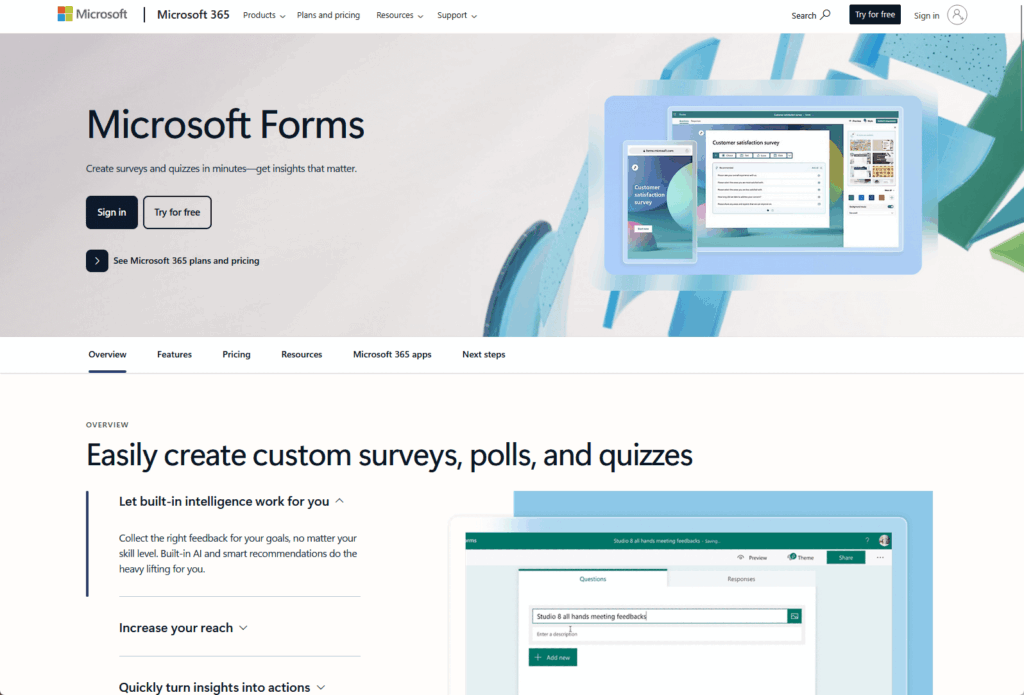
Personal Forms (“My forms”) are tied to the creator’s Microsoft 365 (Entra ID) account.
For compliance/eDiscovery, Microsoft documents Forms definitions and responses as discoverable via the creator’s Exchange mailbox (and via a Group mailbox for group-associated forms).
At the same time, the response workbook you open in Excel is stored in OneDrive for Business (personal) or SharePoint Online (group-connected).
Group Forms change this entirely. These forms belong to a Microsoft 365 Group, not an individual person.
The responses for Group Forms get stored in a live Excel workbook sitting in the Group’s SharePoint document library. This Excel file maintains a persistent connection with the Forms service.
Google Forms
Google Forms works completely differently. A Google Form is actually a Drive file with the MIME type application/vnd.google-apps.form.
It behaves like any other Drive file. It has an Access Control List, sits in a folder structure, and shows up in standard Drive searches.
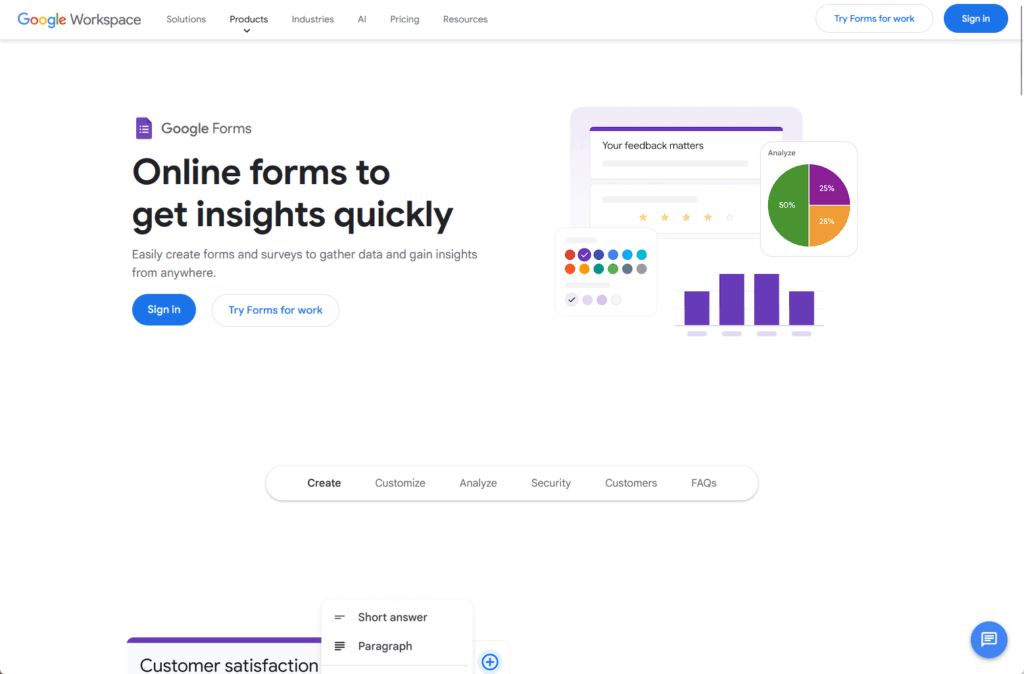
Most organizations link Google Forms to a Google Sheet for response storage. But here’s the gotcha: the Form and the Sheet are separate files with separate permissions.
You can share the Form with your entire department while the response Sheet remains private to you. Or worse, you can make the Sheet public while thinking the Form controls access.
Shared Drives (Google’s version of team storage) solve the ownership problem. When you create a form inside a Shared Drive, the domain owns it, not you.
This matches the architecture of Microsoft’s Group Forms. Both platforms need this team-level ownership for business continuity.
Data Residency and Sovereignty
Microsoft enforces strict EU Data Boundary (EUDB) compliance for tenants provisioned in Europe. Form definitions and response data stay exclusively within EU datacenters.
Multi-Geo support adds complexity. Because Group Forms store responses in SharePoint, the data location follows the Group’s geography, not necessarily the tenant’s primary region.
If a US-based admin creates a Group for your German team and that Group defaults to US geography, the Excel response file sits in US datacenters. This can violate GDPR requirements even with Multi-Geo enabled.
Google uses Data Regions policies that pin “covered data” to specific locations (US or Europe). Administrators apply these policies at the Organizational Unit or Group level.
Google warns about performance trade-offs. Pinning data to Europe means Asian or American users experience higher latency when editing or submitting forms.
Bottom line: For business continuity, Microsoft Group Forms and Google Shared Drive Forms are your only real options. Personal or My Drive forms create operational liabilities you can’t afford.
Sign up for exclusive updates, tips, and strategies
The Departed Employee Crisis: Where Microsoft’s 30-Day Cliff Hurts
Employee offboarding reveals the sharpest difference between these platforms. Microsoft’s approach creates a high-stakes race against time that Google simply doesn’t have.
The risk isn’t theoretical. Every Personal Form tied to a departed employee is one month away from permanent data loss.
Microsoft’s Rigid Transfer Model
You cannot transfer ownership of a Personal Microsoft Form to another individual user. The only option is moving it to a Microsoft 365 Group.
This “Move to a Group” function is one-way and irreversible. Once the form lands in a Group, it can’t move back to a user or transfer to a different Group.
Choose the wrong Group and you’ve created a security problem. For example, moving a confidential HR form to a general “HR Team” group exposes it to everyone in that team.
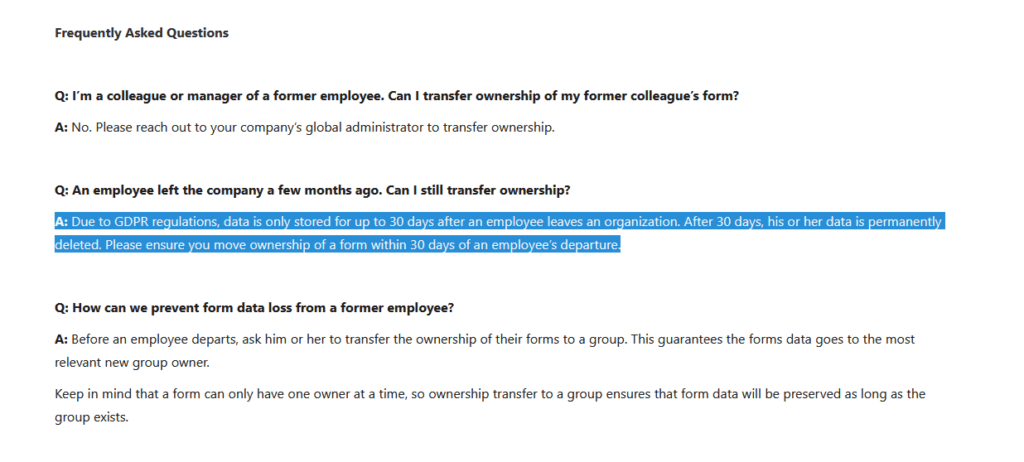
Here’s the critical timeline: You have up to 30 days after account deletion to transfer ownership of that user’s forms (assuming requirements are met).
The recovery process isn’t simple:
- Restore the user account (or access it while soft-deleted)
- Verify a valid Forms license is assigned
- Then log in as that user to access their forms
After 30 days, the user object gets hard-deleted from Azure AD. At that moment, the Forms service purges all personal forms tied to that User ID.
For forms deleted by a user, Microsoft Forms includes a Deleted forms tab that functions like a recycle bin. The bigger risk is deleted user accounts, where ownership transfer has a limited window.
Google’s Flexible (But Fragmented) Approach
Google lets you transfer form ownership to any active user in your domain or to a Shared Drive. The flexibility is real.
Admins can restore a deleted user (and their Drive data) for up to 20 days after deletion. But standard offboarding practice transfers Drive content to a manager immediately at deletion.
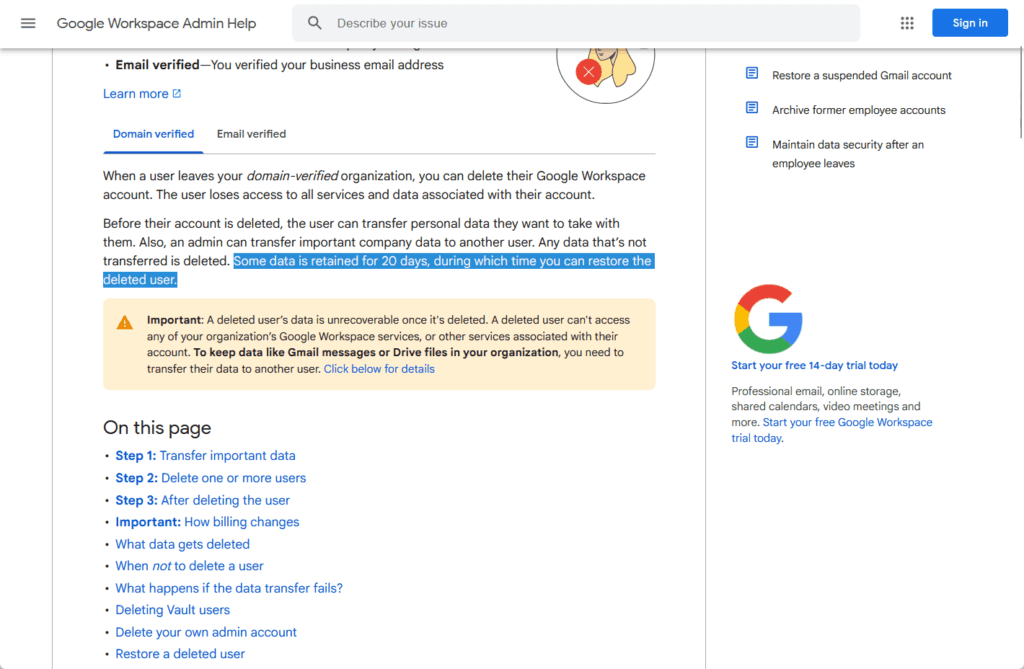
But the native Admin Console transfer tool has one problem: it’s an all-or-nothing operation. You get business forms, personal files, random screenshots, and everything in between.
Fortunately, GAM (Google Apps Manager) solves this with surgical precision. It’s the enterprise standard for managing Google Workspace assets granularly.
You can list all forms owned by a departing user:
gam user print filelist query "mimeType='application/vnd.google-apps.form'"Then transfer ownership of only the relevant business forms:
gam user transfer ownership id <FileID>GAM also handles “orphaned files,” which are files owned by deleted users that sit in folders owned by someone else. When the owner disappears, the file loses its parent hierarchy.
Offboarding Workflow Comparison
Here’s how the workflows compare:
| Action | Microsoft Best Practice | Google Best Practice |
| Pre-deletion | Audit user for Personal Forms, move critical forms to Groups, update Power Automate flows | Use GAM to list owned forms, transfer to Service Account or Shared Drive, verify Sheet ownership matches Form |
| Deletion window | 30 days to recover | 20 days to recover |
| Transfer target | Must be a Group/Team, cannot be individual user | Can be user, Service Account, or Shared Drive |
| Automation impact | High risk of breakage, flows need re-authoring | Moderate risk, script triggers may need re-authorization |
Here’s what you need to do: Organizations using Microsoft 365 must enforce a strict policy where no business-critical form stays in a “Personal” context.
All forms used for workflows (leave requests, IT tickets, expense approvals) should be created as Group Forms from day one. Or moved immediately after creation.
Script a nightly PowerShell job that scans for high-traffic Personal Forms and alerts the creator. Don’t wait for the offboarding surprise.
The AI Exposure Problem (Copilot and Gemini Change Everything)
Generative AI integration changes the risk profile of data collection completely.
The concern isn’t just collecting data anymore. It’s how AI agents index, process, and resurface that data to users who shouldn’t see it.
Microsoft 365 Copilot’s Semantic Index Risk
Microsoft 365 Copilot operates on a principle called “security trimming.”
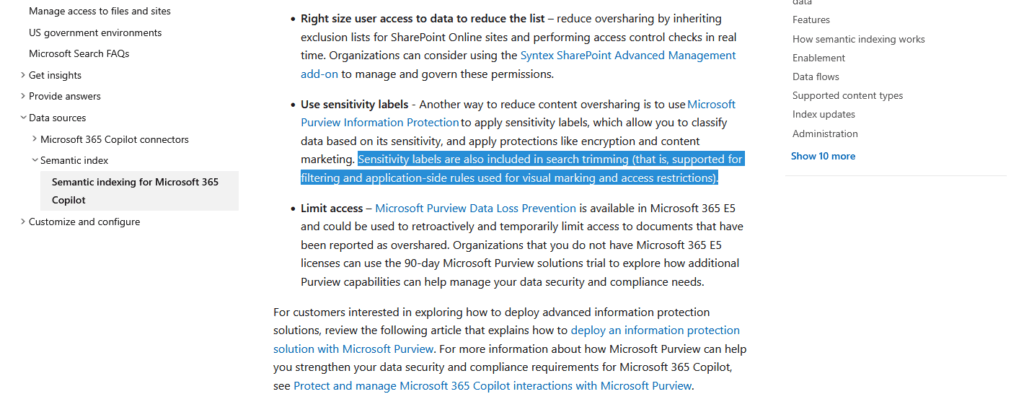
Copilot respects existing permissions (‘security trimming’), meaning it can only ground answers in content the user is permitted to access
Sounds reasonable. But here’s where it gets dangerous.
A department manager creates a Group Form for “Employee Salary Expectations” or “Whistleblower Feedback.” The responses store in an Excel file in the Group’s SharePoint site.
Many organizations create Team sites with default “Public” visibility. Or someone shares the Excel file with “Everyone except external users” to make reporting easier.
Before AI, a curious employee would need to navigate to that specific SharePoint site, find the Shared Documents library, and open the Excel file. This “security by obscurity” offered a flimsy but somewhat effective shield.
With Copilot, that employee just asks: “What are the salary expectations listed in the recruitment files?“
Copilot scans the Semantic Index, finds the readable Excel sheet, and summarizes the confidential data instantly.
The permission technically allowed access. But nobody expected the data to be this easy to find.
Mitigation Strategies
SharePoint Advanced Management provides controls for this problem:
- Restricted Content Discovery and Restricted SharePoint Search, which limit how SharePoint content is discoverable in organization-wide search and Microsoft 365 Copilot.
- Sensitivity labels can enforce encryption and usage restrictions. When a Form results Excel file is encrypted by a label, Copilot cannot summarize or extract its contents without explicit decryption rights.
It won’t summarize or extract data from encrypted files unless the user has specific usage rights to decrypt them.
Google’s approach differs slightly but follows the same principle. Gemini for Workspace respects Drive permissions. If you can read the response Sheet, Gemini can summarize it.
Client-Side Encryption (CSE) provides a hard stop. When CSE is enabled for the Drive folder housing Form results, data gets encrypted before it reaches Google’s servers.
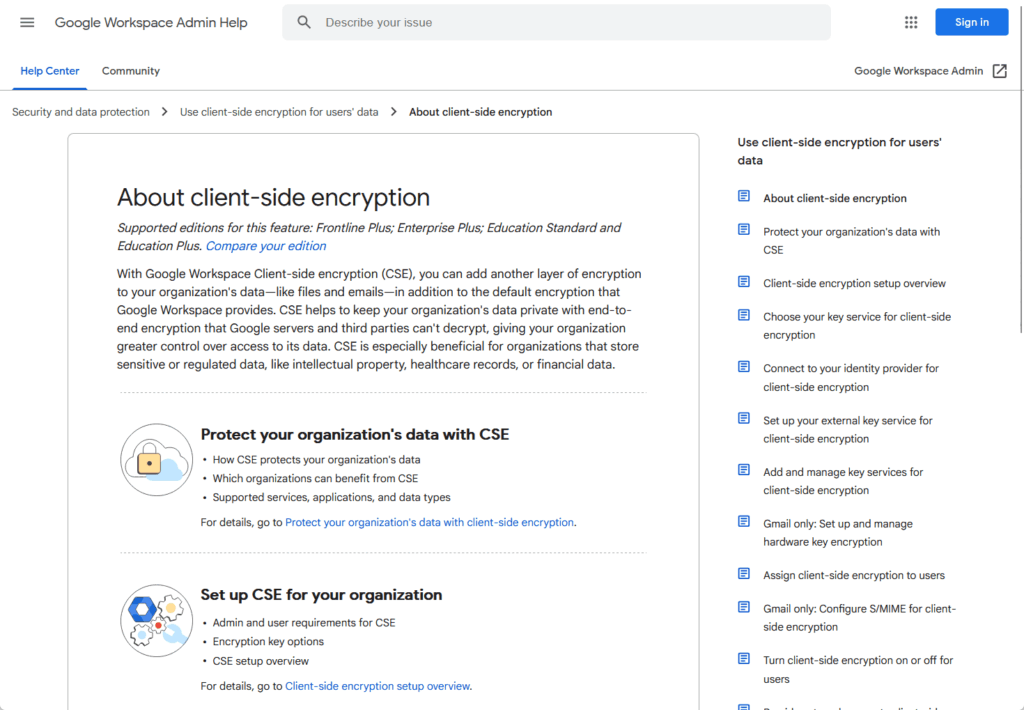
Gemini can’t access, index, or summarize this data. The encryption happens on your device.
You can also disable Gemini features for specific Organizational Units. Turn off AI tools for your Legal Department, and Gemini won’t process any data in that high-sensitivity context.
Here’s how the AI risks compare:
| Risk Factor | Microsoft 365 Copilot | Google Gemini for Workspace |
| Oversharing mechanism | Semantic Index surfaces “forgotten” but accessible files | Drive Search integration finds files via natural language |
| Data training | Does not train on tenant data | Does not train on Workspace customer data |
| Access control | Sensitivity Labels block AI access and summarization | Client-Side Encryption prevents AI access entirely |
| Mitigation tool | Restricted SharePoint Search (site exclusion) | OU-based feature toggles (disable AI for specific users) |
The era of “security by obscurity” is over. If the permission exists, AI will find it.
Before deploying Copilot or Gemini, run a permissions audit of all Forms repositories. Use automated tools to scan for Forms and Sheets containing PII that are shared with “Everyone” or “Domain Users.”
Every accessible file is now one prompt away from exposure. Treat it accordingly.
Admin Visibility and Governance: Microsoft’s Blind Spot vs Google’s Command-Line Power
Sprawl in 2026 means thousands of unused, duplicate, or abandoned forms cluttering your environment. They create liability and confusion.
Your ability to see and manage these forms determines whether you have control or chaos.
Microsoft’s Admin Gap
The Microsoft 365 Admin Center shows high-level usage stats. You can see “500 forms created this month.”
What you can’t see: which forms exist, who owns them, or how active they are. There’s no “Manage All Forms” console and no official Microsoft Graph API endpoint to list all forms in your tenant.
Administrators resort to two unofficial workarounds:
- Unsupported PowerShell scripts: Create an Azure App Registration and use undocumented internal API headers (imitating browser calls) to impersonate users and list their forms
- Unified Audit Log mining: Filter for the operation
CreateFormto build a historic database of form creation events
Both approaches have serious limitations. PowerShell scripts break when Microsoft updates the Forms backend, and you’re on your own when they fail.
Audit log mining is retrospective only. It shows what was created in the past, not what currently exists or remains active today. This is a significant roadmap gap that Microsoft hasn’t addressed.
Google’s GAM Advantage
Google provides superior tools for command-line administrators. GAM (Google Apps Manager) is an open-source tool that queries the Drive API directly.
This command lists every form in your tenant:
gam all users print filelist query "mimeType = 'application/vnd.google-apps.form'"You get a CSV with every form’s owner, last modified date, and sharing status.
Now you can script automated governance policies:
- Identify stale forms: Find all forms not modified in over one year
- Identify orphans: Find forms owned by suspended or deleted users
- Remediate automatically: Transfer ownership to an archive account or delete them
Shared Drives enforcement takes this further. Restrict form creation to Shared Drives and you eliminate the “Personal Form” sprawl problem entirely.
Regardless of which platform you choose, every forms deployment needs answers to three questions:
- Who owns the data? (Group/Shared Drive vs individual user)
- When does it expire? (Retention policy and deletion timeline)
- Who protects it? (Sensitivity Labels, encryption, access controls)
Without clear answers, you’re building a data liability that grows every day.
Making the Choice: What Actually Matters
Most enterprises don’t get a clean choice between platforms. You’re managing a hybrid environment, migrating from one to another, or locked into an ecosystem by other business decisions.
The real question isn’t which platform has better features. It’s which one you can actually govern at scale.
Choose Microsoft Forms when:
- You’re deeply invested in Microsoft 365 Groups for Teams, Planner, and SharePoint
- You need tight Purview integration for eDiscovery and legal hold
- Sensitivity Labels and auto-encryption are core security controls
- You can enforce and maintain a strict “Group Forms only” policy
Choose Google Forms when:
- You need granular, programmatic admin control through GAM
- Flexible ownership transfers and standard Drive retention matter
- Client-side encryption is a hard security requirement
- You’re comfortable scripting governance or using AppSheet for complex workflows
Most organizations manage both platforms during transitions.
Use attrition migration: keep existing forms on the old platform, mandate the new platform for future projects, and set a sunset date for legacy forms.
Anyway, it’s good to remember that forms aren’t just data collection tools in the AI era. They’re exposure vectors waiting for the right prompt to surface sensitive information.
The platform that wins is the one you can govern:
- Audit all Personal and My Drive forms now
- Migrate them to Group or Shared Drive ownership before the next employee departure
- Run permissions audits before deploying Copilot or Gemini
The organization that masters form storage and governance will master data collection. The one that doesn’t will spend years cleaning up the mess.
Got questions about managing Forms in your environment? Drop a comment below and let’s talk through your specific situation.
For any business-related queries or concerns, contact me through the contact form. I always reply. 🙂