

Table of Contents:
- Why Onboarding Feedback Is Worth Collecting at All
- What to Ask, and When
- Building the Onboarding Survey Forms in Microsoft Forms
- Where the Real Value Is: Piping Responses Into a SharePoint List
- The Governance Gotchas Nobody Warns You About
- Turning Responses Into Something HR Can Actually Use
- Build the Pipeline, Not Just the Form
You can build an onboarding survey in Microsoft Forms before your coffee gets cold. Pick a template, tweak a few questions, and hit share.
Here’s what I actually build for a client’s onboarding program:
- A survey cadence spaced across the first 90 days
- The forms themselves, templated for each touchpoint
- A Power Automate flow that pipes every response into a SharePoint list
- Reporting on top, so the feedback actually gets used
The first two are the easy part. Anyone can build a form, and that’s exactly why so much onboarding feedback goes nowhere.
The form is easy, so the whole project feels easy. Then the answers end up trapped in Forms, or dumped into an Excel file nobody opens again.
The real work is everything downstream, and that’s where it gets hard: where responses get stored, how they’re tracked, and whether you can still report on them months later.
Why Onboarding Feedback Is Worth Collecting at All
Onboarding is a bigger deal than most companies treat it as, and the numbers are ugly: only 12% of employees say their company does a great job onboarding.
A lot of teams collect nothing at all. A few data points worth sitting with:
- 29% of employees got no opportunity to give feedback during onboarding
- 29% of HR leaders rank onboarding-period attrition as their single biggest challenge
- A failed new hire can cost anywhere from $25,000 up to $50,000, per the same HR and CHRO data
New people decide fast, too. 86% of new hires make up their mind about how long they’ll stay within their first six months.
If you’re not collecting feedback in that window, you’re flying blind through the exact period that decides retention.
That money is walking out the door because nobody asked the right questions at the right time. This isn’t a soft, nice-to-have metric.
Feedback is how you catch the problem while the person is still in the building.
Sign up for exclusive updates, tips, and strategies
What to Ask, and When
The best onboarding feedback runs on a cadence across the first 90 days, because what you need on Day 1 is nothing like what you need at Day 90.
A five-touchpoint model works well as a starting frame:
| Touchpoint | Focus | Anonymous? | Rough Question Count |
|---|---|---|---|
| Day 1 | Operational basics (access, equipment, logistics) | No | 3-5 |
| Week 1 | Role clarity, early expectations | No | 5-8 |
| 30-Day | Ramp, team integration | Yes | 10-12 |
| 60-Day | Development, manager relationship | Yes | 10-12 |
| 90-Day | Retention signal, program feedback | Yes | 12-15 |
Notice the anonymity column flips partway down. That’s deliberate.
Attributed responses are fine for Day 1 and Week 1 logistics, because “did your laptop show up” isn’t sensitive.
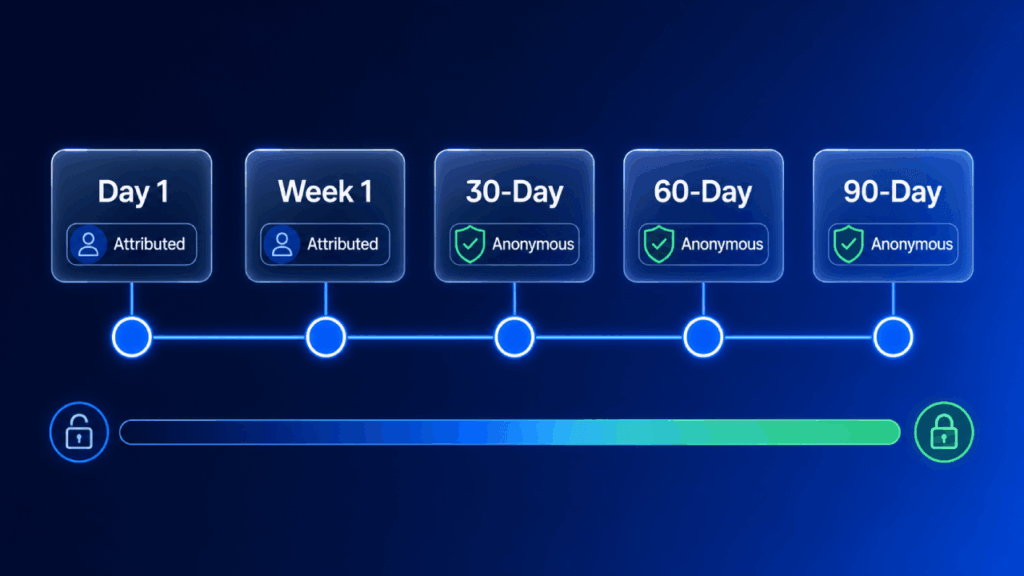
Once you start asking about manager quality, team dynamics, or whether someone’s thinking about leaving, anonymity should escalate with the sensitivity of the question.
There’s a good reason to protect those later answers. Job misrepresentation ranks as the number two reason new hires quit in the first 90 days.
And belonging predicts year-one retention better than pay does. People won’t tell you that honestly if their name is stapled to the response.
How to Read the Responses
One more thing I tell every client: analyze by cohort, not by individual. Look at patterns across start month, team, role, and manager, because that’s where the signal lives.
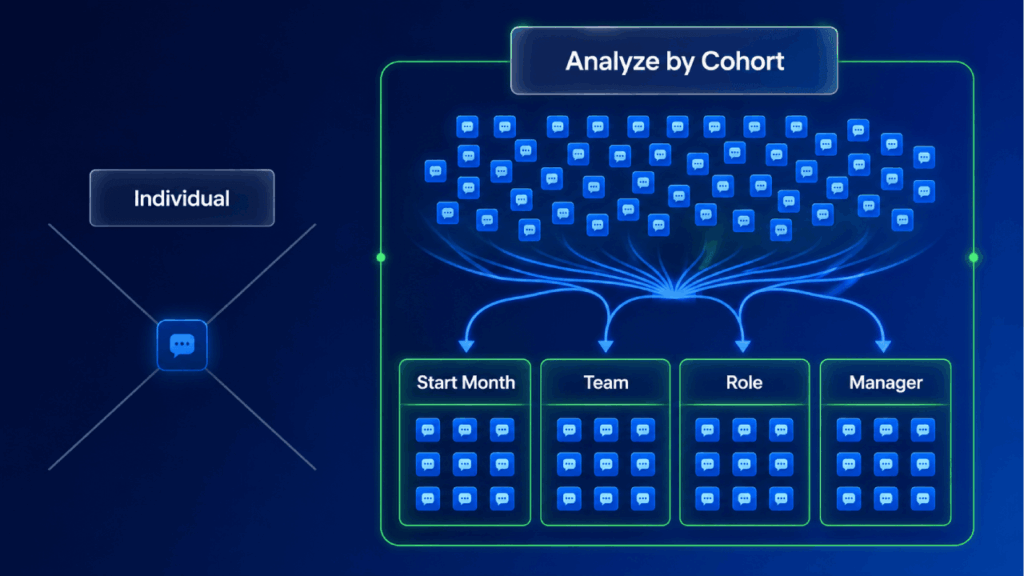
It also keeps you out of the weird territory of reading one person’s answers like a performance review.
Onboarding also runs longer than most people assume. SHRM frames it as a process lasting up to 12 months, distinct from a one-day orientation.
It even publishes ready-made templates (New Hire Survey, Remote New Hire Survey, Onboarding Checklist) you can lift questions from.
Building the Onboarding Survey Forms in Microsoft Forms
Now the part everyone finds easy. In Forms, you’ll mostly lean on three question types:
- Rating scales for satisfaction and confidence
- Multiple choice for structured answers you’ll want to filter later
- A couple of open text boxes for the “anything else” stuff
Keep the open text light. Free-form answers are a pain to analyze at scale.
Starting from a template beats a blank page. Grab one of SHRM’s, or clone an internal form you’ve already built, then trim it to the question count for that touchpoint.
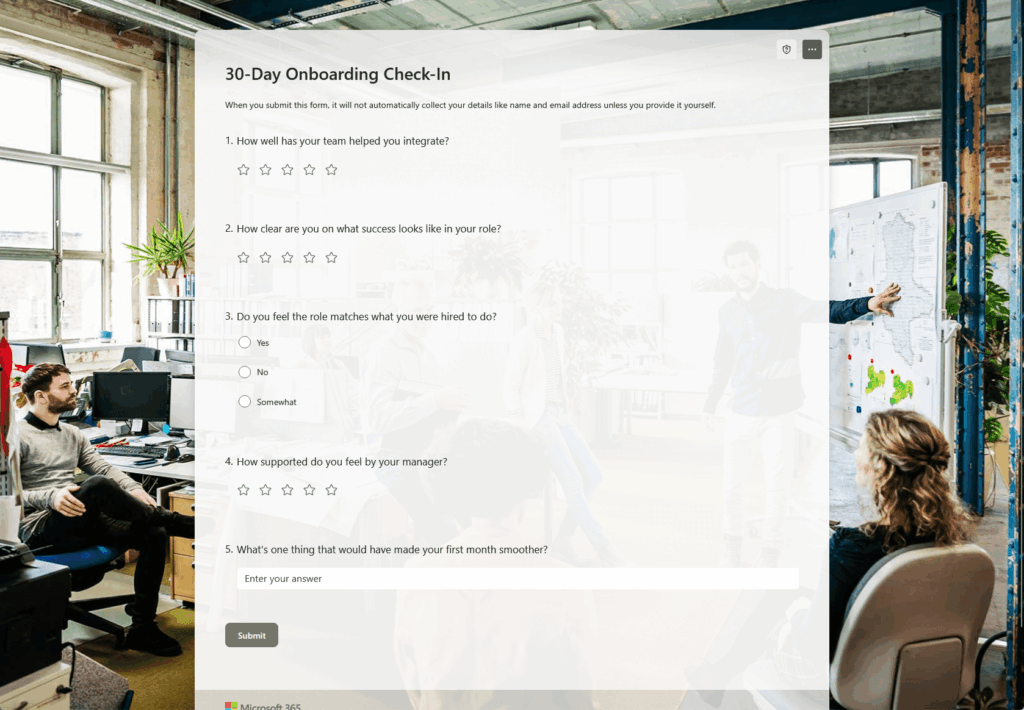
Here’s a gotcha that bites people. Internally shared forms log name and email by default.
If you promised anonymity on the 30, 60, and 90-day surveys and forgot to switch off “Record name,” you just broke that promise without knowing it.
So check that setting on every anonymous form before it goes out.
Rough example questions by stage, so you’re not starting cold:
- Day 1: Did you have working equipment and system access on your first morning?
- Week 1: How clear are you on what success looks like in your role?
- 30-Day: How well has your team helped you integrate?
- 60-Day: How supported do you feel by your manager’s involvement?
- 90-Day: How likely are you to still be here in a year?
That last one matters more than it looks. Manager involvement alone makes new hires 3.4x more likely to call their onboarding exceptional.
So the 60-day question about manager support is often your most predictive data point.
Build these well and you’ve got a solid survey program. But Forms has walls, and you’ll hit them sooner than you think.
Where Microsoft Forms Runs Out of Road
Branching is the first wall. It only moves forward, so an answer can send someone to a later question, never back to an earlier one.
There’s no compound logic, no “if this and that.” For a simple survey that’s fine, but for anything adaptive it gets frustrating.
The bigger wall is storage. Past 50,000 responses, core features start dropping out:
- Charts
- Individual response viewing
- Printing
- Summary links
At that point your only real move is to pull everything into Excel. Microsoft’s own retention advice is to export your responses, then clear the form to keep collecting.
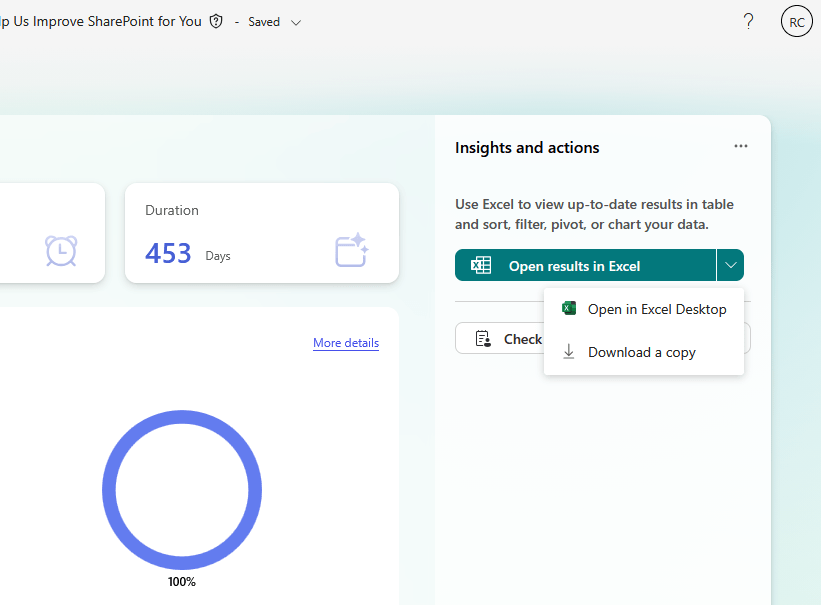
Think about what that means for onboarding data. You’re supposed to track trends across quarters and cohorts.
But the platform is telling you to periodically dump and wipe your history. That’s the moment SharePoint stops being optional.
The native default sends your responses to an Excel file sitting behind the form. For a quick poll, that’s fine.
For onboarding data you want to slice by cohort and track over a year, that Excel file is a dead end. Three problems with it:
- Hard to govern
- Easy to lose
- Stuck inside a form Microsoft wants you to clear out
A SharePoint list fixes that. It’s structured, permissioned, reportable, and it keeps living long after any single form does.
The bridge between the two is Power Automate. The canonical flow is short.
It’s a three-step pattern: “When a new response is submitted” as the trigger, then “Get response details,” then a SharePoint “Create item” that writes the answers into your list.
And you don’t have to build any of it by hand. The new designer has Copilot built in, so it’ll draft the whole flow from a plain-language prompt.
Give it the trigger and the destination in a “When X happens, do Y” format. Here’s one I’d start with:
When a new response is submitted in Microsoft Forms, get the response details and create an item in my “Onboarding Survey Responses” SharePoint list, mapping each answer to its column.
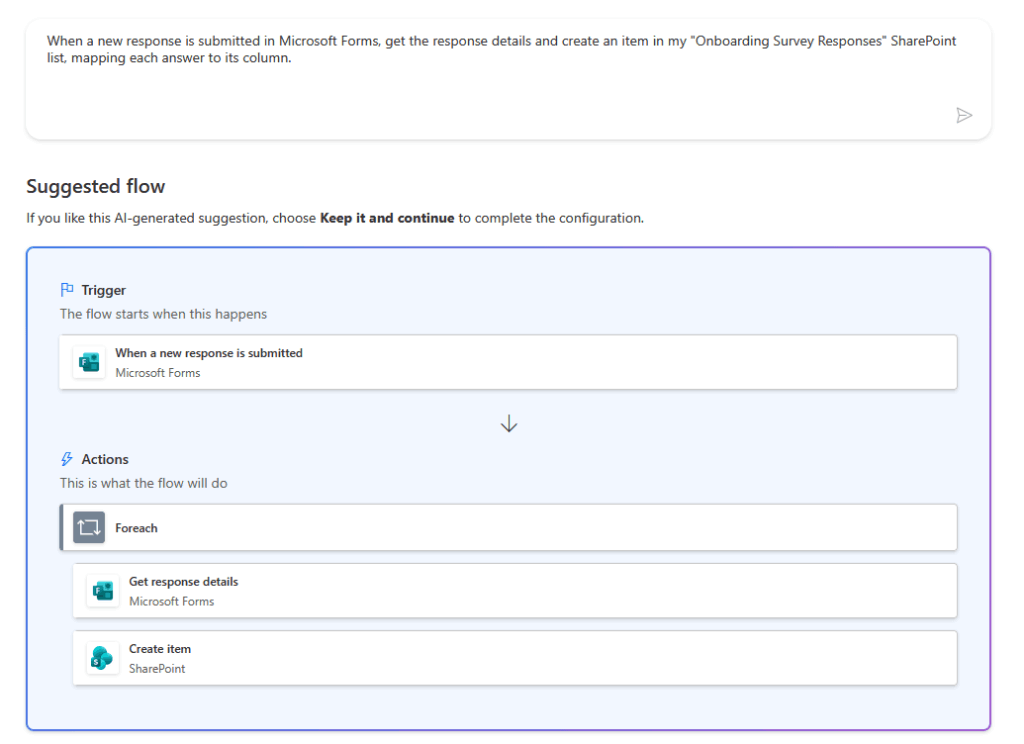
Copilot gets you most of the way, but it only works in the new designer and leans on English. Read every step before you trust it.
Want to build it yourself, or tweak what Copilot generated? Here’s the sequence I’d follow, in order:
- Build the Form first, so you know your exact questions and answer types
- Create a SharePoint list with columns that match those questions, one column per field
- Use the “Record form responses in SharePoint” template in Power Automate as your starting flow
- Map each form field into the “Create item” step so answers land in the right columns
- Collect email instead of a free-text name, so identity resolves cleanly to SharePoint Person or Group claims
That last step saves you real pain. A typed-in name is just text, and it won’t reliably match a user account.
An email address resolves to an actual identity. That matters the moment you want to filter responses by manager or team.
Once the base flow runs, layer on the extras, either by asking Copilot or adding them yourself. A few worth building:
- Post a message to an HR Teams channel whenever a new response lands
- Email the new hire a thank-you once their survey is in
- Start an approval if a 90-day score drops below your threshold
- Grant each submitter access to their own item, so per-person visibility holds
- Stamp every item with its touchpoint (Day 1, 30-day, and so on) for easier filtering
Once this pipeline is running, every submission flows straight into a governed list automatically.
No exports, no manual copying, no data trapped behind a form you’re about to clear. This is the setup that lets onboarding feedback survive long enough to be useful.
It’s also, not coincidentally, the part that separates a ten-minute form from a real HR data system.
The Governance Gotchas Nobody Warns You About
Here’s what I keep seeing: teams build the flow, watch it work, and assume they’re done. Then something breaks nobody planned for, and the whole pipeline quietly falls over.
The flow is tied to whoever built it. Power Automate flows run under the creator’s identity, and they can’t be cleanly transferred.
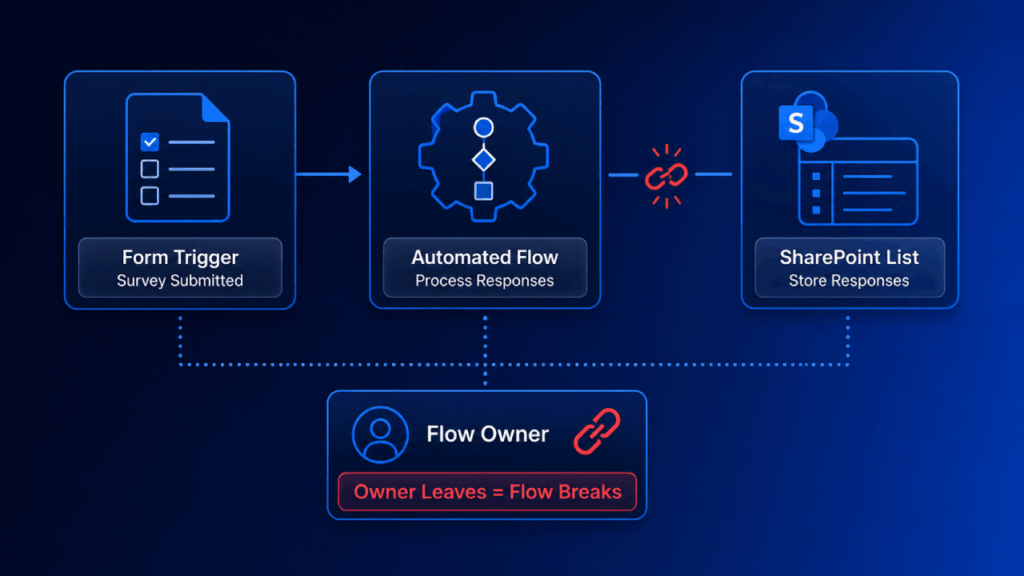
When that person leaves the company, the flow can die with their account, and onboarding responses stop landing in the list.
Nobody notices until HR asks where last month’s data went.
A few more traps worth knowing before you build:
- Every list item created by the flow shows the flow owner as “Created By,” which collapses per-submitter visibility unless you add explicit “Grant access” steps
- Those per-item permissions have a practical ceiling of 5,000 unique permissions per list, so granular access doesn’t scale forever
- A SharePoint list item has only one Attachments field, so multiple file-upload questions need a related document library workaround
None of these are dealbreakers. They’re just the difference between surviving a year and breaking the first time someone leaves or the list gets big.
So what I tell clients is to design for the handoff up front.
Use a service account for the flow where you can, document the mappings, and decide early how much per-submitter visibility you actually need.
Content Formula’s writeup on SharePoint onboarding says the quiet part out loud. Turning raw form data into governed, reportable HR records “will require custom development.”
The tools are fine. This is just where the real work lives.
Turning Responses Into Something HR Can Actually Use
Once your data sits in a SharePoint list, the fun part opens up. You’ve got a structured, permissioned dataset instead of a pile of CSVs.
And that’s exactly what reporting tools want to eat.
Point Power BI at the list and you can build dashboards that update themselves. From there you can:
- Slice by cohort, start month, team, role, or manager
- Track how confidence and satisfaction scores move over quarters
That trend line is the whole point, and it’s the thing Forms literally can’t give you past its response ceiling.
This is also where the business case closes the loop. Engagement isn’t soft: top-quartile engaged business units earn 23% higher profit than the bottom quartile.
Onboarding feedback, tracked properly, is one of the earliest levers you have on that engagement. You just have to see the data to act on it.
Build the Pipeline, Not Just the Form
Anyone can stand up a Microsoft Form. The reason onboarding feedback so often changes nothing is that the form is where most teams stop.
So if you do only four things, do these:
- Get the cadence right across the first 90 days
- Build the forms carefully, with anonymity where it counts
- Pipe every response into a governed SharePoint list
- Put reporting on top so the data gets used
None of that’s exotic. It’s just the difference between feedback you can act on and a pile of answers nobody can find.
Get the pipeline right, and onboarding feedback finally goes somewhere it can change how you hire and keep people.
If your onboarding survey answers are stuck inside Forms or scattered across spreadsheets, you’re not alone. That’s the most common gap I run into.
I help IT and HR teams turn Microsoft 365 into a governed onboarding data pipeline. Reach out and let’s talk.




























