

Last Updated on September 30, 2025
Tired of date format confusion in SharePoint?
In this guide, I will show you how to change the SharePoint date format so your entire team sees dates the same way.
Let’s get started.
The date format in SharePoint is managed by two key settings that work in a hierarchy:
- Site regional settings: Sets the default date format for everyone on a site
- Personal user settings: Allows individuals to choose their own format, overriding the site default
Depending on whether you need a consistent format for your whole team or just for your own view, you’ll need to adjust a different setting.
Below are the two main solutions to manage these settings and fix date format issues:
Sign up for exclusive updates, tips, and strategies
The best way to fix date inconsistencies for your whole team is to adjust the site’s regional settings.
This change unifies date formats across all site lists, libraries, and date columns, including “created” and “modified” fields.
Navigate to the SharePoint site where you want to update the date settings.
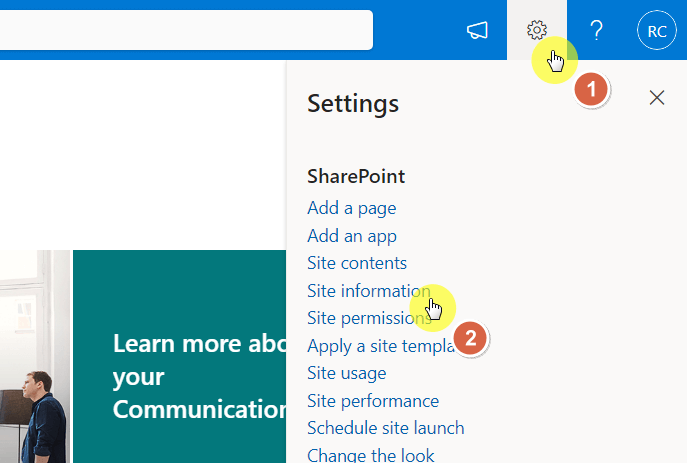
Click the Settings gear icon (⚙️) in the top-right corner of the page.
From the menu, select Site information.
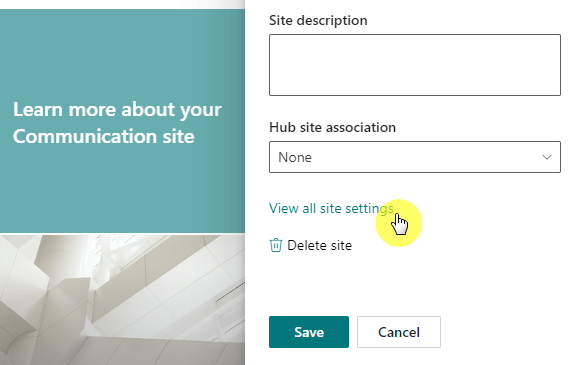
In the next panel, click View all site settings.
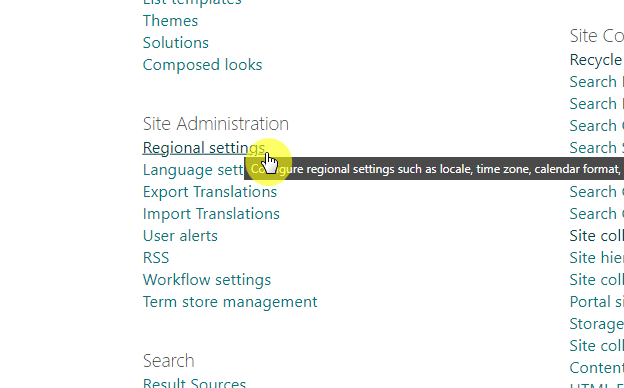
Under the Site Administration heading, find and click on Regional settings.
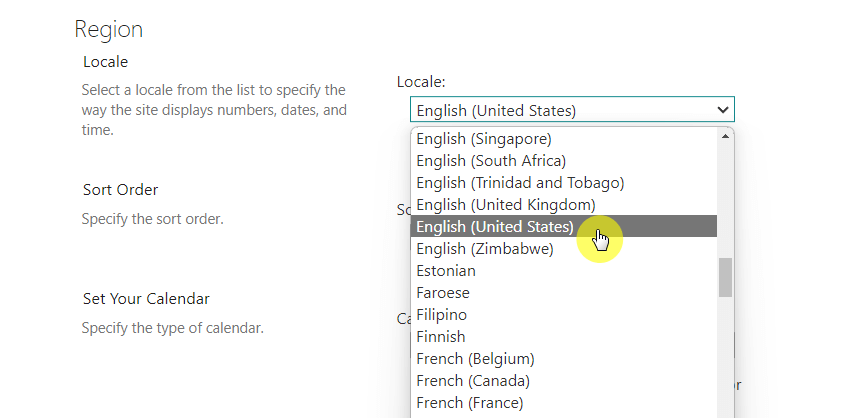
On the regional settings page, locate the Locale dropdown menu.
Select the country or region that uses your desired date format.
For example, choose English (United States) to use the M/d/yyyy format or English (United Kingdom) for the dd/MM/yyyy format.
Click OK to save your changes.
After you confirm the change, the date format will update across the entire site for any user who has not set a personal override.
Solution 2: Set a Personal Date Format for Your Own View
If you need a different date format than your site’s default, you can set a personal preference.
Remember, this change will only affect how you see the dates; it won’t change the format for anyone else in your group.
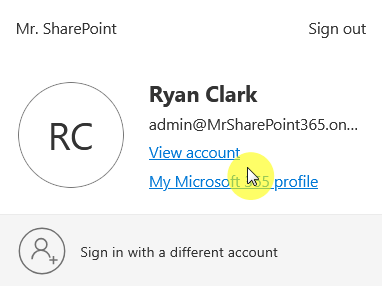
From any SharePoint or Microsoft 365 page, click on your profile picture in the top-right corner and select View account.
Find the section for Language and Region settings under the settings and privacy page.
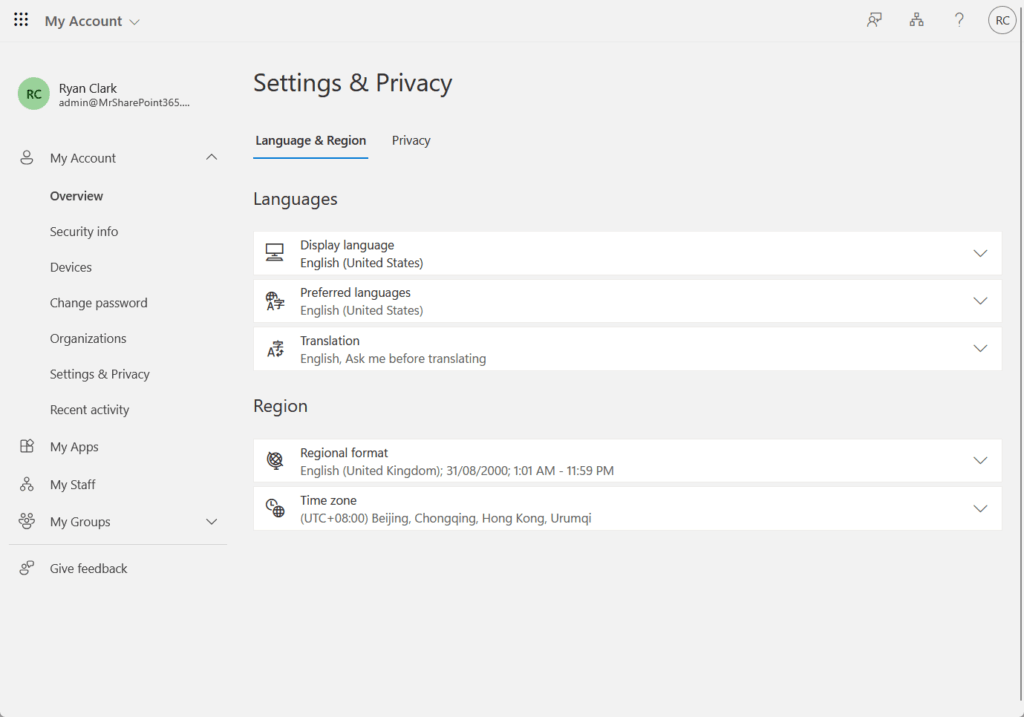
Go to the regional format and click the button to change it, then choose your preferred region for the date format.

After clicking the select button, your change will automatically be saved.
Why Is My Date Format Still Wrong?
If you’ve adjusted the settings and still see the wrong date format, this table will help you diagnose the problem:
| Problem | Likely Cause and Solution |
| The date format is wrong for all users. | The site-wide regional settings are likely incorrect. Double-check that the correct locale is selected. |
| The date format is wrong for only one user. | That person has a personal setting overriding the site’s default. They need to check their Microsoft 365 profile settings. |
| The date format changes in “Edit in grid view.” | This is a known sync issue. Go to the list’s advanced settings and disable “Offline Client Availability.” |
| I want to set a default region for new sites. | This option does not exist in SharePoint Admin Center. New sites always default to the US format and must be updated manually or with a PowerShell script. |
Final Thoughts
To create a consistent and clear experience for your team, changing the site-level regional settings is the most effective solution.
Setting the correct locale prevents confusion, improves data accuracy, and ensures team reliance on SharePoint date fields.
Do you have questions about changing SharePoint date formats? Let me know below.
For business-related questions, you can send me a direct message using the contact form on this page.





























Hello
can you help me ?
it’s about to use DateDif in column that i need in a Calculated (calculation based on other columns)
This really helped me a lot. Thank you
Really good content for retroactively changing the date format, but is there a way to simply change the default? In SharePoint Admin > Settings > Site Creation, you can change the default timezone for subsequently created sites, is there something similar for region?