

Last Updated on October 7, 2025
Need to find a user’s created date?
In this guide, I will show you how to easily find the user created date in Entra (Azure AD) as well as using PowerShell.
Let’s get started.
Why find the creation date?
There are several reasons why you might want to find the user creation date:
- Track user activity
- Manage licenses more effectively
- Identify potentially unauthorized or obsolete users
It’s especially important when you need to maintain an efficient and secure IT environment and ensure compliance.
For admins, this can help them make informed decisions about provisioning, auditing, and decommissioning users.
Sign up for exclusive updates, tips, and strategies
How to Find the User Created Date in Entra
Here’s what you need to do:
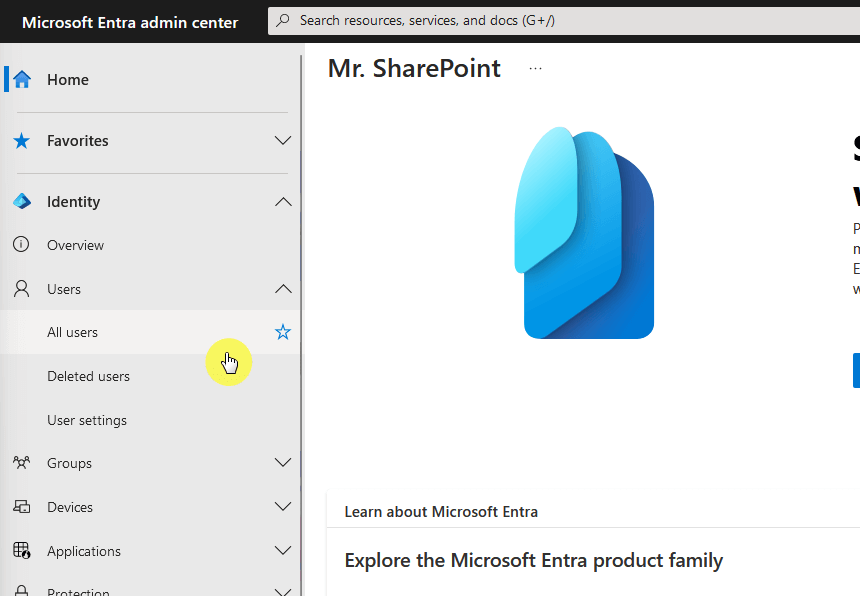
Step 1: Go to the all users page
You can easily find the user created date in Entra (previously Azure AD):
- Go into the Entra admin center
- Go to users > all users from the left-hand panel
Step 2: Find the user
The next page will show you a list of all the users in the tenant.
All you have to do here is click on the user:
Like this:
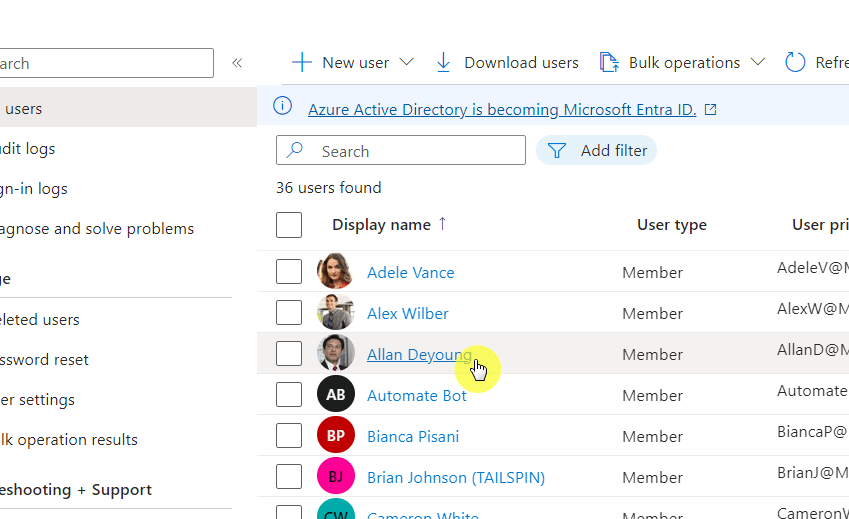
You can also use the search function to find the user.
Step 3: Find the created date time
The next page will show you an overview of that user’s account.
You can directly find here the “created date time” like this:

The date and time that you see is the user created date (and time). 🙂
How to Use PowerShell to Find the User Created Date
For some reason, I found that getting the created date time isn’t that direct in PowerShell.
Well, it shouldn’t be, but so far, I only encountered errors and blank creation date and time.
Anyway, if you want to use PowerShell, here’s a script you can use:
# Connect to Azure AD
Connect-AzureAD

# Fetch the user by their email (userPrincipalName) and retrieve basic properties
$email = "UserEmailAddress"
$user = Get-AzureADUser -Filter "userPrincipalName eq '$email'"

# Since direct retrieval of createdDateTime might not be straightforward, print all properties to identify the creation date
$user | Format-List *
From there, simply locate the created date time under the extension property.
Like this:
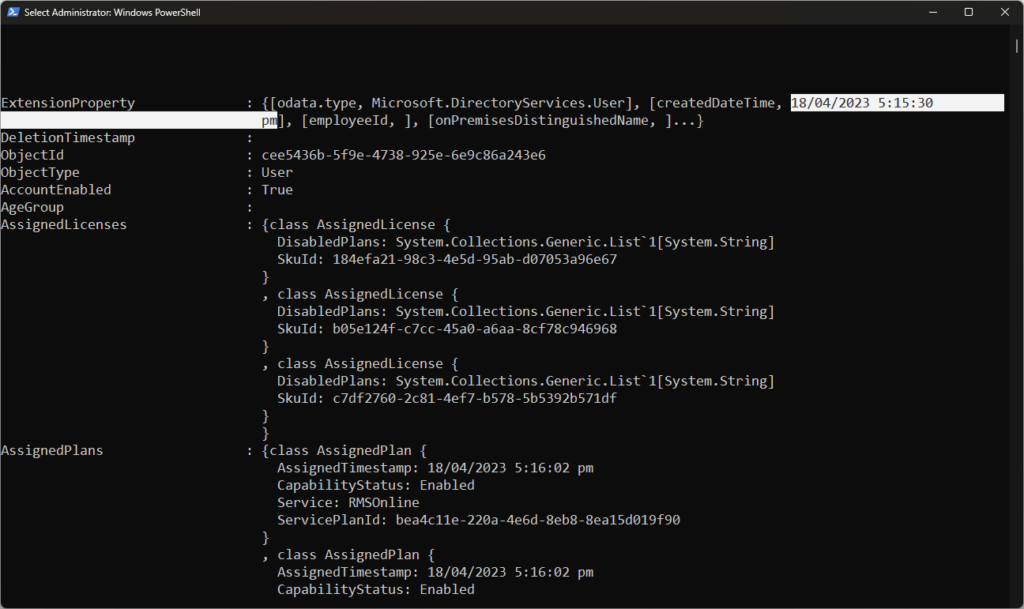
Please note that there might be a difference in the time depending on the time zone of the tenant and your time zone.
Find and Export All Users’ Creation Date
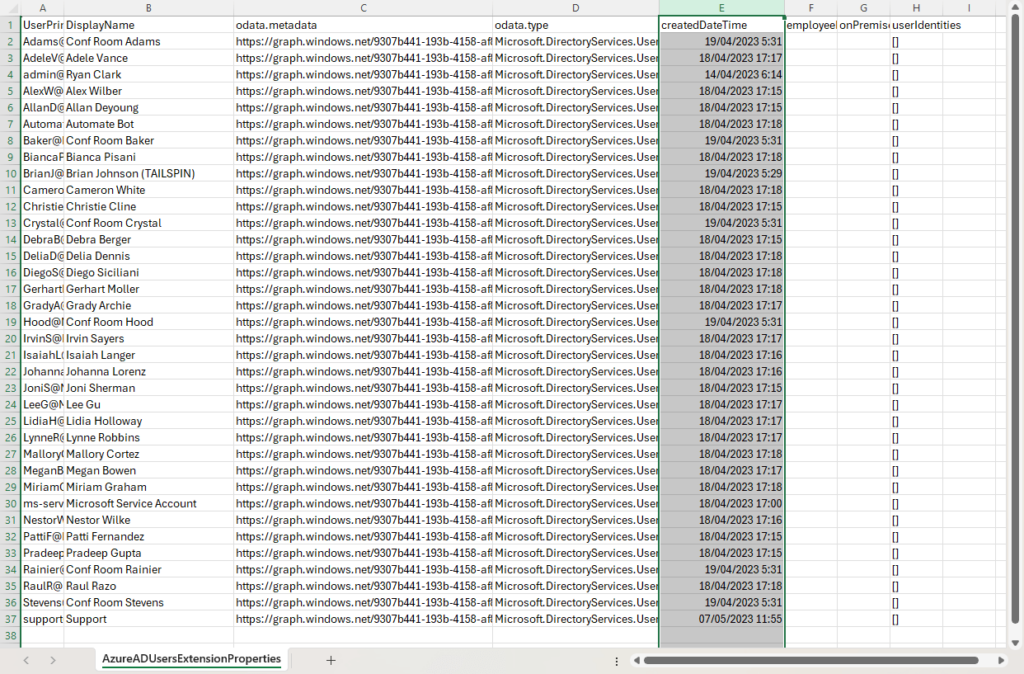
You can save time and export all the creation dates and times of all users in the tenant.
This is the script you can use:
# Connect to Azure Active Directory (Azure AD)
Connect-AzureAD

# Retrieve all users
$users = Get-AzureADUser -All $true

# Prepare an array to hold user data
$userData = @()

# Iterate through each user to collect their extension properties
foreach ($user in $users) {
    # Retrieve extension properties for the user
    $extensionProps = Get-AzureADUserExtension -ObjectId $user.ObjectId

    # Prepare a custom object to hold user information & extension properties
    $userObj = [PSCustomObject]@{
        UserPrincipalName = $user.UserPrincipalName
        DisplayName = $user.DisplayName
    }

    # Add extension properties to the object
    foreach ($prop in $extensionProps.GetEnumerator()) {
        # Add each extension property as a new property to the user object
        Add-Member -InputObject $userObj -NotePropertyName $prop.Key -NotePropertyValue $prop.Value
    }

    # Add the user object to the array
    $userData += $userObj
}

# Define the export path
$exportPath = "C:\Users\User\AzureADUsersExtensionProperties.csv"

# Export the data to a CSV file
# Note: This might result in a wide table if there are many unique extension properties
$userData | Export-Csv -Path $exportPath -NoTypeInformation

Write-Host "Export completed. Check the CSV file at $exportPath"
It will export the results to C:\Users\User\AzureADUsersExtensionProperties.csv.
Here’s what the file will look like:
Got any more questions about finding the user created date in Microsoft 365? If yes, comment below.
For any business-related questions or concerns, reach out using the contact form here. I will reply asap. 🙂




























