

Table of Contents:
Last Updated on September 19, 2025
Want to protect your folder with a password?
In this guide, you will learn how to create a password-protected folder step-by-step, and best practices in managing these folders.
Let’s get started.
How Permissions Relate to Data Security
Permissions in SharePoint are more than just access controls — they’re the backbone of data security.
A set of default permission levels (read, contribute, and full control) is assigned to users or groups.
These levels are collections of individual access permissions that allow users to perform a set of related tasks.
They provide a framework for controlling access to data and resources so that only authorized personnel can perform specific actions.
You need to have proper permissions management to maintain the integrity and confidentiality of data within SharePoint.
Sign up for exclusive updates, tips, and strategies
How to Create a Password-Protected Folder
There are a few steps you need to do if you want to password-protect your folders.
Here’s a detailed guide you can follow:
Step 1: Create a new folder
Navigate to the SharePoint site > document library where you want to create the folder.
Then do the following:
- Click the new button
- Select the folder option
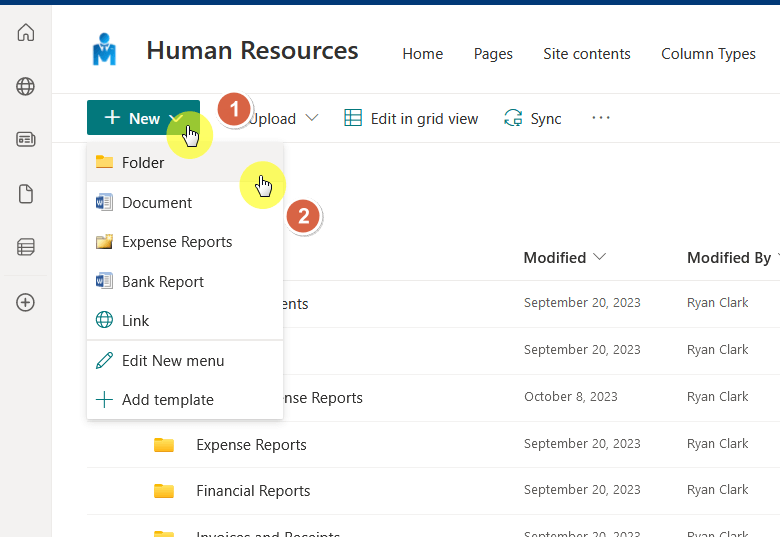
Name your folder appropriately, considering the content it will hold.
Step 2: Set up folder permissions
Click on the ellipsis button (three dots) next to the folder name.
Select the manage access option from the context menu:
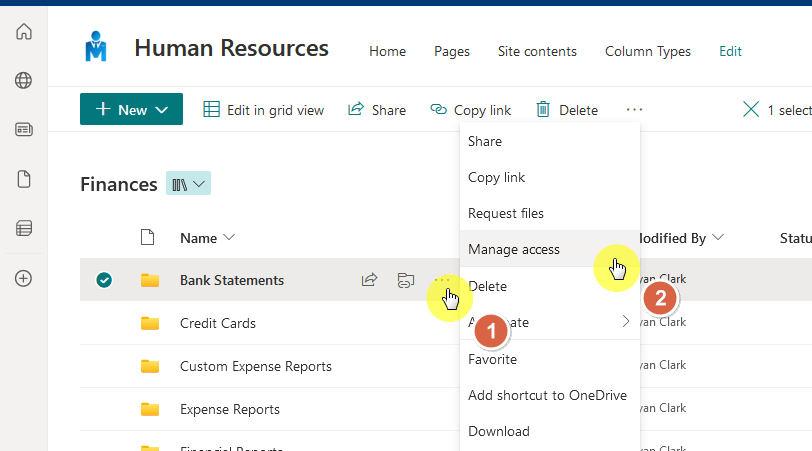
You will then see here a list of groups or individuals who currently have access to the folder.
If you want to change these permissions, click the ellipsis button > advanced settings:
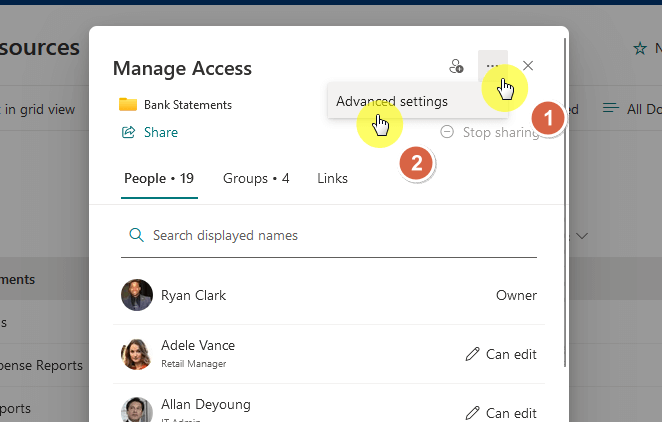
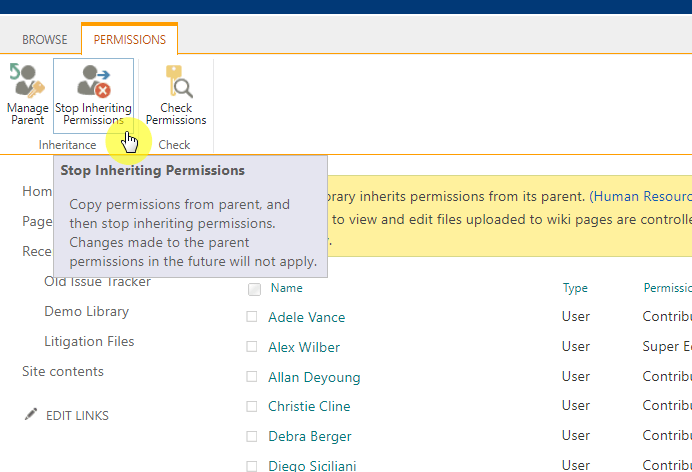
All you have to do here is to stop the folder from inheriting the permissions.
You can then select any user and whether to grant/edit their permissions or remove/limit access.
Step 3: Add a password
This part is easy since all you have to do is share the folder.
Once the share modal pops up, click the gear icon:
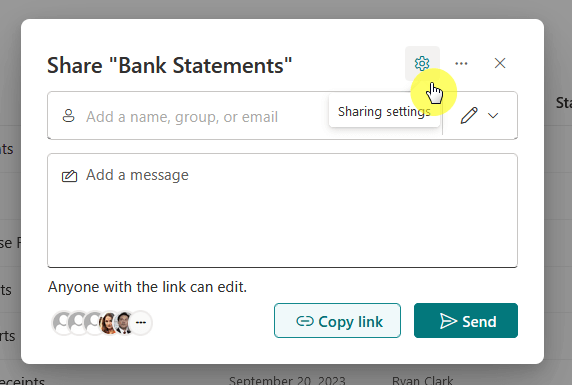
You can then set the password here in the sharing settings.
Enter the password and click the apply button:
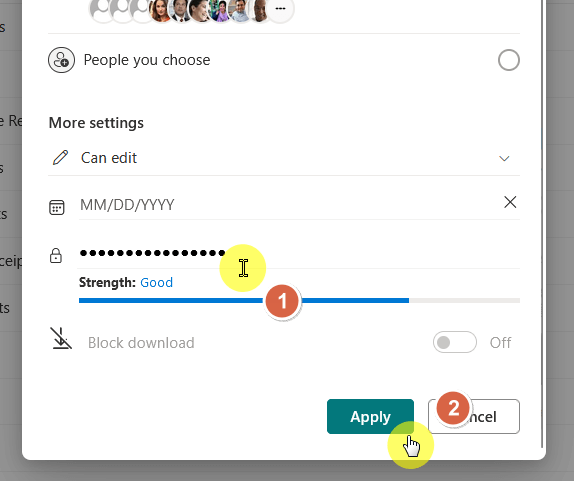
This will now password-protect that specific folder.
Step 4: Test the password-protected folder
The best way to know whether or not the folder is now password-protected is by testing it out.
Copy the share link to another browser, and you should see a similar screen to this:
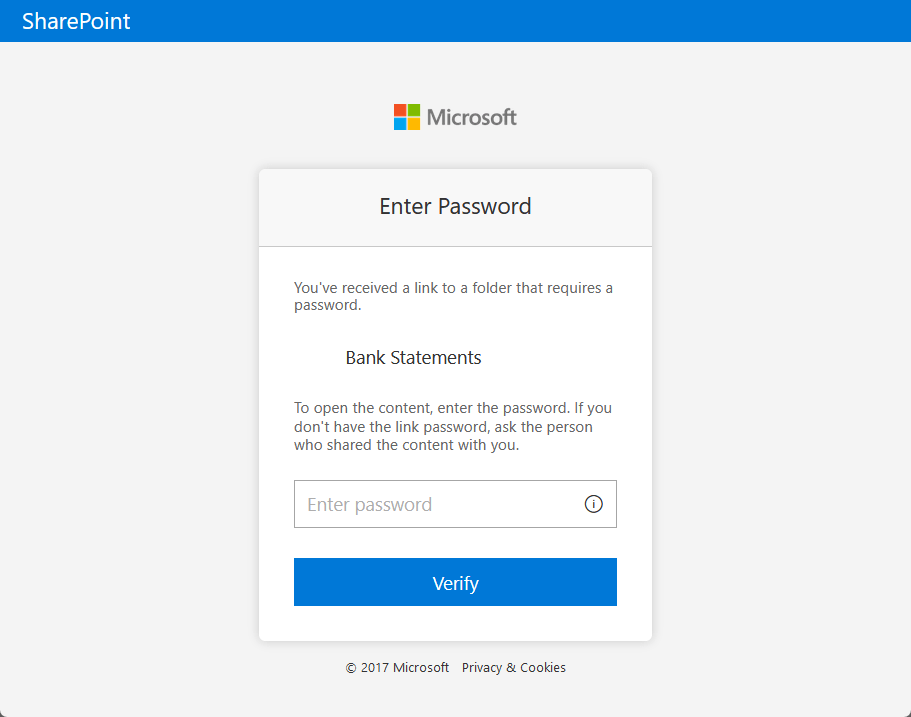
If other people will need to access the folder, make sure to share the password with them.
Best Practices for Managing Password-Protected Folders
This requires a combination of careful planning, regular monitoring, and adherence to best practices.
Here are some key strategies to ensure the security and accessibility of your SharePoint data:
| Strategy | Description | Action |
| Regularly update passwords | This helps to prevent unauthorized access and ensures that only current users can access the data. | Change the password for the SharePoint folder at regular intervals. |
| Use strong passwords | Using robust passwords makes it more challenging for unauthorized users to guess, thus substantially boosting the security of your data. | Create passwords that include a combination of uppercase and lowercase letters, numbers, and special characters. |
| Manage user access | This ensures that only authorized users have access to the SharePoint folders with password protection. | Regularly review and update user permissions. Assign different permission levels to users to control who can view, edit, or delete folder content. |
| Use security groups | This can streamline access management and ensure consistent security policies across the organization. | Add users to security groups and grant these groups appropriate permissions in SharePoint. |
| Regularly review and adjust permissions | This helps maintain a secure SharePoint environment and protects sensitive data from unauthorized access. | Regularly check and modify permissions to match users’ current roles and responsibilities. |
| Avoid overuse of fine-grained permissions | Fine-grained permissions can also increase complexity and risk of misconfiguration. | Use fine-grained permissions sparingly. Ensure that permission levels are well understood and carefully managed. |
| Regularly backup important files | This ensures that you have a copy of your data in case of accidental deletion or other unforeseen incidents. | Regularly create backups of important files stored in the SharePoint folder. |
| Monitor folder activity | Regularly monitoring folder activity can help you identify any unusual or suspicious behavior. This could indicate a security issue. | Regularly check folder activity for unauthorized access attempts, unexpected changes to files, or other suspicious activities. |
If you have more questions about password-protected folders in SharePoint, feel free to leave a comment.
Should you have further inquiries or any business-related concerns, please use the site’s contact form. I will respond promptly.





























Has to be set to Anyone to get this option
Thanks for this awesome article
There is no Gear Icon that has the password option. Perhaps it was removed? Comment said set to anyone, but only have everyone and it does not appear after doing that.