

Copy List Items to Another List: SharePoint – Power Automate

Copy List Items To Another List: SharePoint And Power Automate Tutorial

Last Updated on October 7, 2025

Need to copy the list items?

In this guide, I will walk you through one of the easiest methods of copying list items from one list to another in SharePoint.

Let’s get started.

Copying the List Items

As you may know already, you can create a list in SharePoint from an existing list.

Unfortunately, this doesn’t copy the list items — only the columns — leaving you with an empty list.

This won’t work, especially if you need a replica of all the SharePoint list items.

This leaves you with two choices:

  1. Manually copy the list items
  2. Use PowerShell

The first one works easily, but it can take time, especially if there are a lot of items.

The second one works well, but you need a little experience, and you must be comfortable with using PowerShell.

Fortunately, there is one other method you can use, which requires you to learn Power Automate first.

Sign up for exclusive updates, tips, and strategies

    Ready the Destination List

    Before anything else, you must have the source list first and then create the destination list.

    For this demo, this is the source list:

    A SharePoint list titled “Marketing Projects” showing several ongoing projects with columns for project name, owner, start date, end date, status, budget, and description. Projects include Brand Refresh, Influencer Partnership, Webinar Series, Customer Survey, and others, each with color-coded statuses such as Planned, In Progress, and Completed.

    To create the destination list, you need to create a list on a SharePoint site that you can manage.

    From there, create a list > from existing list > select the site > name of the list.

    The screen should look like this:
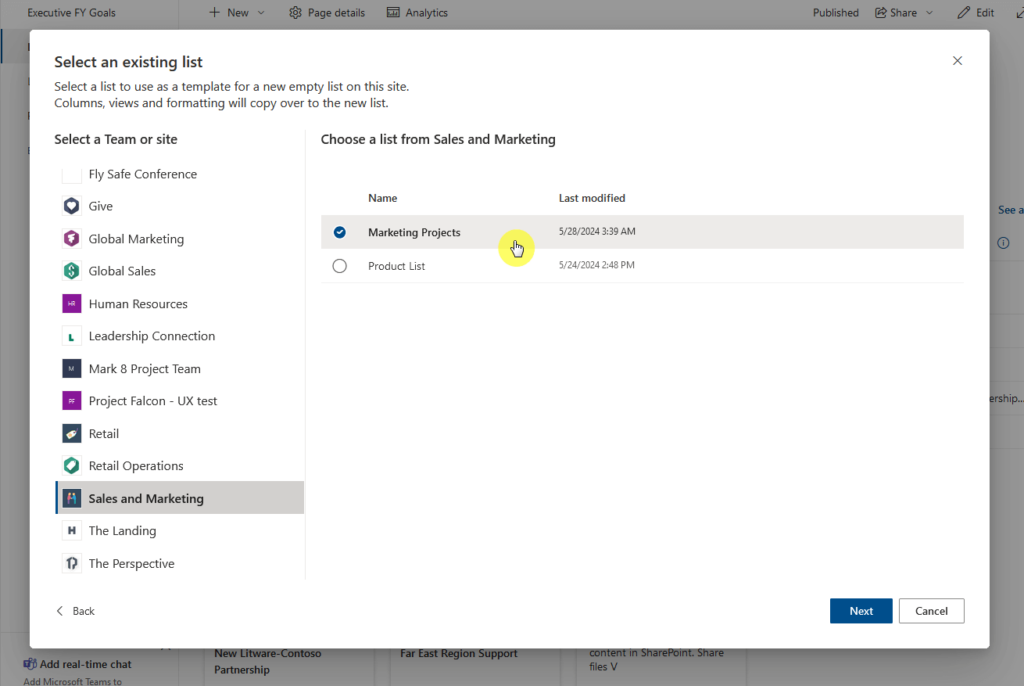
    A SharePoint interface showing the “Select an existing list” dialog. The user is selecting the “Marketing Projects” list from the “Sales and Marketing” site. Other available lists include “Product List.” The sidebar shows other sites such as Global Marketing, Human Resources, and Project Falcon. The “Next” button is highlighted at the bottom.

    Give the new list a name (for example, “Sales Projects”) and click the create button on the small window.

    This will then create a new empty list, but will all the columns from the source list. 🙂

    Use Power Automate

    Now that you have both SharePoint lists ready, it’s time to get your feet wet with Power Automate.

    Don’t worry if it all seems technical at first, you simply need to follow the steps and customize what’s needed.

    Step 1: Create a new flow

    The first step is to create an instant cloud flow, and set the trigger to “manually trigger a flow”.
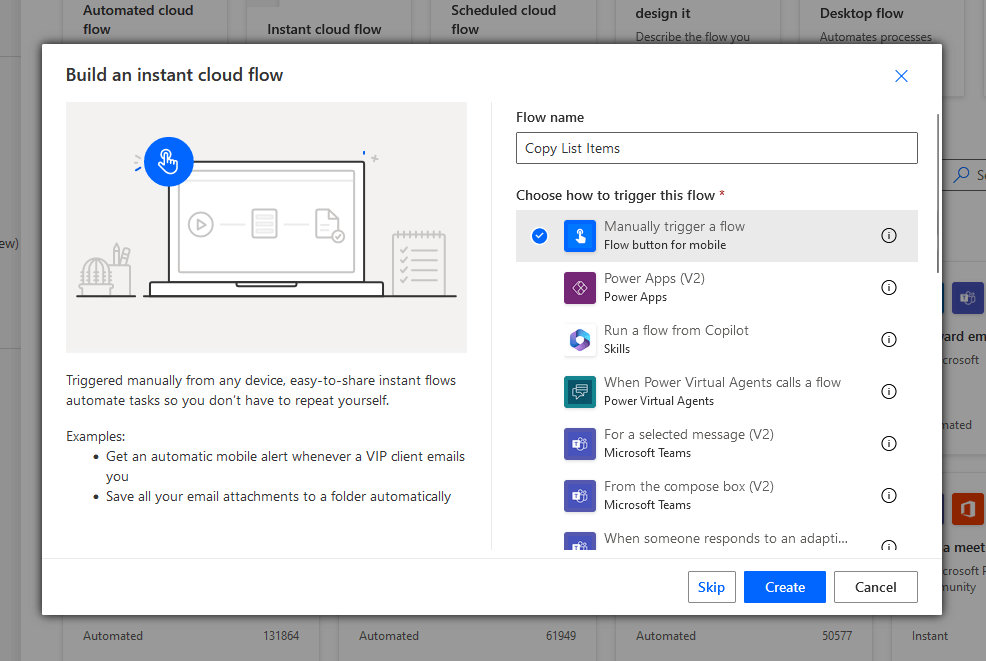
    A Microsoft Power Automate dialog titled “Build an instant cloud flow.” The flow name field is set to “Copy List Items.” The selected trigger option is “Manually trigger a flow (Flow button for mobile),” with other available triggers like Power Apps, Copilot, and Microsoft Teams. Buttons for “Skip,” “Create,” and “Cancel” appear at the bottom.

    You will now see an empty canvas with only the trigger.

    Step 2: Get items

    The next step is to add an action through the plus button.

    Then search for “get items” and click the option under SharePoint.
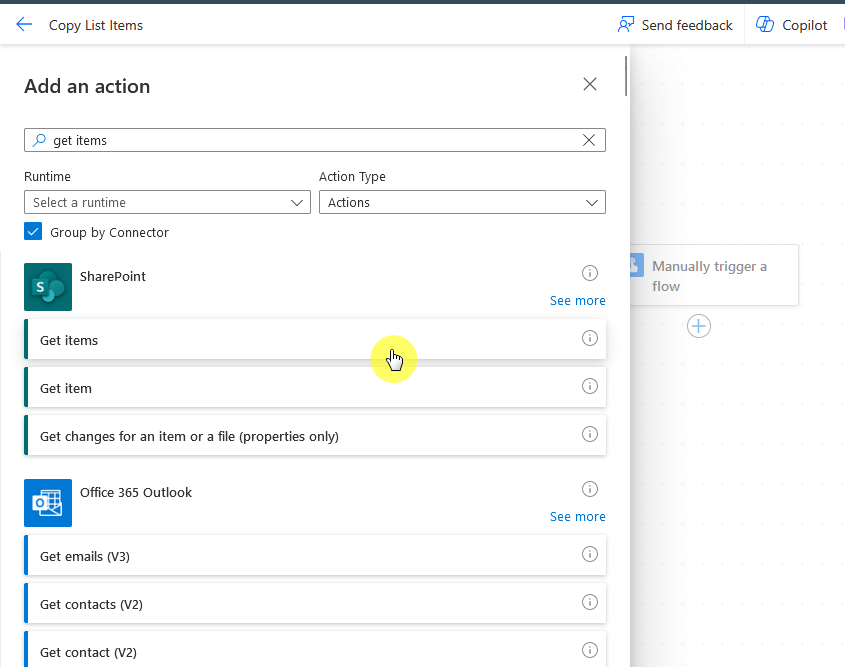
    A Microsoft Power Automate interface showing the “Add an action” panel. The user has searched for “get items,” and the SharePoint connector is displayed with options such as “Get items,” “Get item,” and “Get changes for an item or a file.” The cursor is hovering over the “Get items” action.

    If this is your first time, Power Automate will prompt you to sign in to SharePoint.

    After that, you will be able to choose the site address and the list name.
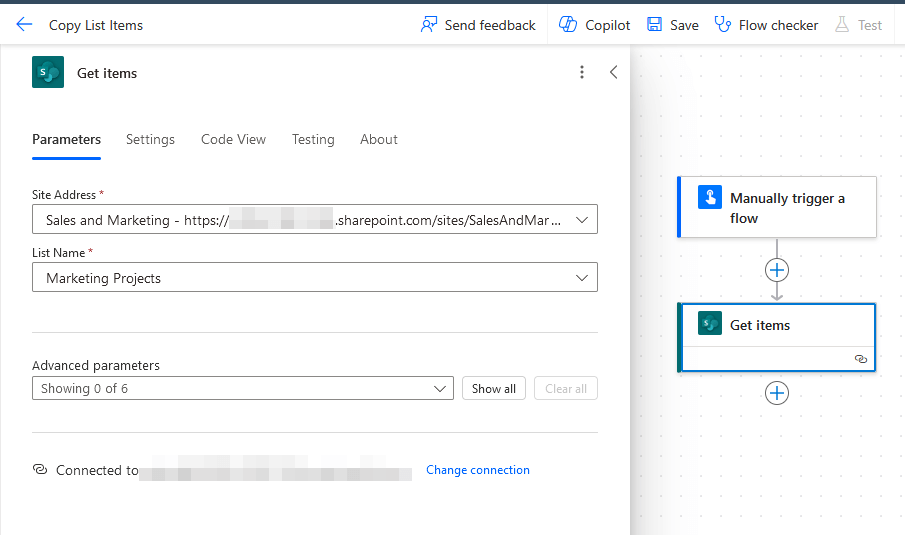
    A Power Automate “Get items” action setup screen. The Site Address field is set to a SharePoint site called “Sales and Marketing,” and the List Name is “Marketing Projects.” On the right, the flow diagram shows two steps: “Manually trigger a flow” followed by “Get items.” Options for parameters and connections are visible below.

    For advanced users, you can set the pagination here and set the threshold of items to return.

    Step 3: Create item action

    For this step, add the “create item” action from SharePoint.
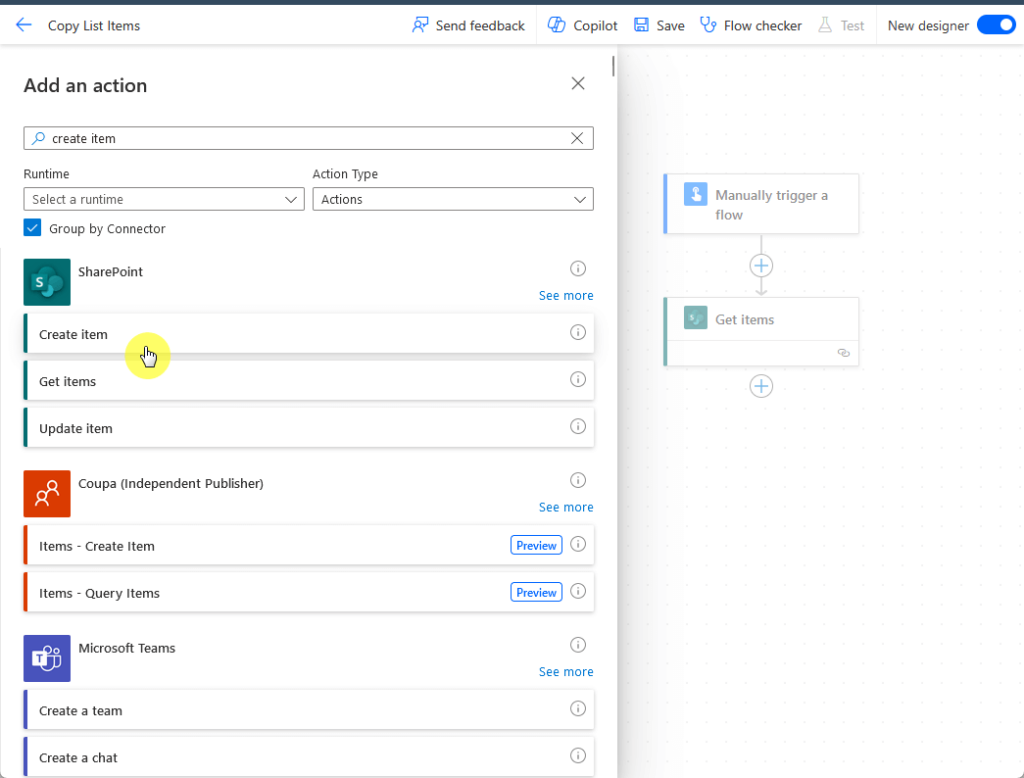
    A Microsoft Power Automate window titled “Add an action.” The user has searched for “create item,” and under the SharePoint connector, the “Create item” option is highlighted. Other connectors like Coupa and Microsoft Teams are listed below. On the right side, the flow diagram shows two existing steps: “Manually trigger a flow” and “Get items.”

    From here, add the following:

    • Site address
    • List name
    • Parameters

    The parameters in the group array simply refer to the columns with the items to be copied.

    In my example, I had to select the parameters from “title” to “description”.
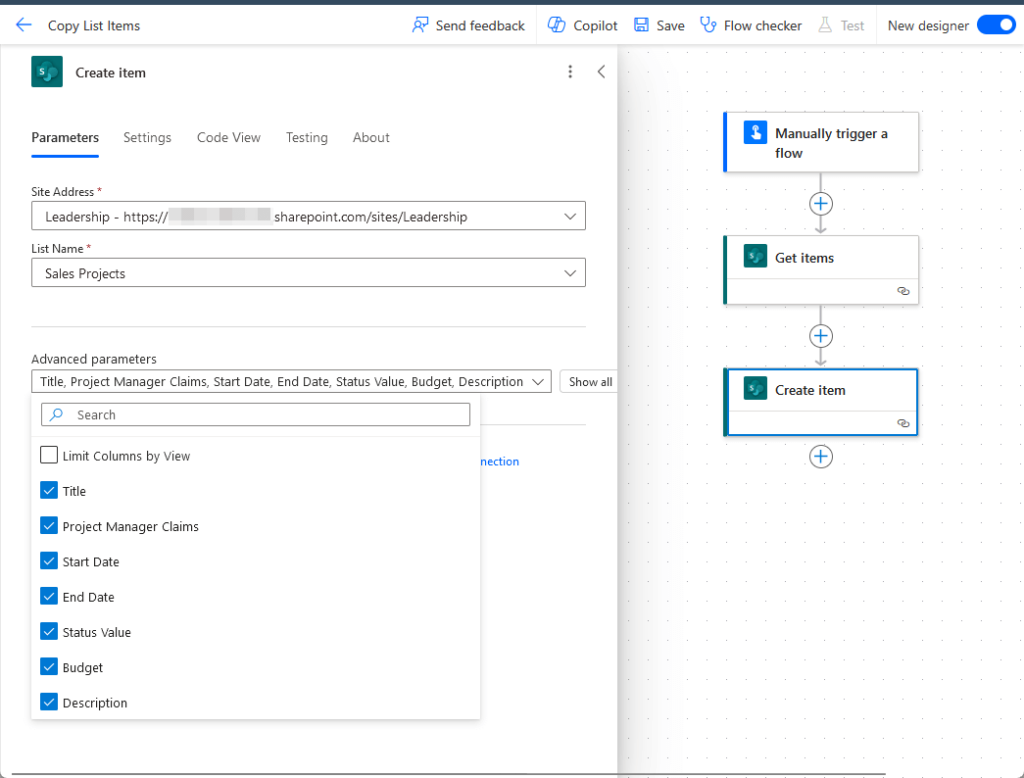
    A Power Automate “Create item” action configuration screen. The Site Address is set to a SharePoint site named “Leadership,” and the List Name is “Sales Projects.” Under Advanced parameters, several fields like Title, Project Manager Claims, Start Date, End Date, Status Value, Budget, and Description are selected. On the right, the flow diagram shows the sequence: “Manually trigger a flow,” “Get items,” and “Create item.”

    You will then see all the column names and a field beneath each one in the array setting.

    What you need to do here is click on the field itself and click the blue lightning button:
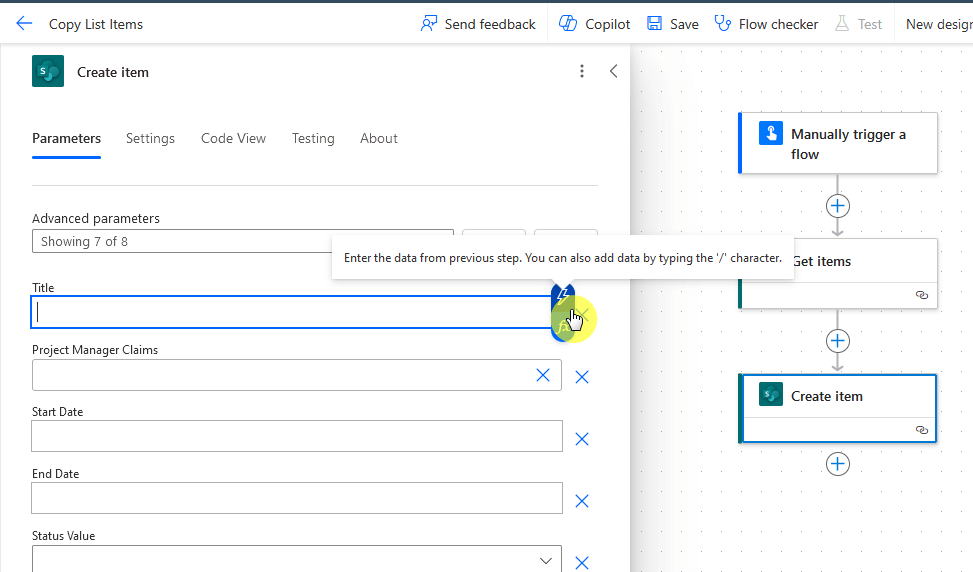
    A Power Automate “Create item” action setup showing the Title field being configured. The user is clicking the blue lightning icon to insert dynamic content, with a tooltip that says “Enter the data from previous step. You can also add data by typing the ‘/’ character.” The flow diagram on the right shows three steps: Manually trigger a flow, Get items, and Create item.

    For each field, match it up with the column name from the source list to get the necessary details.

    All the columns should then be filled with green parameters that signify they’re taken from the previous action.

    Like this:
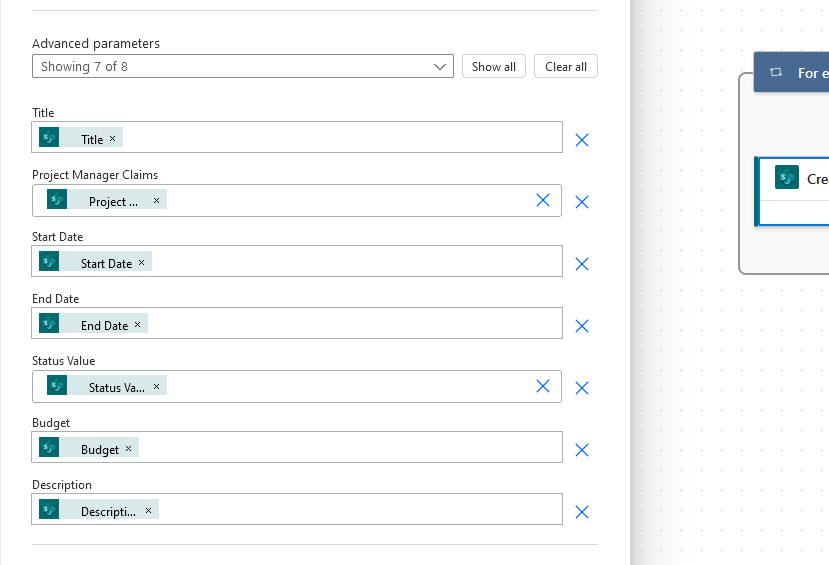
    A Power Automate “Create item” configuration screen showing all advanced parameters filled in. Each field, including Title, Project Manager Claims, Start Date, End Date, Status Value, Budget, and Description, is mapped to corresponding dynamic content tokens from a previous SharePoint “Get items” step.

    After that, check with the Microsoft Flow Checker if there are any errors or warning messages.

    Trigger the Flow

    If all is well or if there are no errors that would prohibit you from testing the flow, then proceed with the next part.

    Click the test button in the upper-right corner > manually > press the “test” button:
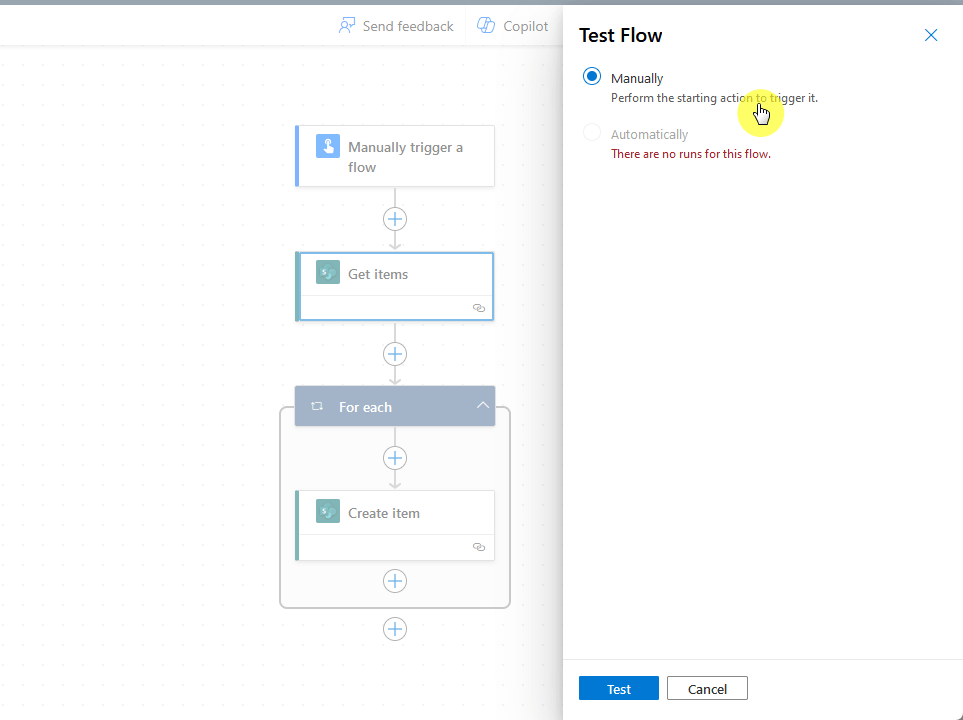
    A Power Automate interface showing a flow test setup. The “Test Flow” panel on the right has “Manually” selected as the trigger method, with a note saying “There are no runs for this flow.” On the left, the flow diagram includes steps for “Manually trigger a flow,” “Get items,” a “For each” loop, and “Create item.” The Test and Cancel buttons are visible at the bottom.

    ⚠️ Note: If there’s any error, read the error details and try to solve the problem.

    Although it was a test workflow operation, it would get all the items and create them as well on the destination list.

    It’s a success if Power Automate reports that your flow ran successfully and if the items were properly copied.

    The destination list in my demo now looks like this:
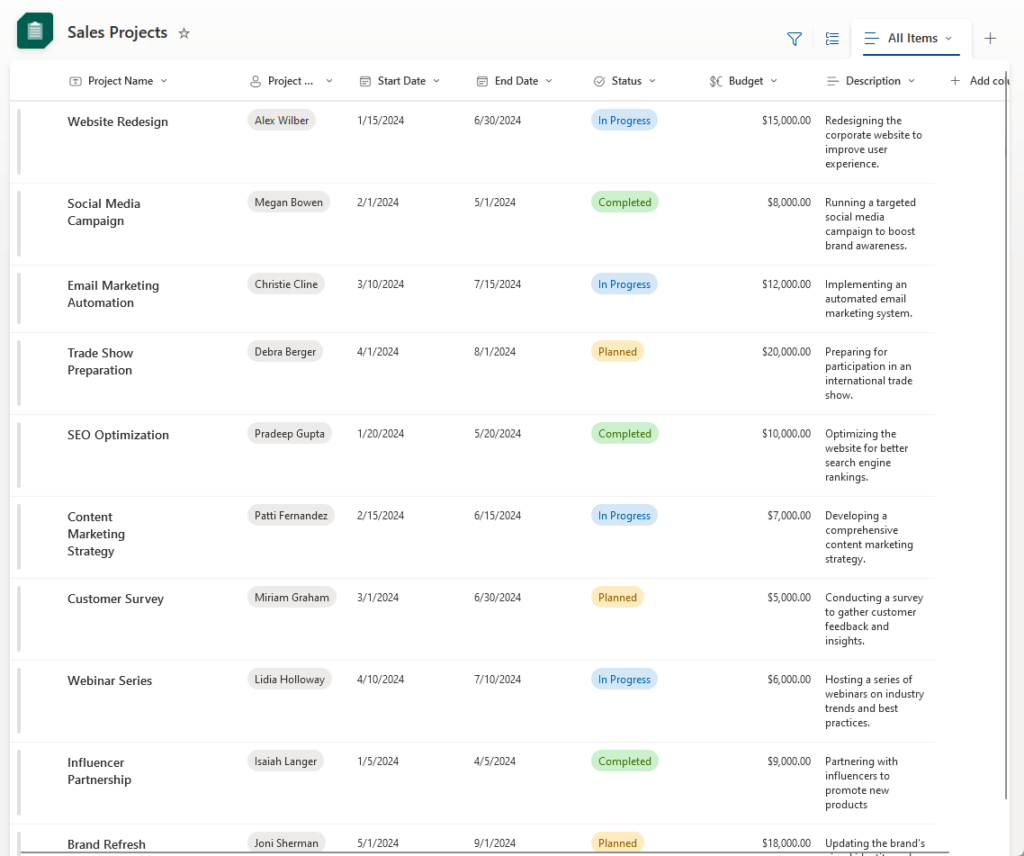
    A SharePoint list titled “Sales Projects” showing various project entries. Columns include Project Name, Project Manager, Start Date, End Date, Status, Budget, and Description. Projects such as Website Redesign, Social Media Campaign, and Email Marketing Automation are listed with statuses like In Progress, Planned, and Completed. The layout mirrors the earlier Marketing Projects list, indicating copied list items.

    Success! 👏

    Anyway, got any questions about using Power Automate to copy list items to another list? Let me know.

    For any business-related queries or concerns, contact me through the contact form. I always reply. 🙂

    About Ryan Clark

    A man with short curly hair and a beard is smiling. He is wearing a dark plaid suit jacket, a black shirt, and a dark tie. The background is softly blurred.As the Modern Workplace Architect at Mr. SharePoint, I help companies of all sizes better leverage Modern Workplace and Digital Process Automation investments. I am also a Microsoft Most Valuable Professional (MVP) for SharePoint and Microsoft 365.

    Subscribe
    Notify of
    guest
    0 Comments
    Oldest
    Newest Most Voted
    Scroll to Top
    0
    Would love your thoughts, please comment.x
    ()
    x