

Table of Contents:
Last Updated on November 11, 2025
Your SharePoint file won’t open because it’s locked?
In this guide, I’ll show you how to identify which type of lock you’re facing and unlock it based on your role.
Let’s get started.
Before you can fix a locked file, you need to understand what kind of lock you’re dealing with. SharePoint has three distinct types, and each requires a different approach.
What Does a “Locked File” Actually Mean?
When someone says “the file is locked,” they’re describing a symptom, not a specific problem.
Think of it like a car that won’t start. It could be a dead battery, a bad starter motor, or an empty gas tank. Same symptom. Three completely different fixes.
SharePoint files work the same way. A locked file usually falls into one of three categories.
Here’s how each lock type works and what causes it.
| Lock Type | Error Message | UI Indicator | What It Means |
| Exclusive (Check-Out) | “This file is checked out to [User]” | Green check-out icon on file | Someone deliberately locked it for solo editing |
| Co-authoring | (No error) “Other people editing” | Presence cursors in Office app | Normal real-time collaboration |
| Application “Ghost” Lock | “File is locked for shared/exclusive use” | Often no indicator or stale info | System failure or app crash (stuck lock) |
Exclusive Lock: The Check-Out Mechanism
When someone deliberately checks a file out of the library, they’ve initiated an exclusive lock. Think of it like checking a book out of a library. Only one person can have it at a time.
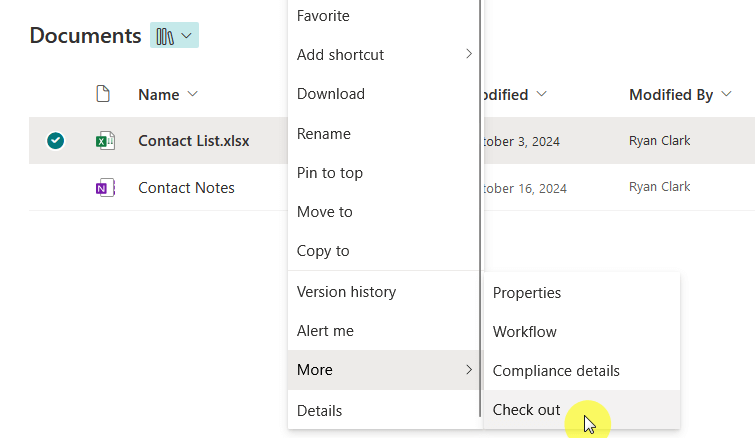
When a file is checked out, other users see a small green arrow on the file icon.
If you hover over the file, a card pops up showing who checked it out. The person who locked it can make changes without anyone else interfering.
Everyone else sees a read-only copy.
Why this matters: This lock is intentional and working as designed. It’s not an error. The problem happens when someone forgets to check the file back in.
The modern, default approach for SharePoint files is real-time collaboration. Multiple people can open and edit the same document at once, just like in Google Docs.
Behind the scenes, SharePoint creates small, temporary locks on specific parts of the file to prevent conflicts.
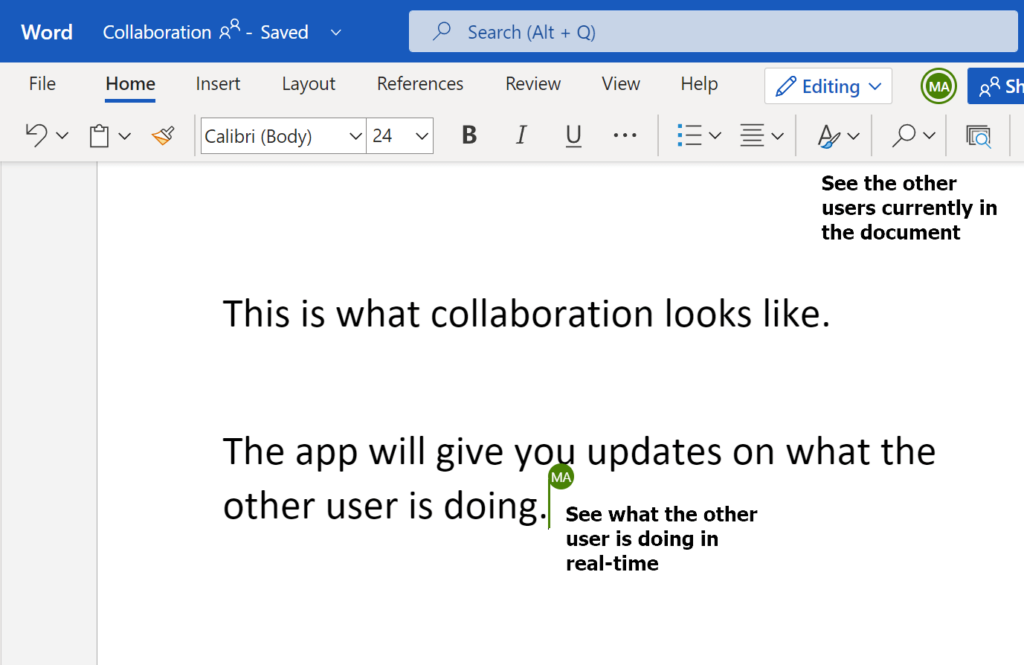
If you’re editing paragraph two and someone else is editing paragraph three, SharePoint locks those sections separately.
You don’t see this happening. You just see other people’s cursors moving in real time.
However, it’s important to note that co-authoring isn’t an error. It’s a feature. But problems arise when this process breaks.
Application “Ghost” Lock: The Real Troublemaker
An unintentional, stuck lock that won’t go away is what we call a ghost lock. The file reports being “locked for shared use” or “locked by [User],” even though nobody has it open.
Ghost locks happen when something goes wrong during co-authoring setup:
- The user’s computer tries to start a collaboration session.
- The connection drops.
- The app crashes.
- The server gets confused and thinks the file is still locked, even though the user walked away hours ago.
This is the lock type that frustrates admins the most. Unfortunately, standard fix-it buttons don’t work. You need to know the workarounds.
Key insight: Most ghost locks are actually failed co-authoring negotiations, not true system locks. That’s why the solutions are different.
Sign up for exclusive updates, tips, and strategies
Self-Service Solutions (For End-Users and File Owners)
Start here if you’re locked out of a file you own or can access. Many lock issues resolve with simple self-service fixes before you need to contact an admin.
Method 1: The 10-Minute Wait (Ghost Locks Only)
SharePoint has a built-in timer for ghost locks. Server-side locks are supposed to expire after 10 minutes. Sometimes waiting is all you need.
Here’s what to do:
- Close all Office applications completely (Word, Excel, PowerPoint, everything)
- Open Task Manager with Ctrl+Shift+Esc
- Check for any running Office processes (WINWORD.EXE, EXCEL.EXE, etc.) and end them
- Wait 10 to 15 minutes without accessing the file
- Try opening the file again
This works best for locks caused by app crashes or sudden network drops. It’s the least invasive fix you can try.
Method 2: Discard Check-Out (If You Checked It Out)
Use this if you deliberately checked the file out and now want to release it. Warning: this discards any unsaved changes.
Here’s how:
- Navigate to your document library
- Hover over the file or click the three dots (…) next to it
- Select More > Discard check out
- Confirm that you want to discard your changes

The file unlocks immediately. Everyone can now edit it again. But your unsaved work is gone.
Pro tip: If you want to keep your changes, use Check In instead of Discard Check Out. The file still unlocks, but your work gets saved.
Method 3: Clear Your Office Document Cache (Recurring Lock Issues)
Microsoft Office keeps a local cache of files on your computer. Sometimes this cache gets corrupted and holds onto outdated lock information.
If you’re seeing “Upload Failed” errors repeatedly, or locks keep reappearing, this fix often works:
- Close all Office applications
- Open any Office app (Word, Excel, etc.)
- Go to File > Options > Save
- Scroll down to the Cache Settings section
- Click Delete cached files
- Click OK and close the app
- Restart the Office application
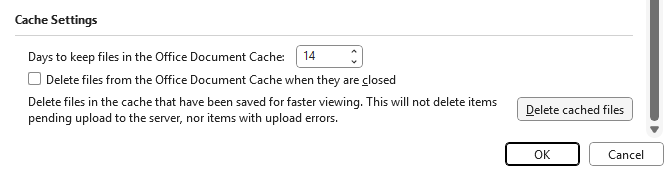
This clears the stale cache from your local machine. Your next file access should work cleanly.
Sometimes files get stuck in a conflict between Teams and SharePoint permissions. A quick check-out and check-in can reset this.
Here’s the process:
- Open the file in your desktop Office application (not the web version)
- Go to File > Info > Manage Document
- Look for check-out options and check out the file
- Immediately check the file back in
manage document option in file info word
This re-negotiates the permissions between the two systems. The lock often releases during this process.
Administrator and Site Owner Solutions
If the file is locked by someone else, or self-service methods failed, site owners and admins can force unlock it. But you need the right permissions first.
Do You Have Permission to Unlock?
Many admins hit a wall here. They can’t find the unlock options because they don’t have the required permission level.
SharePoint requires one of these permission sets:
- Full Control permission on the site
- A custom role that includes the right: “Discard or check in a document which is checked out to another user”
To check your permissions, go to Site Settings > Site Permissions and look up your role. If you don’t have full control and the right isn’t explicitly listed, ask a site collection admin to grant it.
Common error: Admins assume they have global permission to unlock files. In SharePoint, admin rights are site-specific. Check your permissions first.
Method 1: Force Check-In (Save User Changes)
Use this when you want to unlock a file while keeping the user’s changes. Good for situations where a user is on vacation or has left the company.
Here’s what to do:
- Navigate to the document library
- Select the locked file (checkbox next to it)
- Click the three dots (…) in the toolbar
- Select Check In
- Add a comment for the audit trail (recommended): “Forced check-in by Admin to release lock”
- Click Check In
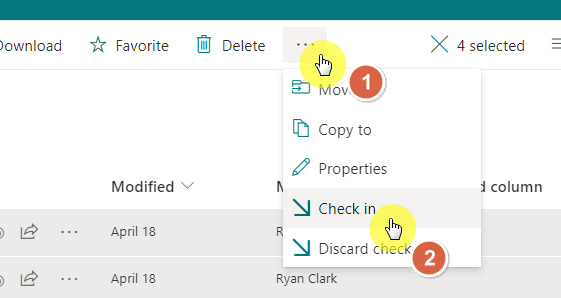
The lock releases immediately. The user’s changes get saved. A new version of the file is created (major or minor, depending on your settings).
Method 2: Force Discard Check-Out (Revert Changes)
Use this when you don’t need the user’s changes and want to go back to the last clean version.
Here’s how:
- Navigate to the document library
- Select the locked file
- Click the three dots (…) in the toolbar
- Select More > Discard check out
- Confirm the warning dialog
The lock releases immediately. All the user’s changes are discarded. The file reverts to its previous version. No new version is created.
Method 3: The OneDrive Workaround (Stubborn Ghost Locks)
Sometimes a ghost lock resists all normal unlock methods. Even the delete button fails. In these cases, a creative workaround often works: move the file.
Here’s the trick:
- Right-click the locked file
- Select Move to
- Choose your OneDrive (“My files”)
- Confirm the warning about lost properties
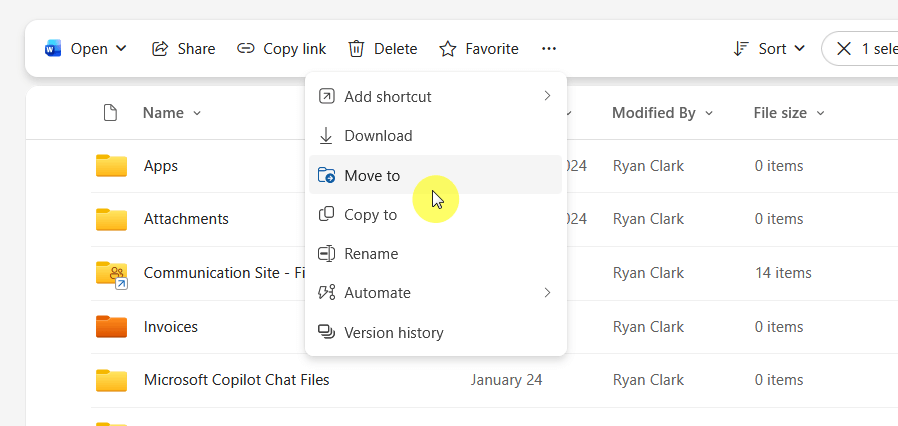
The move operation uses a different API call that can break orphaned lock tokens.
Once the file is in your OneDrive, you can delete it or move it back to SharePoint as a fresh copy (no lock).
Why this works: The “Move” operation speaks to the server differently than “Check In” or “Discard.” That different conversation can unstick the ghost lock.
Advanced PowerShell Solutions (For IT Teams)
When GUI methods exhaust themselves, PowerShell gives you direct access to file properties. This is the nuclear option, but it works reliably for persistent ghost locks.
You only need to install PnP PowerShell once. After that, connection is quick.
One-time installation:
Install-Module -Name "PnP.PowerShell" -Force -AllowClobberTo connect to your SharePoint site:
Connect-PnPOnline -Url "https://[tenant].sharepoint.com/sites/[siteurl]" -InteractiveThis opens a browser for authentication. You stay connected in PowerShell afterward.
Scenario 1: Programmatic Check-In
Use this to check in a file through code instead of the UI. Good for automating bulk unlock operations.
Here’s the script:
$fileUrl = "/sites/[sitename]/Shared Documents/MyLockedFile.docx"
Set-PnPFileCheckedIn -Url $fileUrl -CheckinType MajorCheckIn -Comment "Forcibly checked in by Admin"
Write-Host "File has been checked in."
The -CheckinType parameter accepts three values:
- MinorCheckIn: Creates a minor version
- MajorCheckIn: Creates a major version
- OverwriteCheckIn: Overwrites the current checked-out copy
Scenario 2: Checking Ghost Lock Status with PowerShell
Important limitation: Unlike on-premises SharePoint, SharePoint Online doesn’t support the ReleaseLock method through PowerShell.
There’s no programmatic way to force-release a ghost lock. However, you can use PowerShell to diagnose lock status and then apply manual workarounds.
Here’s a diagnostic script to check if a file has a ghost lock:
# Connect to your SharePoint site
Connect-PnPOnline -Url "https://[tenant].sharepoint.com/sites/[siteurl]" -Interactive

# Define the file URL (server-relative)
$fileUrl = "/sites/[sitename]/Shared Documents/MyLockedFile.docx"

# Get the file as a list item to check lock properties
$file = Get-PnPFile -Url $fileUrl -AsListItem

# Display lock information
if ($file["_CheckoutUser"]) {
    Write-Host "File is checked out to:" $file["_CheckoutUser"].Email -ForegroundColor Yellow
    Write-Host "This is a deliberate check-out, not a ghost lock."
    Write-Host "Use Set-PnPFileCheckedIn to release it."
} else {
    Write-Host "File is not checked out." -ForegroundColor Green
    Write-Host "If users report a lock error, try the manual workarounds:"
    Write-Host "1. Wait 10-15 minutes for automatic expiration"
    Write-Host "2. Use the check-out/check-in cycle from desktop Office"
    Write-Host "3. Move file to OneDrive and back"
}
What’s happening: This script checks if the file has an active checkout.
If there’s no checkout but users still see lock errors, you’re dealing with a ghost lock that requires manual intervention.
Workaround: The Delete-and-Restore Method
For stubborn ghost locks that resist all GUI methods, this PowerShell-assisted workaround often succeeds:
# 1. Get the file
$fileUrl = "/sites/[sitename]/Shared Documents/MyGhostLockedFile.docx"
$file = Get-PnPFile -Url $fileUrl -AsListItem

# 2. Note the file ID for restoration
$fileId = $file.Id
Write-Host "File ID: $fileId - Keep this for reference"

# 3. Delete the file (sends to recycle bin)
Remove-PnPFile -ServerRelativeUrl $fileUrl -Force

# 4. Restore from recycle bin
$recycledItem = Get-PnPRecycleBinItem | Where-Object {$_.Id -eq $fileId}
Restore-PnPRecycleBinItem -Identity $recycledItem -Force

Write-Host "File restored. The ghost lock should be cleared." -ForegroundColor Green
Why this works: The delete operation breaks the orphaned lock token.
Restoring from the recycle bin brings back the file with all metadata and versions intact, but without the ghost lock.
Alternative for critical files: If you’re hesitant to delete, use the GUI workarounds from Administrator Solutions, such as the OneDrive move or the check-out/check-in cycle.
Microsoft intentionally removed direct lock manipulation from SharePoint Online’s APIs.
The reasoning: forcing lock releases can corrupt co-authoring sessions and cause data loss.
The 10-minute automatic timeout and GUI workarounds are considered safer approaches for cloud environments.
If you regularly face ghost locks, that’s a signal to investigate root causes (outdated Office clients, poor network stability, legacy file formats) rather than repeatedly forcing unlocks.
Quick Note: Sensitivity Label Encryption Locks
Files encrypted with Microsoft Purview sensitivity labels also show as “locked.” If you need to remove this encryption, use a different cmdlet:
Connect-SPOService -Url "https://[tenant]-admin.sharepoint.com"
$fileUrl = "https://[tenant].sharepoint.com/sites/[siteurl]/Shared Documents/EncryptedFile.docx"
Unlock-SPOSensitivityLabelEncryptedFile -FileUrl $fileUrl -JustificationText "Admin override for business-critical edit."
Note that this requires the SharePoint Online Management Shell module.
This requires a SharePoint Admin role and a connection to the Tenant Admin site, not the regular site.
What to Do Now
Most file locks fall into one of three categories. Now that you know the difference, finding the right fix is straightforward.
- If you’re an end user, start with a 10-minute wait or cache clear. If you’re a site owner, use the GUI force check-in options.
- If you’re an IT admin, keep the PowerShell ReleaseLock script handy for stubborn ghost locks.
And remember: most locks are preventable. Standardizing on modern Office clients and file formats eliminates 80 percent of these issues before they start.
Do you have questions about unlocking files in SharePoint Online? Let me know below.
For any business-related queries or concerns, contact me through the contact form. I always reply. 🙂





























Hi Ryan
Thank you for your article. I have tried all you have mentioned in your article and still the files is locked.
Do you have an idea of how the file got locked? Are you using workflows on the file at all?
Thank you. This was helpful.
You’re welcome. Thanks for reading!
Microsoft seems to have an entire division whose primary task is to develop barriers to prevent people from doing work. The development of a lock on files is but one more way microsoft introduces inefficiency into work programs, wasting thousands of hours into trying to figure out a solution.
Completely understand your concerns. I do hope that Microsoft addresses this soon.
We have a locked file from a user that is not online at the moment.I removed her sharing permissions and the file is still locked. Is there a way to completely remove existing sharing locks on a file?
The sharing lock should be automatically removed after a short while.
Thanks, the method of checking out and checking in thru Teams worked
thanks the method of checking out and checking the file again in using Teams worked
Hi Ryan, I have a SP 2019 on-premise installation, recently migrated from a SP 2010 installation. our workflows were created using an administrator user, and therefore when a warning messaage is presented, our users think the admin user has been included into the workflow.. e.g. someone invites an additional reviewer to the workflow process. this causes a warning message to be entered at the same time, in front of the user that was added to the workflow stating “The item is currently locked for editing. Waiting for item to be checked in or for the lock to be released.” This… Read more »
Are you using SharePoint Designer workflows in this case?
Has anyone experienced file locks with Document Sets?
Yes, I have. Did you have a specific question?
Great article, thanks for making the effort to write up this. This issue is not well discussed in other forums.
But I think the key missing detail is – why/when does Office use Exclusive file lock over a co-authoring lock?. What are the scenarios where Exclusive file lock is used rather than Co-authoring?
We have a very frustrating situation where the document is always locking when opened from a Power App link. Don’t understand why it wouldn’t use co-authoring.
These are great questions. When I get a minute, I’ll add these into this blog or write another one.
can the file be locked or private?
Are you asking if a private file can be locked? If so, yes.
Sharepoint doesnt allow co-editing of MS Project files in the same way as Word, Excl, Powerpoint – is checkout the only way to lock a MS Project
In SharePoint document library the pdf files are Checked out to System Account, and the error message is “This item cannot be updated because it is locked as read-only.”
Cannot be able to check-in, discard checkout and delete the pdf files.
Thanks in advance.
Still locked up. I never locked it up in the first place. It is a random situation where it finally unlocks on their own. It is just crap.