

Roughly 80% of the global workforce doesn’t sit at a desk. That’s around 2 billion people on retail floors, factory lines, warehouses, hospitals, and field sites.
Most of them are stuck with paper schedules, personal WhatsApp groups, and radio channels because nobody ever set them up with real tools.
I’ve deployed M365 for frontline teams across manufacturing, retail, and field services, and the same five tools come up every time.
If your organization already pays for Microsoft 365, you’ve almost certainly paid for these too. They just haven’t been turned on.
| Tool | Best For | Typical Use Case |
|---|---|---|
| Microsoft Teams for Frontline Workers | Shift-based teams needing mobile communication | Push-to-talk on the floor, team chat, task assignment |
| Microsoft Shifts | Scheduling and shift management | Replacing paper schedules and WhatsApp shift swaps |
| Viva Connections | Company-wide engagement and news | Mobile intranet hub for a deskless workforce |
| SharePoint Communication Sites | Targeted news and document delivery | Role-based news, policies, and resources |
| Power Apps | Custom field and operational workflows | Inspection forms, incident reports, safety checklists |
The Microsoft 365 Tools Built for Frontline Workers
Each of these five tools ships with Microsoft 365 and targets a specific frontline problem. Here’s what each one does and who it’s actually for.
1. Microsoft Teams for Frontline Workers
You already know Teams as the thing your office staff use for meetings and chat. What most people miss is that Microsoft Teams for Frontline Workers is a different beast.
It’s a mobile-first experience tuned for people who never open a laptop. It runs on the phone in your worker’s pocket.
Frontline-specific policies strip out the desk-worker clutter and surface the things a shift worker actually needs.
Key features:
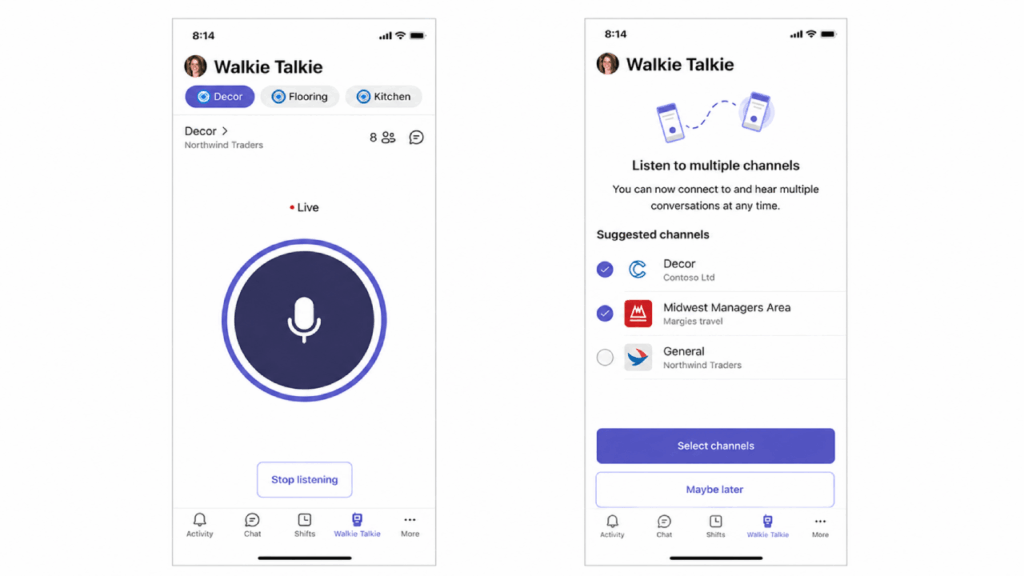
- Walkie Talkie: push-to-talk voice over Wi-Fi or cellular, no extra hardware
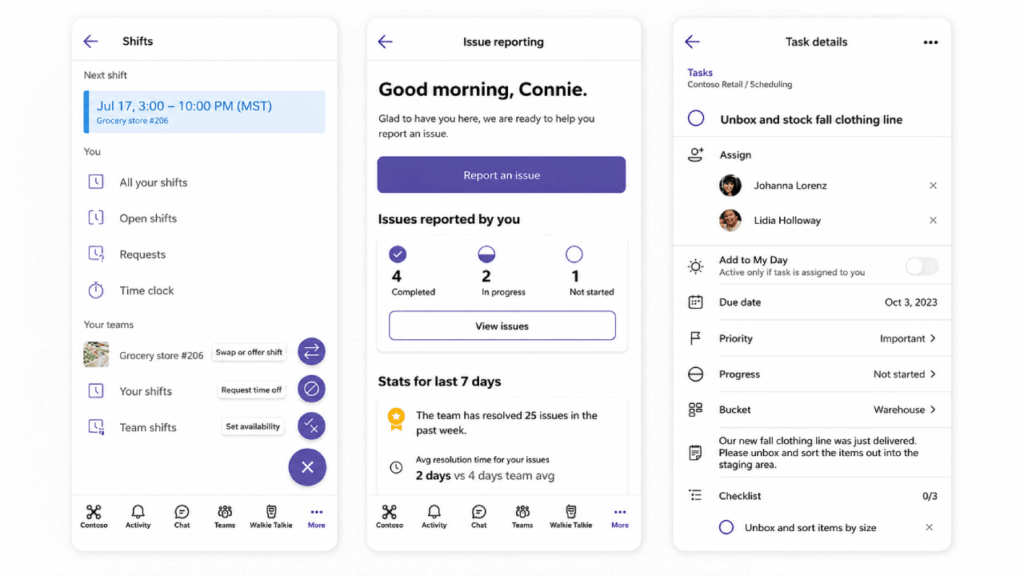
- Shifts: built-in scheduling and clock-in (more on that below)
- Tasks by Planner: assign and track work across locations
- Approvals: sign-offs for requests, expenses, and time off, right in the app
The Walkie Talkie piece is the one that wins people over. On a loud factory floor or a busy retail backroom, push-to-talk just works.
It replaces the old analog radios most teams still lug around. Chevron even pairs Teams with mixed-reality headsets so field crews can pull in a remote expert mid-inspection.
Source: https://support.microsoft.com/en-US/teams/apps-service/get-started-with-teams-walkie-talkie
There’s also the Frontline Hub in the Teams Admin Center, which is where IT lives. You provision locations, push policies, enable apps and add-ons, and watch adoption from one console.
That last part matters more than it sounds. Rolling Teams out to 200 store locations by hand is nobody’s idea of a good week.
Source: https://www.microsoft.com/en/microsoft-365/enterprise/frontline
Who’s it best for? Honestly, almost any deskless team, since it’s the backbone everything else plugs into.
Pick this if you want one mobile app that handles communication, scheduling, and tasks for shift-based workers.
2. Microsoft Shifts
If your managers are still building schedules in a spreadsheet and texting people their hours, Microsoft Shifts is the fix.
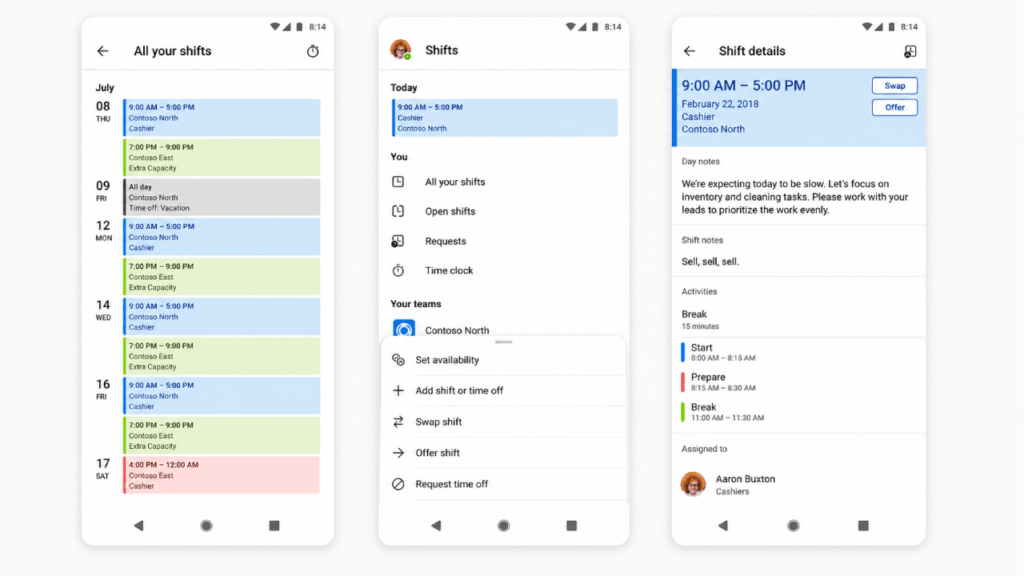
It’s a scheduling app that lives inside Teams, so workers see their shifts on the phone they already use. No separate login, no printed rota on the breakroom wall.
Key features:
- Schedule creation and publishing, viewable on mobile
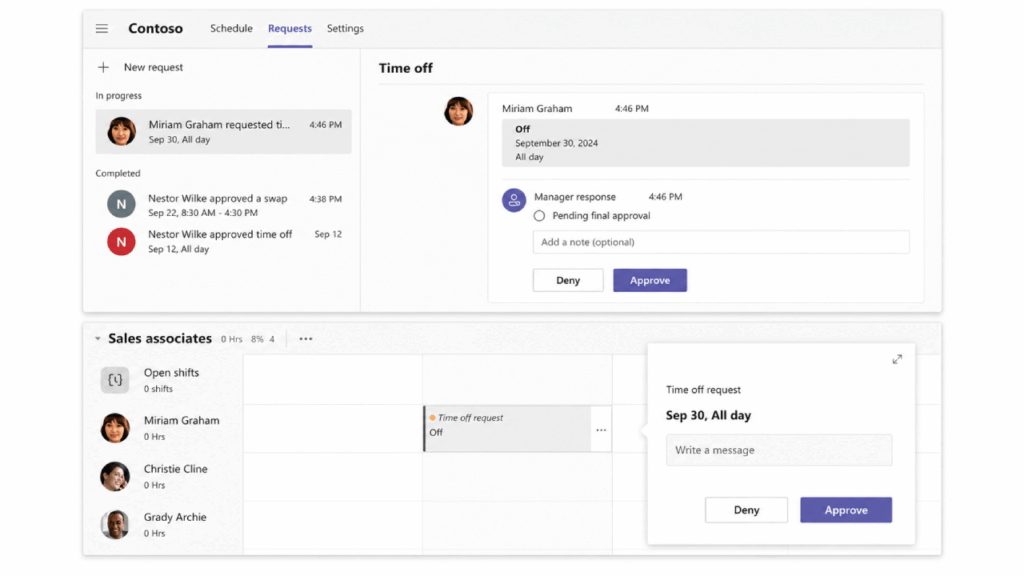
- Shift swaps and time-off requests with manager approval built in
- Clock-in and clock-out with optional location verification
- Connectors that sync with existing workforce management systems
I keep seeing the same pattern at clients: a paper schedule on the wall and a WhatsApp group where people beg coworkers to cover shifts.
Shifts kills both. Swaps and time-off requests route through a manager, so nothing slips and everyone sees the real schedule.
Source: https://www.microsoft.com/en-us/microsoft-teams/staff-scheduling-shift-management/
If you already run a workforce management system, Shifts connects to it through the Connectors framework, syncing both ways so you’re not double-entering anything.
One word of caution here: pick a single system of record for scheduling and commit to it.
Source: https://support.microsoft.com/en-us/office/manage-shift-requests-and-time-off-in-shifts-231fc82f-db7f-4f06-9215-8b36b599d69c
Running Shifts and a legacy tool in parallel gives you two versions of the truth and a lot of confused staff.
Pick this if your frontline managers are scheduling by spreadsheet and your workers are coordinating shifts over text.
3. Viva Connections
Your office staff get company news through email and the intranet. Your frontline workers get it through, well, rumor.
Viva Connections closes that gap by surfacing a mobile intranet hub right inside the Teams app your workers already have.
Think of it as the front door to your company for people who never see a desk. News, resources, and quick links, all targeted to the right audience.
Key features:
- A mobile dashboard with cards for the tasks and tools each role needs
- Company news and announcements, pushed to the people they apply to
- Audience targeting based on Microsoft Entra ID attributes like role or location
- Adaptive card extensions that pull in tools like Workday, ServiceNow, or UKG
Now, the catch. Viva Connections is a window into your SharePoint intranet, not a replacement for it.
If you don’t have a maintained SharePoint communication site behind it, you’ll deploy a beautiful empty room.
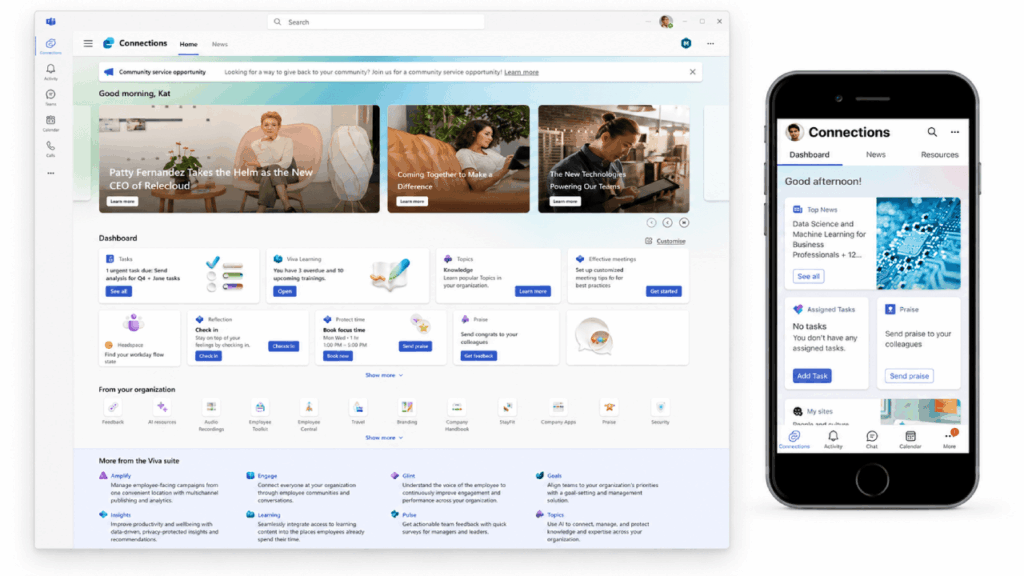
Source: https://learn.microsoft.com/en-us/viva/connections/viva-connections-overview
Build the SharePoint foundation first, then surface it through Viva. I’ll come back to that in the next section.
When it’s done right, the impact is real. Austrian manufacturer Blum used Viva Connections to replace the notice boards on its factory floor.
Workers can now pull up company info from anywhere. As Sarah Blum put it: “This isn’t just about one-way communication.”
She added that they can now have direct conversations with employees, answer their questions, and make them feel heard.
That two-way part is the whole point. A notice board talks at people, while Viva Connections lets them talk back.
Pick this if you want a single mobile home base where frontline workers find news, tasks, and resources tailored to their role.
This is the foundation the others quietly depend on.
A SharePoint communication site is a polished, mobile-friendly page for publishing news, policies, and resources. You can target the whole organization or specific slices of it.
Think of it as a designed, readable home for the information your people actually need to find.
Key features:
- News posts that render cleanly on mobile
- Quick Links to the documents and tools each team uses most
- Audience targeting so the right content reaches the right roles
- Role-targeted document delivery without a maze of folders
Here’s why it matters more than it looks. Viva Connections doesn’t generate content on its own; it surfaces what lives in SharePoint.
So the quality of your frontline experience is really the quality of your communication site. Skip this step and the rest falls flat.
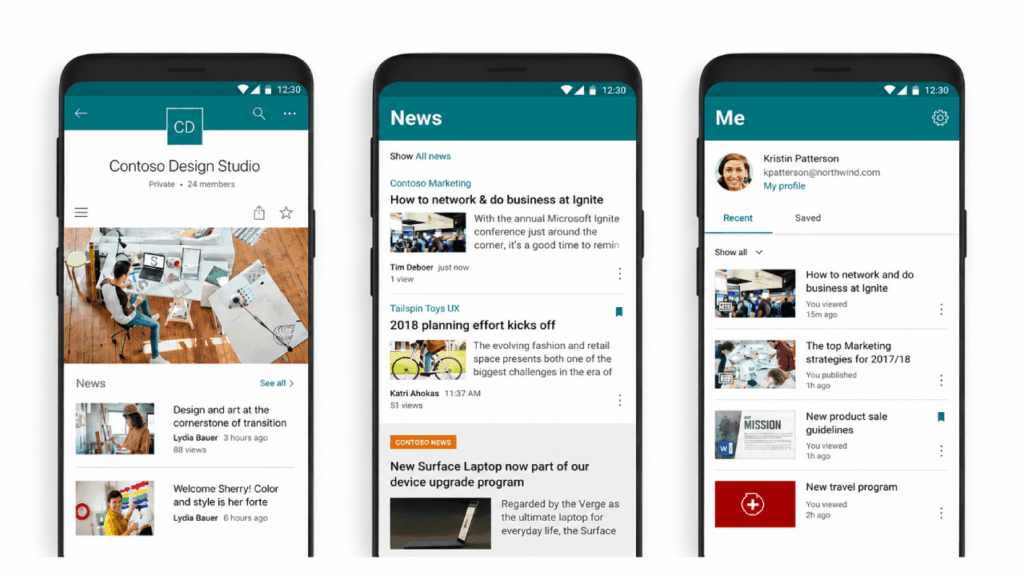
Source: https://play.google.com/store/apps/details?id=com.microsoft.sharepoint
Audience targeting is the feature I’d point to first. You can aim news at warehouse staff in one region without cluttering everyone else’s feed.
It all runs on the same Microsoft Entra ID attributes you already manage. In practice, this is where a lot of frontline projects should actually start.
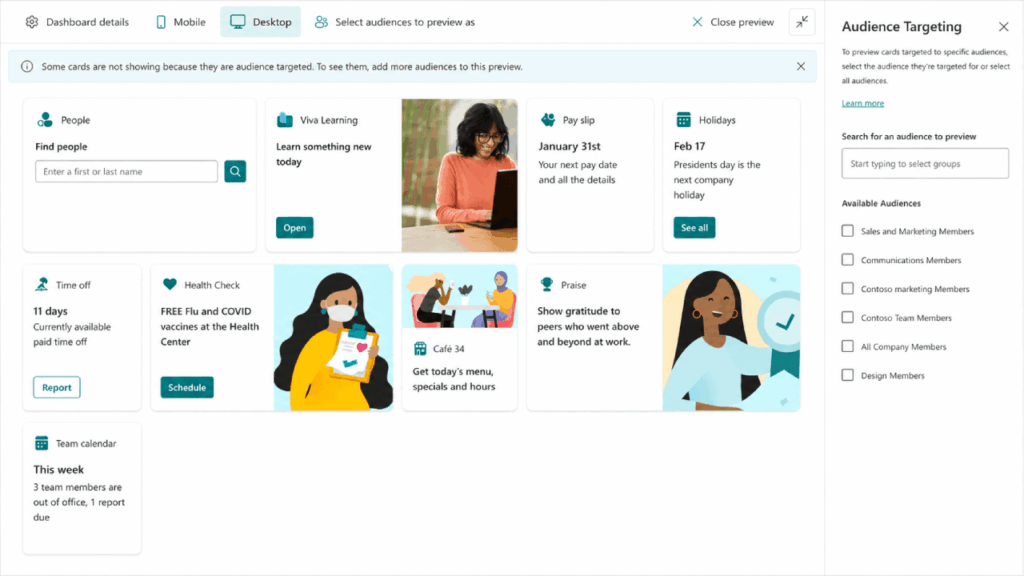
Source: https://learn.microsoft.com/en-us/viva/connections/use-audience-targeting-in-viva-connections
Get the communication site clean and current, then layer Viva on top.
Pick this if you need a maintained, mobile-ready home for company news and resources, or if Viva Connections is anywhere on your roadmap.
5. Power Apps for Frontline Scenarios
Some frontline work doesn’t fit a generic tool. You need a form built for your safety checklist, your inspection process, your incident report.
That’s where Power Apps earns its place, letting you build lightweight mobile apps without writing real code.
Your field workers don’t need to be developers to use what you build. They just open the app, fill out the form, and submit.
Key features:
- Low-code builder for custom mobile forms and apps
- Works offline-friendly for spotty field connectivity
- Photo capture, signatures, and location data built into forms
- Plugs into SharePoint, Lists, and the rest of your M365 data
The use cases write themselves: field inspections, incident reports, safety checklists, equipment logs.
Anywhere workers fill out a paper form today is a candidate for a Power App. The data drops straight into a system you can actually report on.
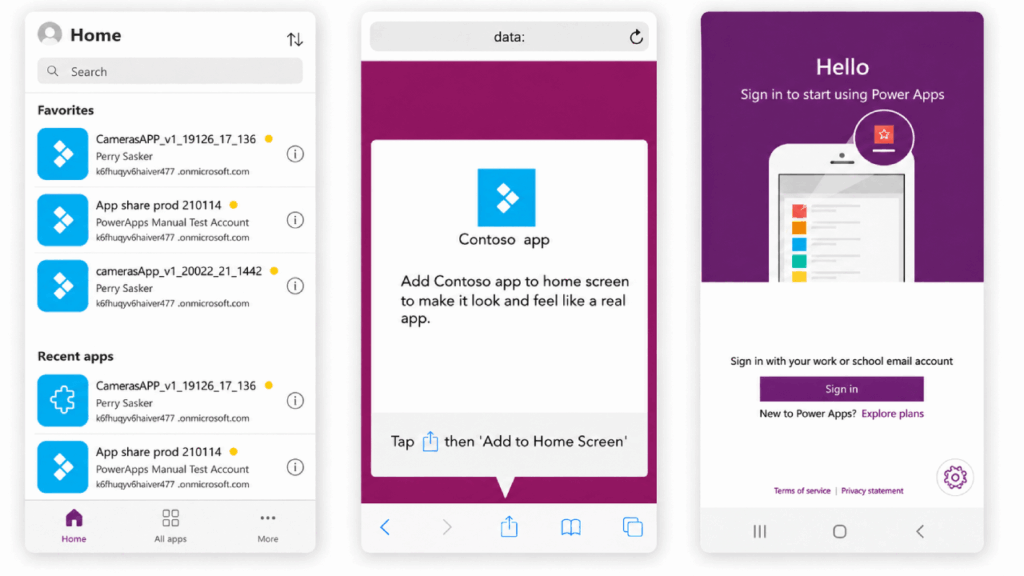
Source: https://learn.microsoft.com/en-us/power-apps/user/run-canvas-and-model-apps-on-mobile
Chevron leans on this kind of custom tooling for field-service work, and it scales down to a single-location team just as well.
One licensing note trips people up. Power Apps per-app capability comes with F3 and higher, not the entry-level F1 tier.
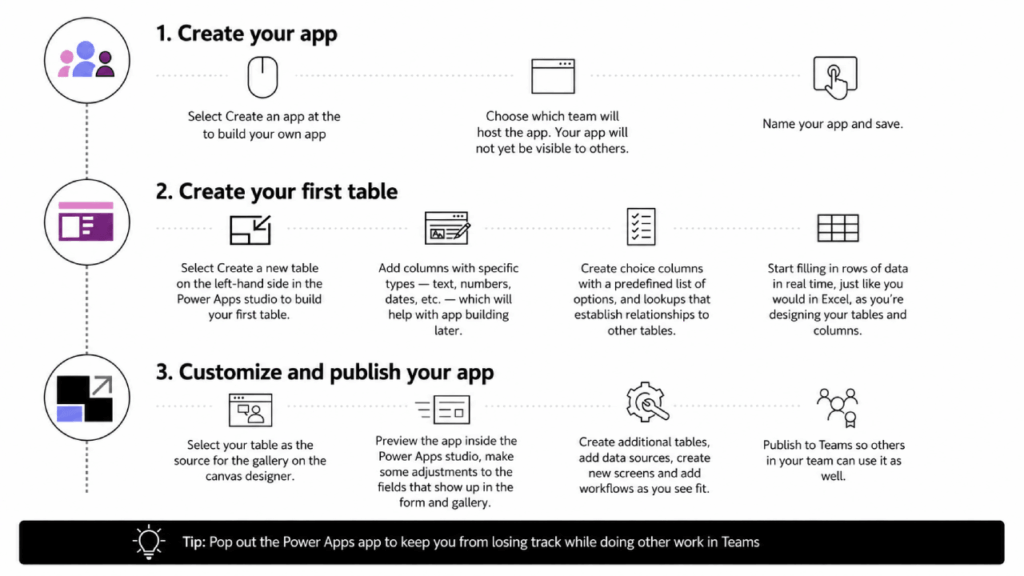
Source: https://learn.microsoft.com/en-us/power-apps/teams/create-first-app
So if you want custom apps for your frontline, budget for F3 on those users. More on the license split below.
Pick this if your frontline runs on paper forms you’d love to digitize without hiring a development shop.
Sign up for exclusive updates, tips, and strategies
The Right License for Frontline Workers: F1 vs. F3
Here’s a thing a lot of IT managers don’t know: Microsoft sells frontline-specific licenses that cost a fraction of the standard E3 plans.
If you’ve got shift workers sitting on E3 seats, you’re very likely overpaying.
| License | Monthly Price | What’s Included | Best For |
|---|---|---|---|
| Microsoft 365 F1 | $2.25/user | Teams, Shifts, Walkie Talkie, Viva Connections, 2 GB storage, no email mailbox | Shift workers who only need communication and scheduling |
| Microsoft 365 F3 | $8.00/user | Everything in F1, plus Exchange Online mailbox, Power Apps per-app, Intune MDM, Microsoft Entra ID Plan 1, enhanced security | Supervisors and workers needing email, workflow automation, or managed devices |
The decision logic is simpler than the table makes it look. F1 covers the worker who needs to see their schedule, hit the walkie talkie, and read company news.
No mailbox, no custom apps, just the essentials at the lowest price.
F3 is for the people who need more: a real email mailbox, Power Apps for custom forms, or Intune device management for company phones. Supervisors and power users land here.
The money angle is the easy win. Moving a few hundred frontline workers off E3 and onto F1 or F3 frees up budget nobody was using well anyway.
I tell clients to map their personas first, then assign the cheapest license that does the job for each one.
Deployment Is Where It Actually Gets Done
Owning the tools and using the tools are two very different things.
Microsoft lays out a five-step framework for getting there:
- Start: assess what you have
- Discover: define your worker personas
- Envision: map requirements to tools
- Build: pilot with one group
- Grow: scale across the org
The order matters. So does the SharePoint-first rule from earlier: don’t deploy Viva Connections until you’ve got a healthy communication site for it to surface.
And don’t underestimate the human side. 55% of frontline workers had to adapt to new digital tools on the fly with no training.
Change management isn’t a nice-to-have here. It’s half the job.
A few mistakes I see over and over:
- Deploying Viva Connections on top of an empty or neglected SharePoint intranet
- Rolling out to the whole organization at once instead of piloting first
- Running two scheduling systems in parallel and confusing everyone
- Blocking WhatsApp before giving people a bet
That last one is worth sitting with. Shadow IT like WhatsApp exists because it fills a real gap.
In fact, 55% of UK frontline staff now call it their primary work channel. Take it away without a replacement and you’ll get a revolt, not adoption.
Deploy the better tool first, then sunset the workaround. Start with one pilot location or department, prove it works, gather feedback, then scale.
Start With What You Already Have
Before you buy anything, audit what you’re already paying for. Most organizations I work with find F-tier licenses sitting unused in the tenant, never deployed.
Three things to do before you configure anything:
- Audit your license inventory and find the frontline-capable plans you already own
- Map your worker personas: who needs scheduling, who needs custom apps, who just needs to read company news
- Pick a pilot group, one location or team where you’ll prove it works before you scale
Teams and Shifts are the right place to start. They cover communication and scheduling on the phone your workers already carry, with no extra hardware to buy.
Once that foundation holds, layer in Viva Connections for company-wide visibility and Power Apps for the custom workflows that paper forms can’t handle.
Forrester found a 391% ROI over three years for M365 frontline deployments, with payback in under six months.
The return comes from switching the tools on.
Already paying for Microsoft 365 but your frontline workers are still stuck on WhatsApp and paper schedules?
I help organizations configure and deploy the right M365 tools for shift-based and field teams, so the licenses you own actually get used. Reach out and let’s talk.




























