

Table of Contents:
Last Updated on February 27, 2025
What does this feature do?
In this guide, let’s talk about the limited access user permission lockdown mode and how it works.
Let’s get started.
What is the limited access user permission lockdown mode?
This mode is a feature that tightens security by restricting users with limited access from viewing certain pages and content.
When it’s activated, it prevents those users from viewing list views or libraries even if they have permission to specific items.
I’ll narrow it down to this:
- It blocks limited access users from viewing sensitive content.
- Users then can only see content explicitly shared with them.
- This can affect folder-level sharing and other functionality.
Because of how deep it can go, it requires careful planning on your part.
Some features, like the SharePoint Server Publishing Infrastructure, depend on this mode being active.
Deactivating the lockdown mode may allow broader access, though it could also impact these dependent features.
If you’re the administrator, make sure to evaluate your sharing needs and security requirements before enabling this mode.
Sign up for exclusive updates, tips, and strategies
How to Enable the Lockdown Mode
What’s nice here is that it’s easy to activate this feature in 3 simple steps:
Step 1: Go to the site settings
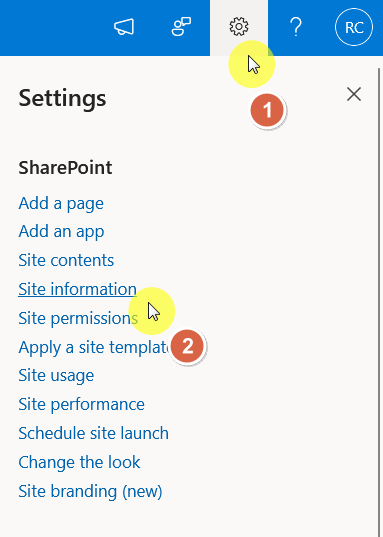
Go to the SharePoint site’s home page and click on the gear icon (Settings) in the top-right corner.
Select Site information then View all site settings:
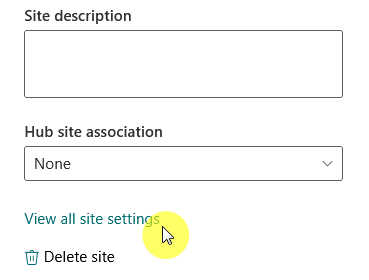
This will bring you to the main settings page of SharePoint Online.
Step 2: Access site collection features
From there, click on Site collection features under the Site Collection Administration section:

Proceed with the last part.
Step 3: Activate the lockdown mode
Finally, find the limited-access user permission lockdown mode and activate it.

Again, once you activate it, it will restrict users with limited access from viewing various content.
Potential Drawbacks and Considerations
Just throwing it out here since this comes with some challenges as well.
Here are some potential drawbacks and considerations:
- Users granted access to specific folders may encounter issues accessing them
- Other features rely on the lockdown mode to operate properly
- Activating it can complicate permission structures, especially in environments with fine-grained access controls
Test the changes first in a controlled environment to understand their impact.
Do you have any questions about the limited-access user permission lockdown mode? Let me know.
For any business-related queries or concerns, contact me through the contact form. I always reply. 🙂




























