

Last Updated on August 3, 2025
Need a simple way to collect files without giving up your privacy?
In this guide, I’ll show you exactly how to request files with OneDrive using its secure file request feature.
You can create a special link where others can upload files directly into a folder, and not see anything else.
Let’s get started.
Table of Contents:
What is the OneDrive File Request Feature?
The OneDrive file request feature creates a secure, one-way portal for receiving files.
A file request creates a unique OneDrive link to a folder where anyone with the link can upload files.
The best part is the security it provides:
- Uploaders can’t see your folder’s contents.
- They cannot edit, delete, or download files.
- They can’t see who else has uploaded anything.
Their only option is to submit their own files.
This makes the feature perfect for gathering documents from multiple people while keeping everything organized.
It’s a straightforward way to manage how you collect files from colleagues, clients, or students.
Sign up for exclusive updates, tips, and strategies
How to Create a File Request in OneDrive (Step-by-Step)
Creating a file request is easy and only takes a minute.
Just follow these simple steps to start collecting files.
Step 1: Choose Your Folder
First, sign in to your Microsoft 365 account and navigate to OneDrive.

You need to decide where you want to store the files you’re collecting.
You can either select an existing folder or create a new folder specifically for this purpose.
Using a dedicated, appropriate folder for each file request is a good habit for staying organized.
Step 2: Select “Request Files”
Once you have your folder, click on it to select it.
From the menu at the top, choose the Request files option.
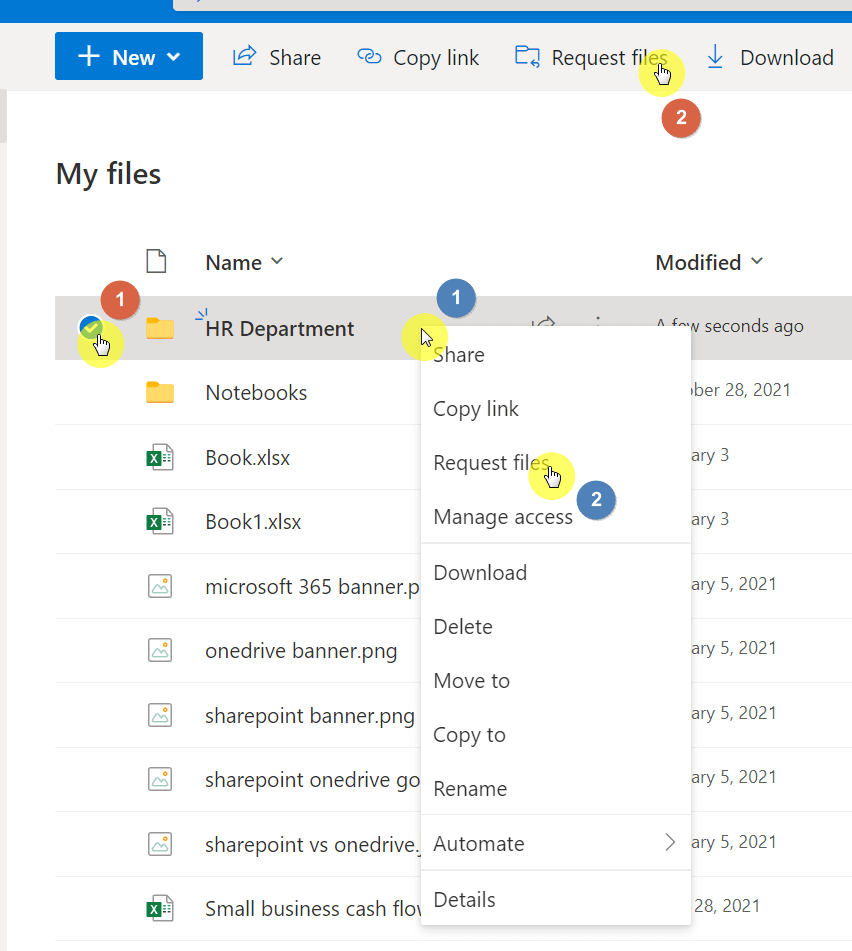
If you don’t see it, you can also right-click the folder to find the option to select request files.
This action will start the process of creating your unique upload link.
Step 3: Name Your Request
Next, OneDrive will ask you to give your file request a name.
It’s a good idea to use a descriptive name so people know what you’re asking for.
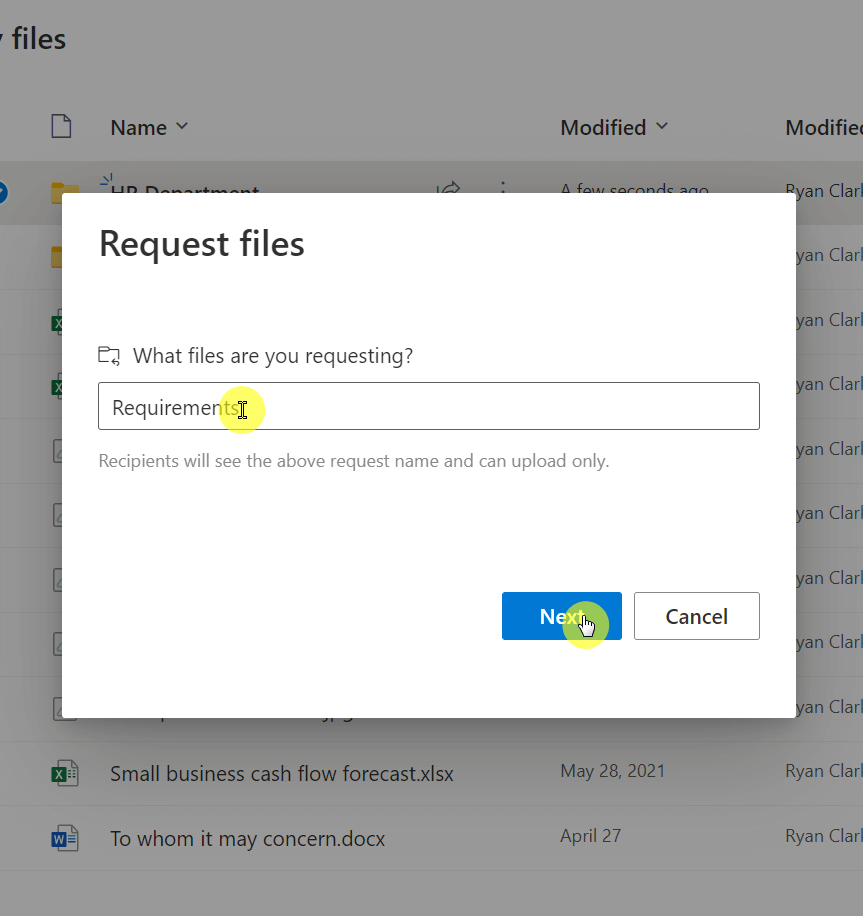
This folder name is what they will see on the upload page.
For example, instead of “Uploads,” try something clear like “Q3 Marketing Reports” or “Project Phoenix Submissions.”
After you name your request, OneDrive will generate a unique file request link.
You have two options for sharing it:
| Option | How It Works |
| Copy Link | This gives you a URL to copy and paste into an email, chat, or any other message. |
| You can enter email addresses directly in OneDrive to send a formatted email invitation. |
Remember, anyone with the link can upload files, even if they don’t have a Microsoft 365 account.
What Happens When Someone Uploads Files?
The process is simple for both you and the person uploading.
The request files feature is designed to be efficient.
For the Recipient
When someone clicks your request link, they’re taken to a simple upload page.
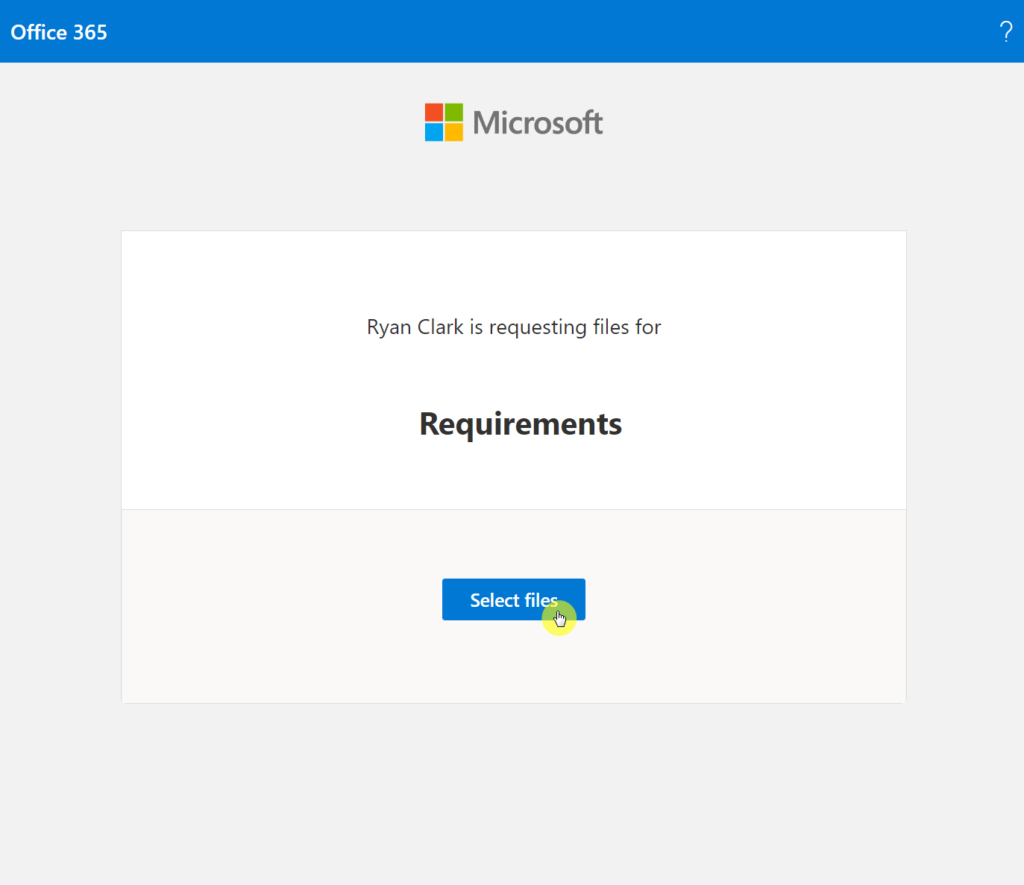
They will see the descriptive name you gave the request and a button to select files.
They don’t need to log in, but OneDrive will ask for their first and last name so you can identify their submission.
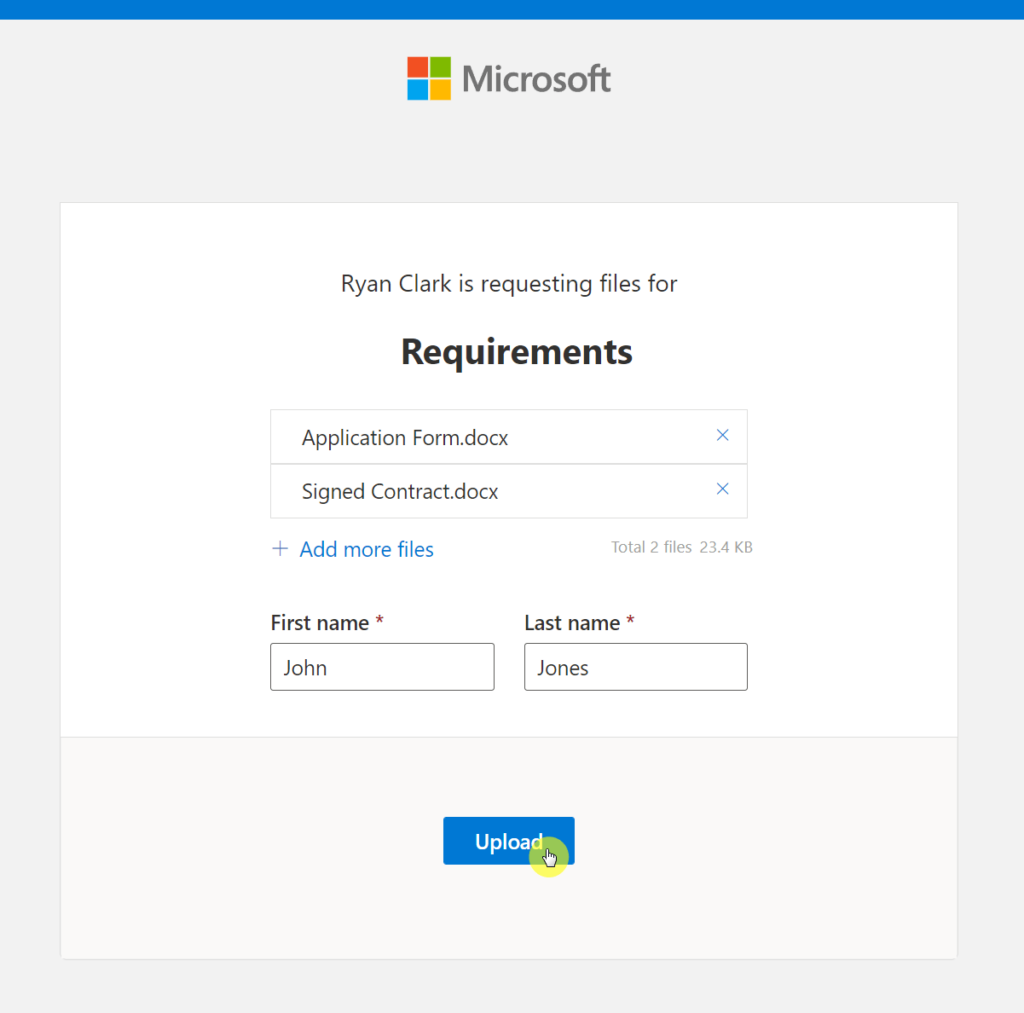
After they click upload, the files are sent directly to your folder.
For You (The Requester)
Each time someone successfully uploaded a file, you get a notification email.
You can find all the files that have been submitted in the file request folder you chose.
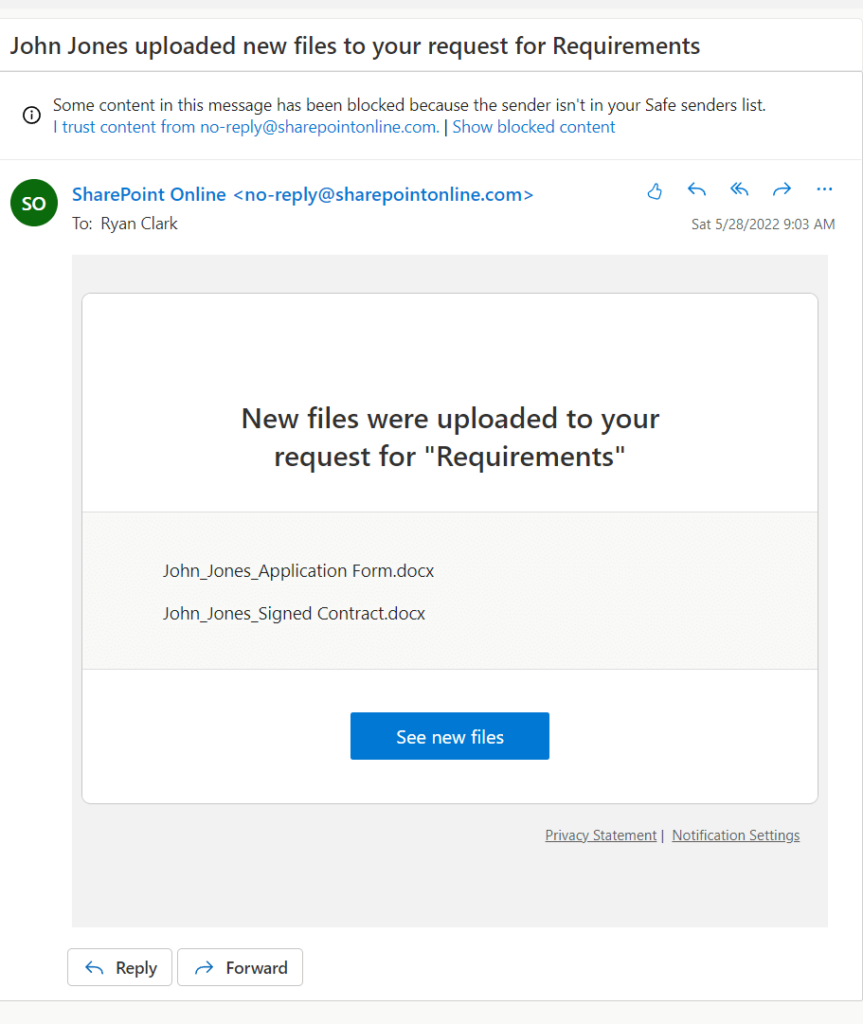
A very helpful feature in OneDrive is that it will automatically add the uploader’s name to the front of the file name.
For example, if a person named Jane Smith uploads a document called report.docx, it will appear in your folder as Jane Smith – report.docx.
This helps you easily track who sent what, even if you receive two files with the same name.
How to Manage or Stop Requesting Files
When you’re done collecting submissions, you should close the upload link.
You can stop requesting files at any time.
This action ensures no more files can be added to the folder anymore.
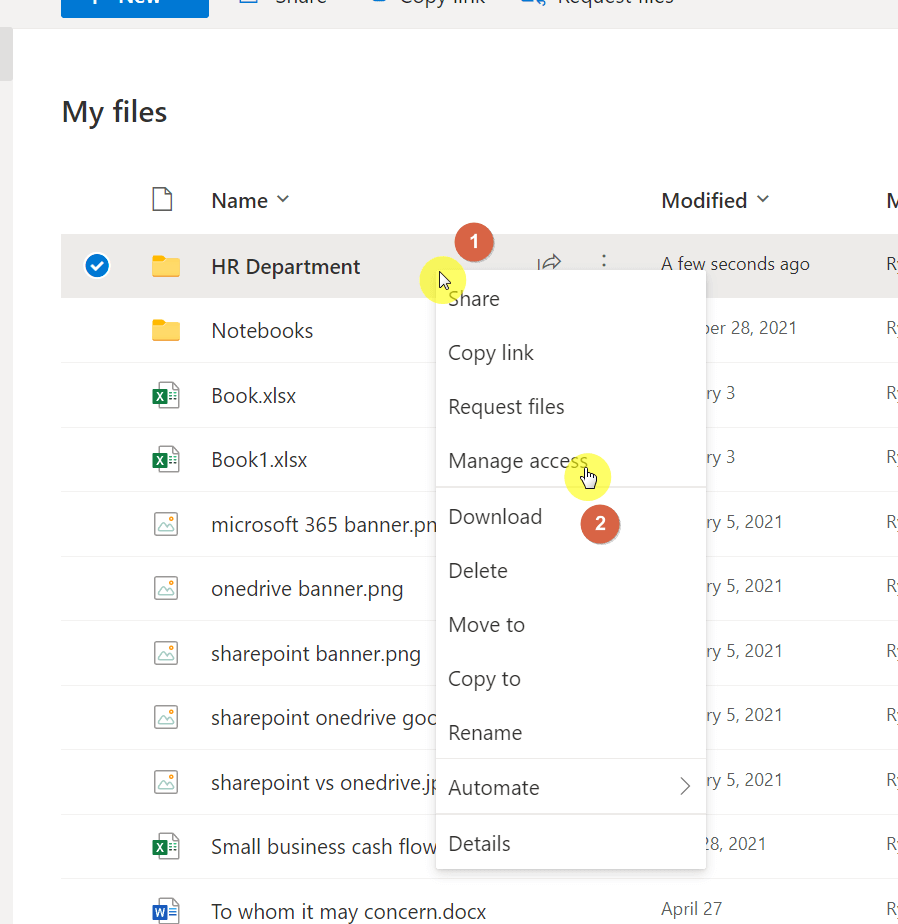
- Find and right-click the folder you used for the file request
- Select Manage Access
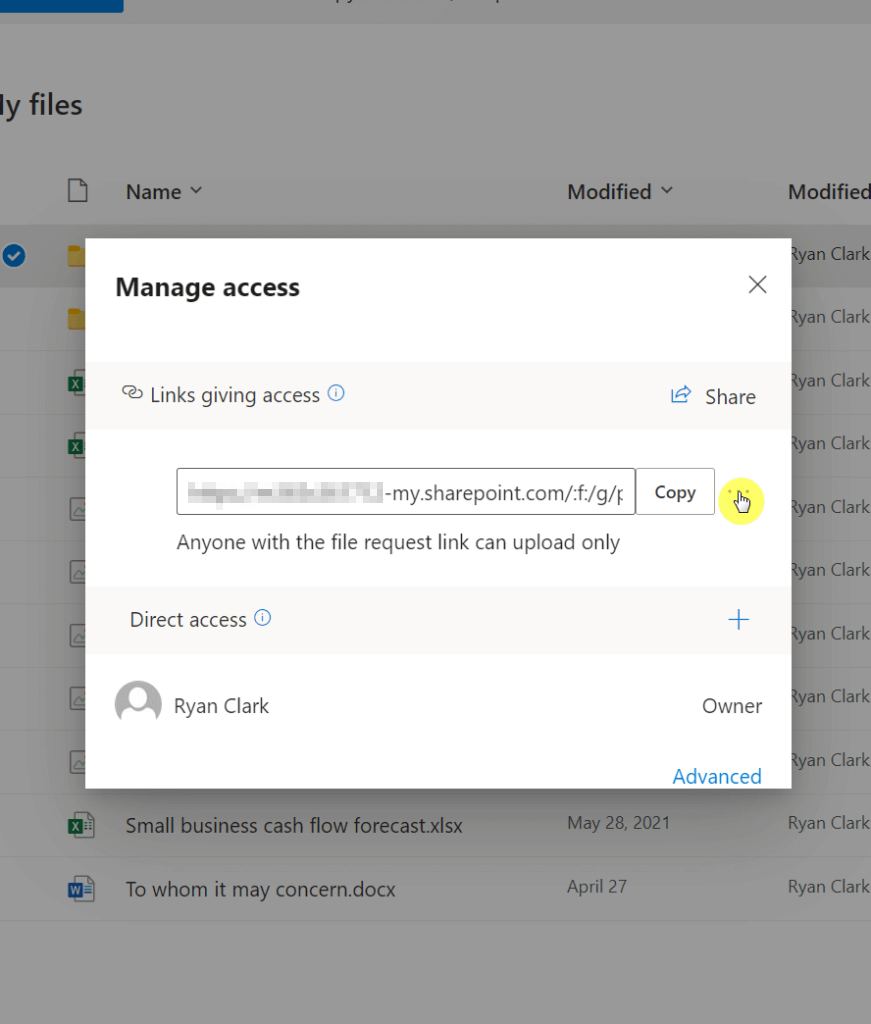
- In the panel that appears, find the file request link. It will be labeled with “Anyone with the file request link can upload only.”
- Click the … (More options) button next to the link.
- Click the X to remove the link.
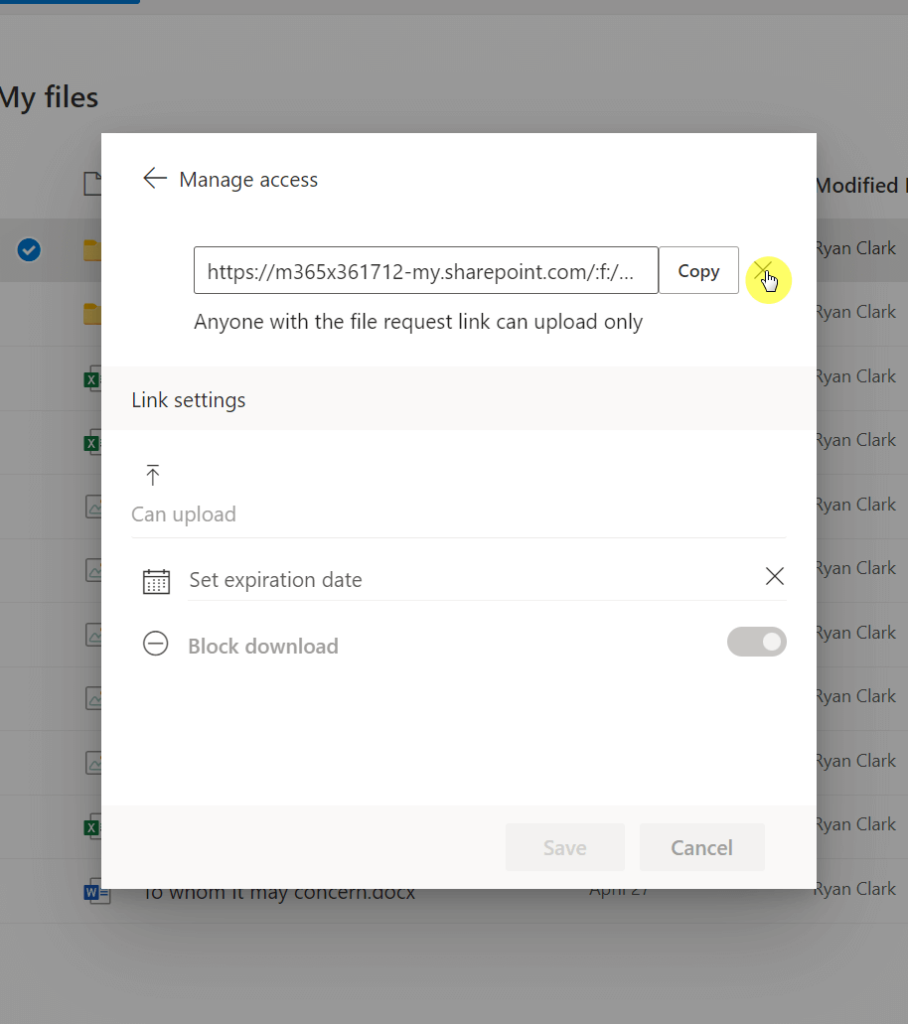
This link deletion is permanent.
It won’t delete any of the files you’ve already collected, but it will prevent anyone from uploading additional files.
If you need to reopen the request, you must create a new file request and share a new link.
Important Things to Know (Limitations & Requirements)
The file request tool is powerful, but there are a few key things to keep in mind before you use it.
First, the request files feature is only available for business and school accounts.
This means you need a Microsoft 365 and Office plan for work or education.
The feature isn’t available for personal or OneDrive for home accounts, as you can see here:

It is, however, available for document libraries in a SharePoint site as well as OneDrive.
Here are a few other limitations to be aware of when using the file request tool in OneDrive or SharePoint:
| Category | Limitation |
| Admin Controls | The feature only works if your IT admin has enabled “Anyone” sharing links for your organization. |
| No Editing | You cannot edit a file request after it has been created. To make changes, you must delete link and start over. |
| Upload Only | People using the link can only upload files. They cannot see who else has uploaded or delete or download files. |
| No Login Needed | External users do not need a Microsoft 365 account, which makes it easy to upload files. |
Make File Collection Simple and Secure
The OneDrive file request is an excellent tool for gathering different files from colleagues, clients, or partners.
It provides a secure and professional alternative to email, centralizing all collected documents into one place.
Do you have questions about creating the file request feature? Let me know in the comments.
For any business-related queries or concerns, contact me through the contact form. I always reply. 🙂