A flat design illustration showing a digital profile card connected to a settings panel with toggle switches. The profile card features a generic avatar and text lines, while one toggle in the settings panel is turned on, symbolizing user profile customization or account settings adjustment. The background is solid blue.

How to Change Job Title in Outlook (Microsoft Outlook Card)

Last Updated on October 7, 2025

Want to change your job title on your Outlook card?

In this guide, let’s talk about how to change your job title in Outlook and why you need the IT admin or HR for that.

Let’s get started!

Check Your Microsoft Account

Before everything else, let’s settle first that what we’re talking about is the Outlook card and not the email signature.

It’s what you see when you hover a user/sender/recipient on Outlook:
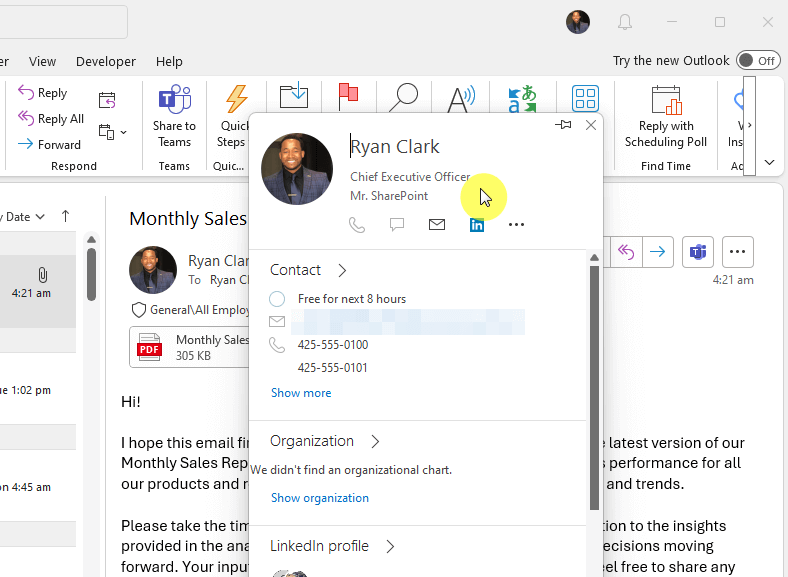
A Microsoft Outlook email window showing a contact card for Ryan Clark, Chief Executive Officer at Mr. SharePoint. The contact card displays his profile photo, job title, email, phone numbers, LinkedIn icon, and availability status, overlaying an open email titled “Monthly Sales Report.”

With that out of the way, there’s an easy way to check (from Outlook) if you can actually edit your job title.

Go to the file tab > office account > click the about me button (old Outlook):
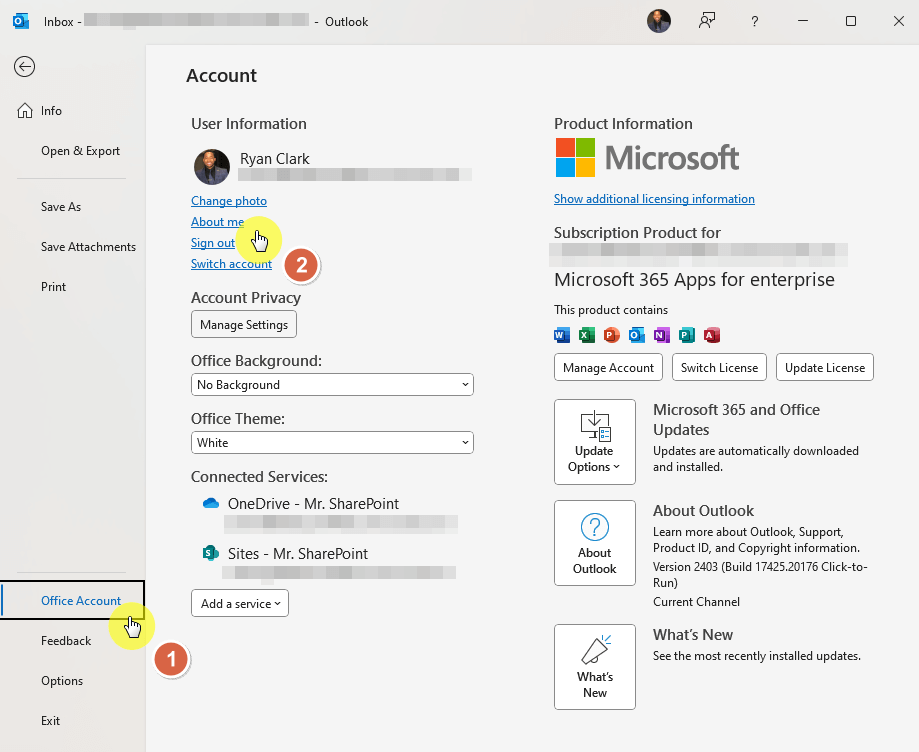
The Microsoft Outlook “Account” settings page showing user information for Ryan Clark, including his profile photo, linked accounts, and Microsoft 365 subscription details. The cursor hovers over the “About me” link, and the “Office Account” tab is highlighted in the left sidebar.

If you’re using the new Outlook:

  • Click on your name as a recipient/sender of an email
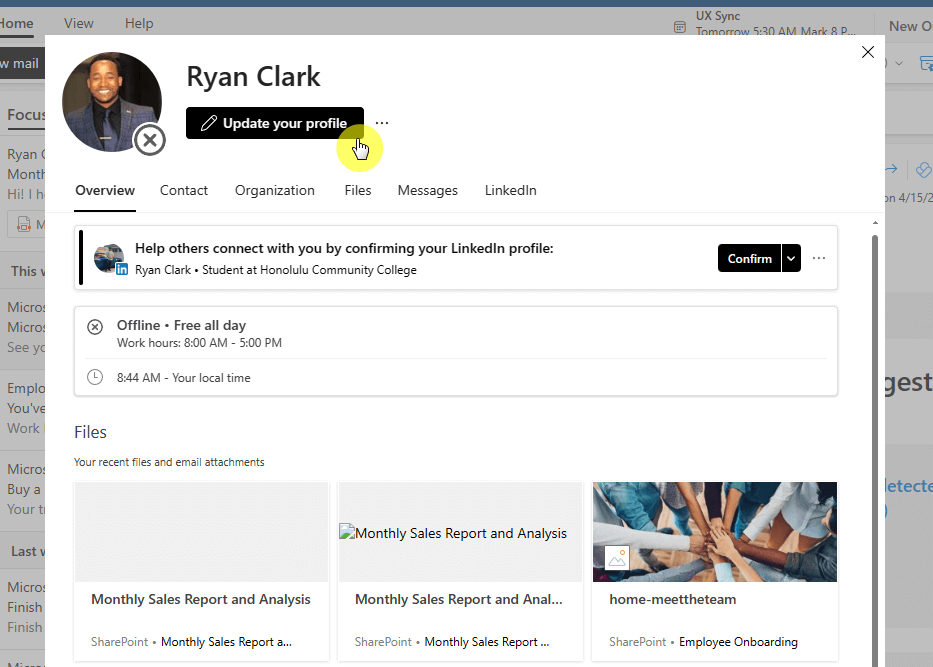
  • Press the update your profile button
A profile window in Microsoft Outlook showing Ryan Clark’s contact details. The cursor hovers over the “Update your profile” button below his profile photo. The page includes tabs like Overview, Contact, Organization, Files, Messages, and LinkedIn, with a section prompting him to confirm his LinkedIn profile and a list of recent files displayed below.

Any of these buttons will bring you to Delve, where you can update your profile (or, actually, add some information).

But as you can see, you won’t be able to update either your name or your job title:
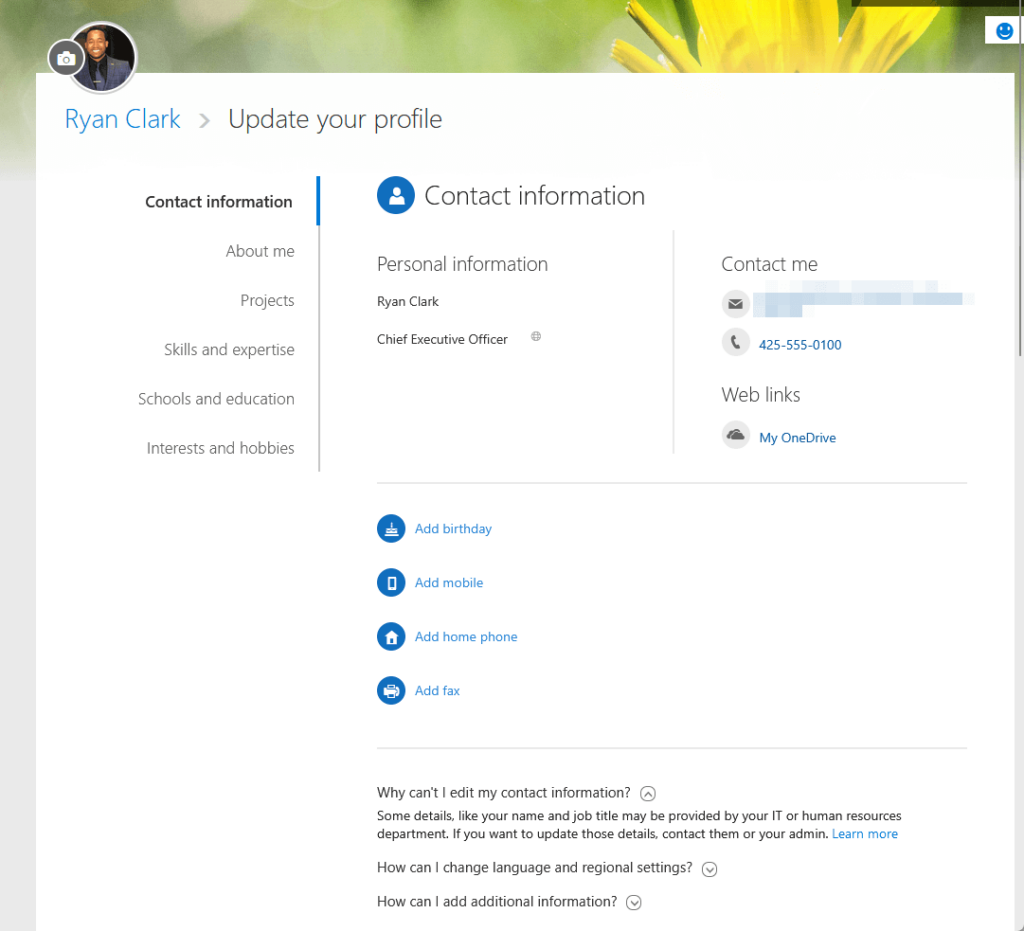
A Microsoft profile page titled “Update your profile” displaying Ryan Clark’s contact information. The page shows his name, job title as Chief Executive Officer, email address, phone number, and a link to his OneDrive. The left sidebar includes menu options such as Contact information, About me, Projects, and Skills and expertise, with options to add birthday, mobile, home phone, or fax.

Because of this, you need to contact your IT department or HR department so they can make the changes for you.

If you’re one of them, then read on. 🙂

Sign up for exclusive updates, tips, and strategies

    Changing Job Titles as an Admin

    If you can access the Microsoft Entra admin center, then you can make those changes yourself.

    Step 1: Access Microsoft Entra admin center

    The short of it is that Entra is now the new Azure AD.

    Specifically, it comes with three components:

    1. Azure Active Directory
    2. Permissions management
    3. Verified ID

    If you want to access this, simply visit the Microsoft 365 admin center:

    • Expand the admin center options
    • Click the “Identity” option (the name might change in the future)
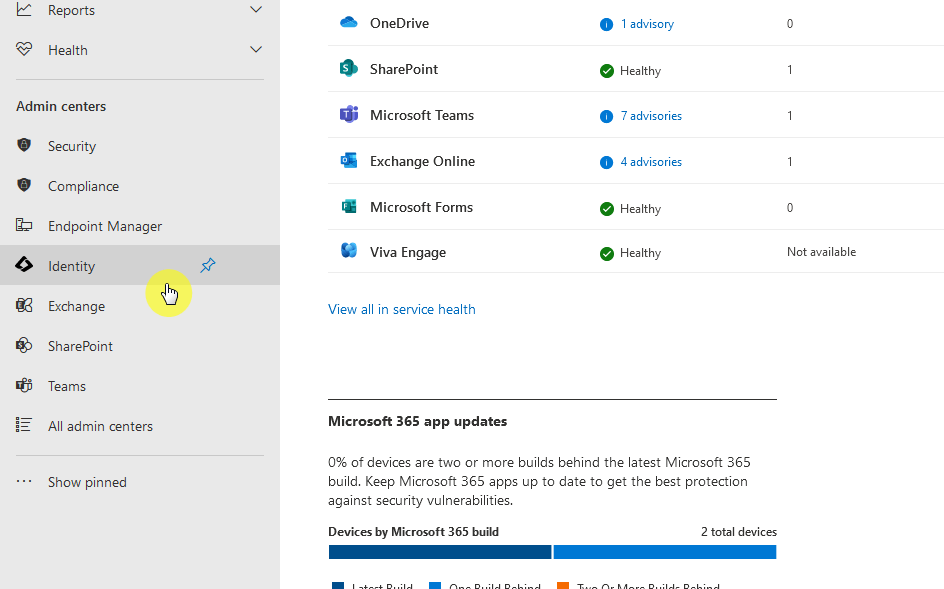
    The Microsoft 365 Admin Center dashboard showing service health statuses for OneDrive, SharePoint, Microsoft Teams, Exchange Online, Microsoft Forms, and Viva Engage. The sidebar highlights the “Identity” section under Admin centers, with a cursor pointing to it. A chart below displays Microsoft 365 app update status and device build information.

    This will now bring you to the Microsoft Entra admin center.

    Step 2: Edit the user’s properties

    For this next step, you need to get to the all users page:

    • Expand “Identity” from the left panel
    • Click the all users option

    Find the name of the user (it can be you) and click on it:
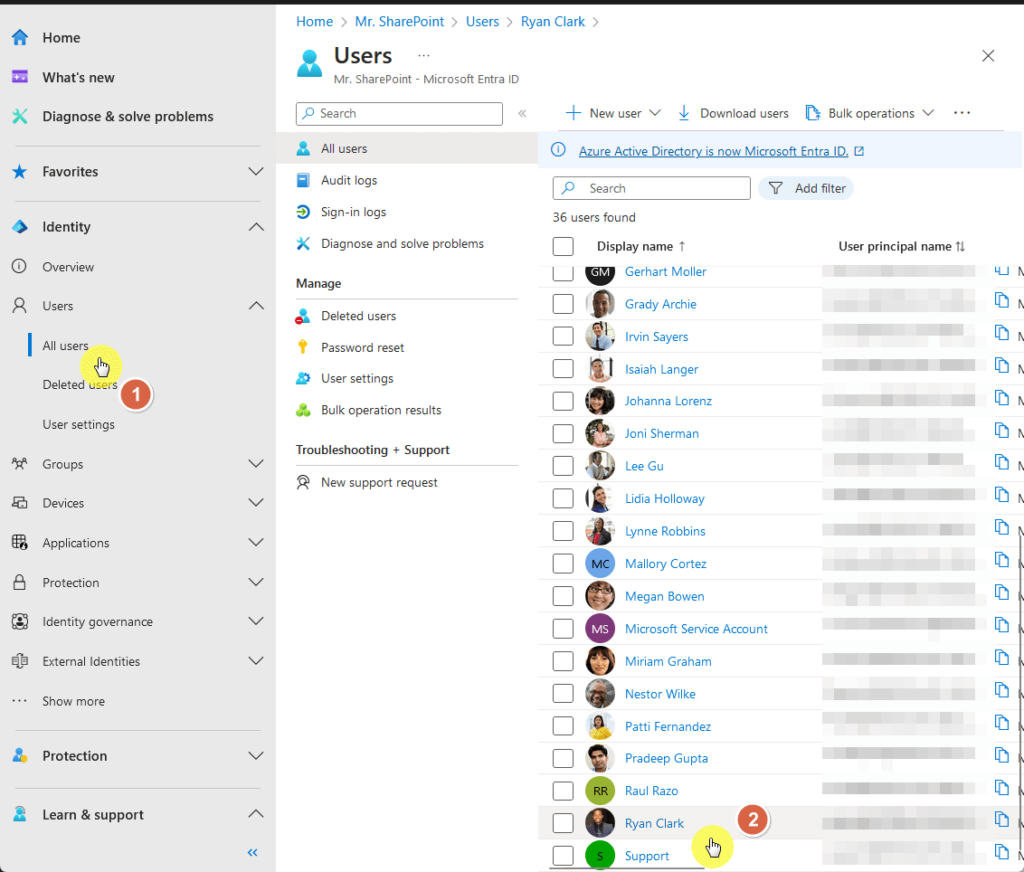
    The Microsoft Entra ID (formerly Azure Active Directory) admin portal displaying the “Users” section. The sidebar highlights “All users” under the Identity category, while the main panel lists multiple user accounts with display names and principal names. The cursor points to Ryan Clark’s profile in the user list.

    That will open the profile information of that user and will land you in the overview tab by default.

    Step 3: Enter the job title

    From here, you need to go to the properties tab:
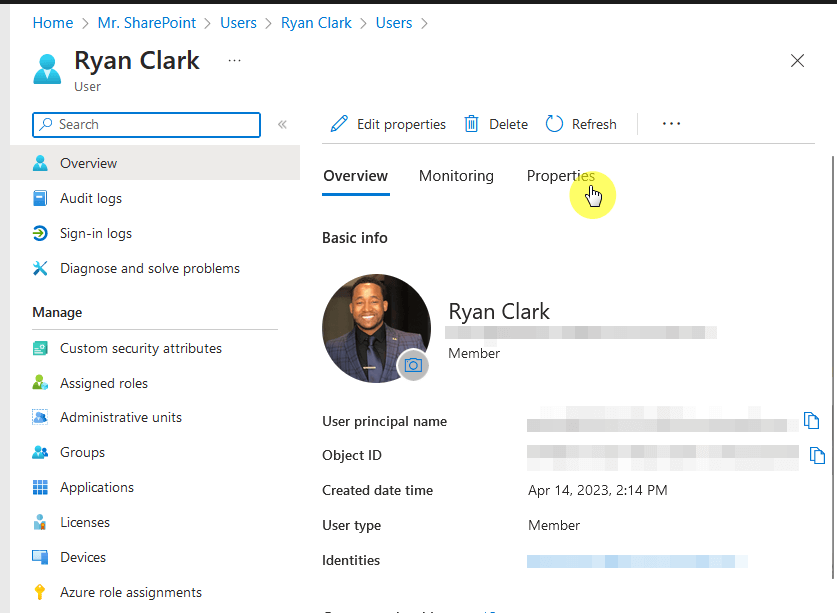
    The Microsoft Entra ID user profile page for Ryan Clark. The screen displays his basic information, including user principal name, object ID, and account creation date. The sidebar lists management options like Assigned roles, Groups, and Licenses. The cursor hovers over the “Properties” tab near the top of the window.

    In this tab, you can see different user information: identity, contact information, job information, etc.

    Here’s what to do:

    • Go to the job information category
    • Click its pencil button to edit the information
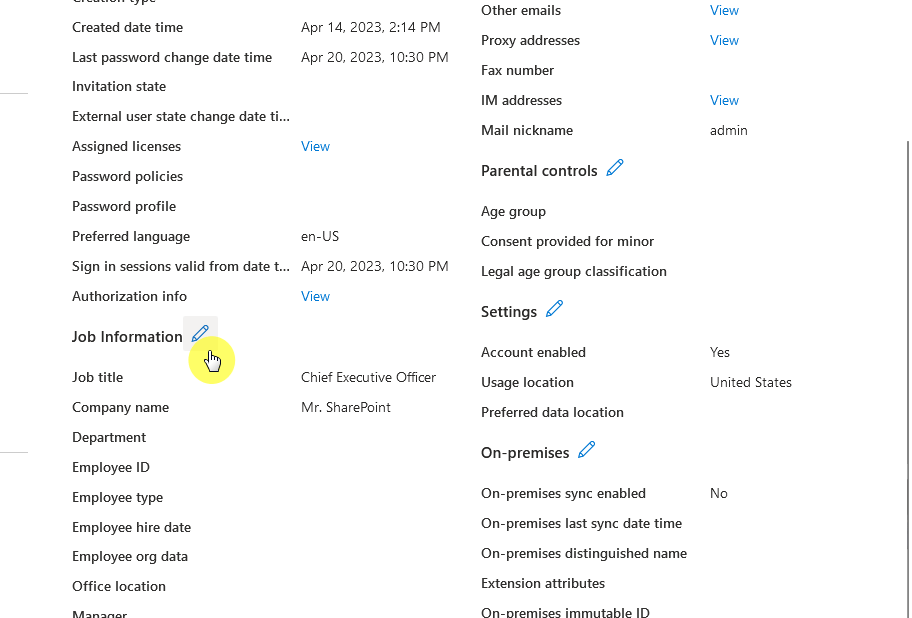
    The Job Information section of a Microsoft Entra ID user profile displaying editable details. The cursor hovers over the pencil icon next to “Job Information.” The user’s job title is listed as Chief Executive Officer, and the company name is Mr. SharePoint. Additional fields like department, employee ID, and office location are visible below.

    This will now bring you to another page where you can freely edit the job information.

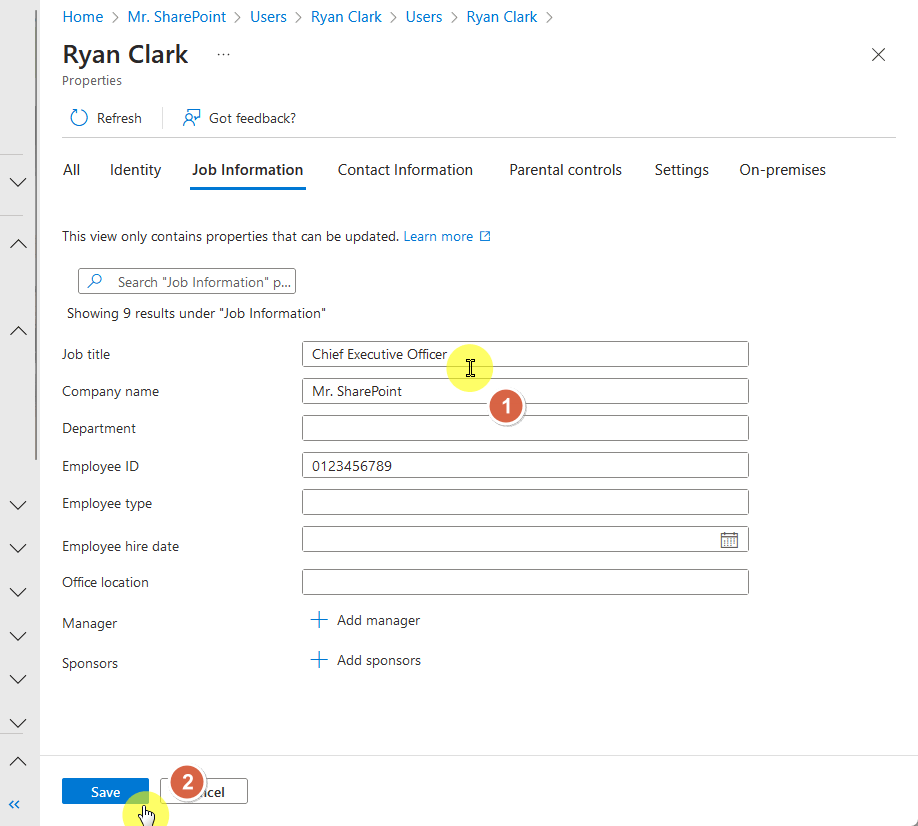
    • Make the necessary changes
    • Click the save button
    The Job Information editing page in Microsoft Entra ID showing Ryan Clark’s details. The job title field is filled in as Chief Executive Officer, and the company name as Mr. SharePoint. The cursor is positioned inside the job title field, and the Save button is highlighted at the bottom left of the screen.

    The changes should then be reflected immediately across Microsoft 365.

    If it doesn’t change the card in Outlook yet, you (or the user) may have to restart Outlook once for it to update.

    Got any questions about changing the job title in the Outlook card? Feel free to leave a comment below.

    For business inquiries and concerns, kindly reach out using the contact form here, and I’ll get back to you asap.


    About Ryan Clark

    A man with short curly hair and a beard is smiling. He is wearing a dark plaid suit jacket, a black shirt, and a dark tie. The background is softly blurred.As the Modern Workplace Architect at Mr. SharePoint, I help companies of all sizes better leverage Modern Workplace and Digital Process Automation investments. I am also a Microsoft Most Valuable Professional (MVP) for SharePoint and Microsoft 365.

    Subscribe
    Notify of
    guest
    1 Comment
    Oldest
    Newest Most Voted

    Link
    Link
    1 year ago

    thank you for the information. this is correct information by 5/18/2025. I was able to update the information after eading.

    Scroll to Top
    1
    0
    Would love your thoughts, please comment.x
    ()
    x