

Last Updated on October 7, 2025
Need to know the owner of a certain site?
In this guide, you will learn three methods of finding out the owner of a SharePoint site and scenarios where you need to do so.
Let’s get started.
Method 1: Check site permissions
This is by far the easiest method you can do if you want to find the owner or owners of a SharePoint site.
SharePoint Online site owners usually have full control permissions, making this method straightforward for identifying them.
Here’s how to check site permissions:
- Click the gear icon in the top right corner of the page
- Select the site permissions option
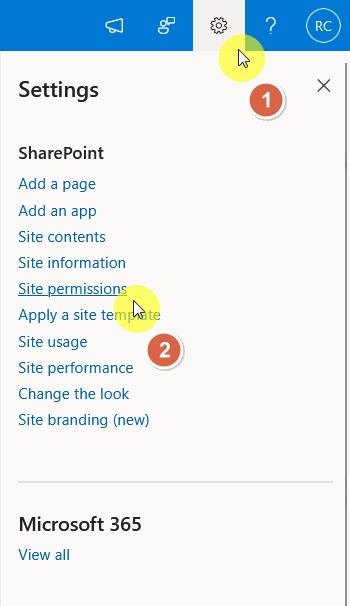
SharePoint sites typically have groups like owners, members, and visitors.
Examine the owners group, as it contains the site owner(s).

The individuals listed in the owners group with full control permissions are the site owners.
If you want to make some changes, there is an advanced permissions settings link at the bottom that you can click.
Sign up for exclusive updates, tips, and strategies
The SharePoint admin center offers a more centralized approach to finding the owner of a SharePoint Online site
This is particularly useful for those with SharePoint administrative privileges, and you’re already in the admin center.
Go to the SharePoint admin first by doing any of the two:
- You can go directly to https://yourtenant-admin.sharepoint.com
- Click app launcher > admin > SharePoint
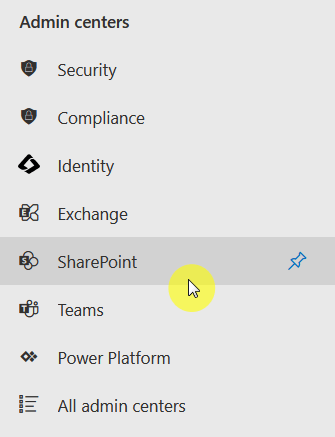
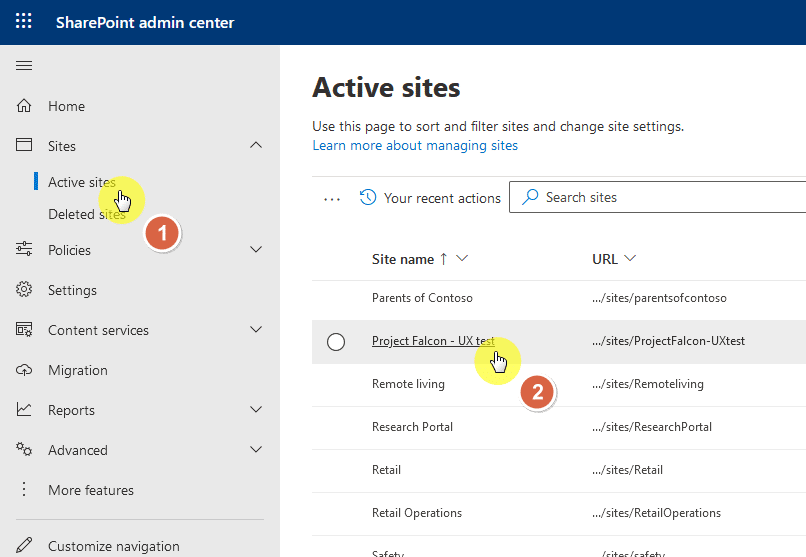
From there, go to the active sites page first.
All you have to do here is:
- Find the target site
- Click the site name
The user interface can sometimes change but currently:
- Go to the membership tab
- Click the site owners section
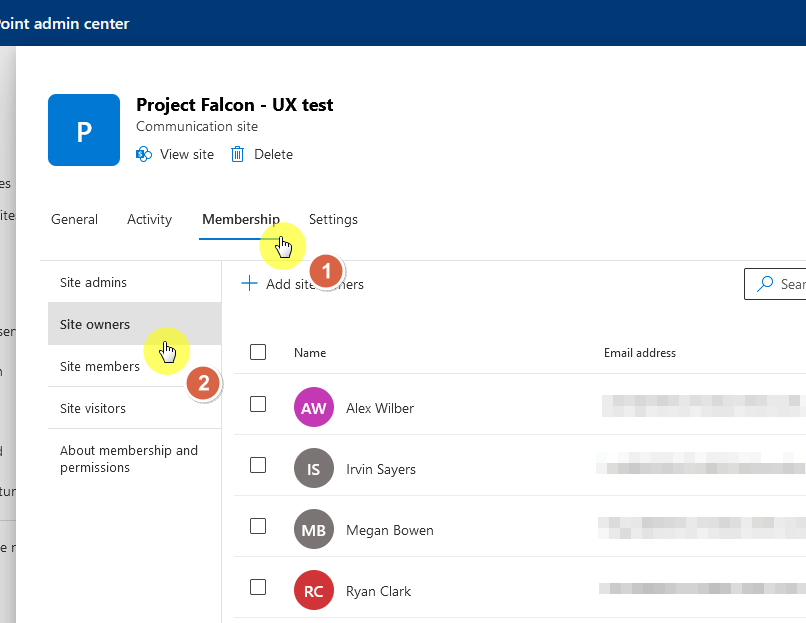
You will see a list of the individual(s) who have ownership of the site collection.
The SharePoint admin center is an effective tool for site owners or those with higher-level administrative access.
It provides a comprehensive view of all sites, making it easier to manage and identify site ownership on a broader scale.
Method 3: Using PowerShell
For users comfortable with scripting and command-line interfaces, PowerShell can be a powerful method to use.
This approach is particularly useful for handling multiple SharePoint Online sites or when you need to automate the process.
To start, use the Connect-SPOService cmdlet to connect to SharePoint Online.
You will need to enter the URL of your SharePoint Online admin center.
For example:
Connect-SPOService -Url https://yourdomain-admin.sharepoint.comOnce connected, you can use the Get-SPOSite cmdlet to retrieve information about a specific site.
For example:
Get-SPOSite -Identity https://yourdomain.sharepoint.com/sites/yoursitename | Select OwnerThis command retrieves the site’s details and specifically selects the owner’s information.
Using PowerShell is efficient for IT professionals and SharePoint administrators who need to manage and audit site ownership.
It offers the advantage of being scriptable, which can save time and effort when working with large numbers of sites.
A SharePoint Online site owner is a user with full control permissions on a SharePoint site.
They have the authority to perform all administrative tasks on the site like:
- Adding or removing users
- Changing site settings
- Managing content
Site owners are typically the individuals or teams who created the site or were assigned ownership by the SharePoint admin.
Scenarios for Finding the Site Owner
There are several scenarios where you might need to find the owner of a SharePoint site:
- Troubleshooting issues: If you’re experiencing issues with a site collection, the site owner is usually the first point of contact.
- Requesting access or permissions: If you need access to a specific SharePoint site or require additional permissions, you must contact the site owner.
- Site management: Site collection administrators may need to know who the site owners are for auditing, governance, or site management purposes.
- Content updates: If you need to update or change content on a SharePoint site, you will need to contact the site owner.
- Site deletion or archiving: If a site collection is no longer needed, you will need to contact the site owner to delete or archive the site.
Knowing how to find the owner of a site is a valuable skill for any SharePoint user.
Whether you’re a site member, a site owner, or a SharePoint admin, this knowledge can help you effectively manage and navigate your SharePoint environment.
Still have questions about finding SharePoint site owners? Don’t hesitate to leave your questions in the comments.
If you require further assistance or if you have any business-related questions, feel free to reach out through my contact page.





























How can I find the owner of the site when the box says I don’t have access to view the owners?
When I do any thing I am told that I am not the owner of site which I Pay Pal has check and I am the owner. How can I remove it from my recorded